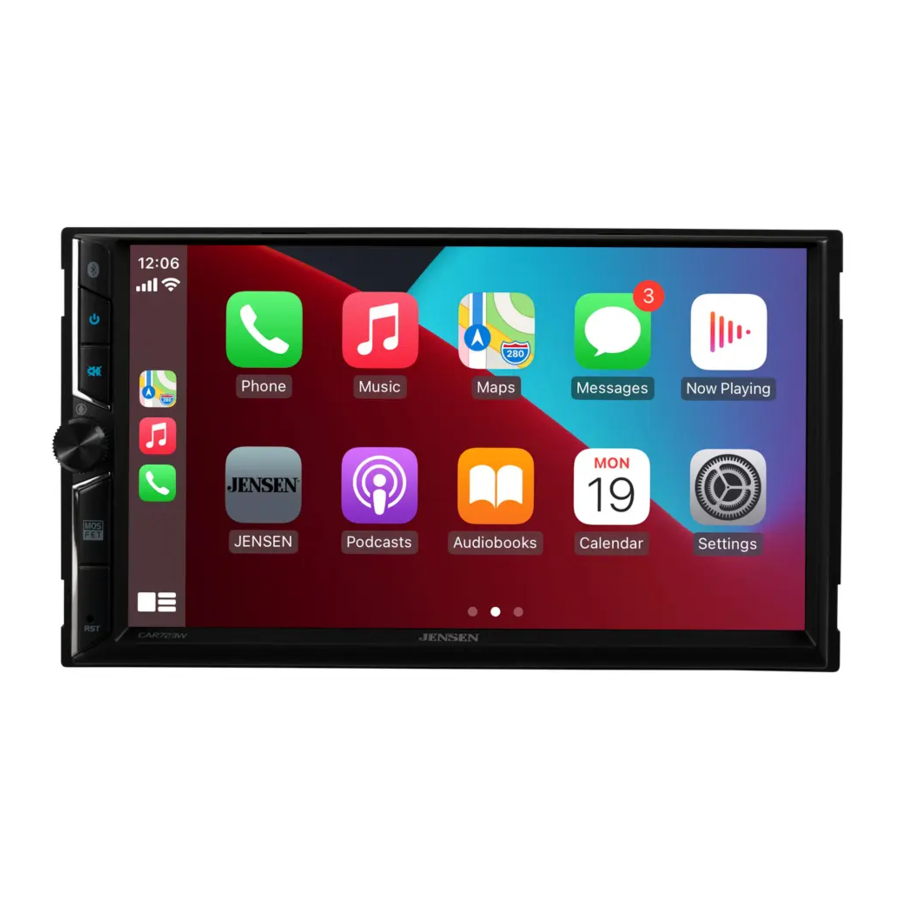
Jensen CAR723W - Media Receiver Manual
- 1 Inputs/Outputs Wiring Diagram
- 2 Preparation
- 3 Control Locations
- 4 General Operation
- 5 Audio Operation
- 6 AM/FM Tuner Operation
- 7 USB Operation
- 8 Media Compatibility
- 9 Bluetooth Operation
- 10 Driving Orientation Settings
- 11 Apple CarPlay Operation
- 12 Android Auto Operation
- 13 Rear RCA Input
- 14 Front and Rear Camera Operation
- 15 Adjusting Front and Rear Camera Screen Image
- 16 SWC Input Operation
- 17 PAC SWI-RC Installation Hints
- 18 Troubleshooting
- 19 Specifications
- 20 Safety Notes
- 21 Limited Three Year Warranty
- 22 References
- 23 Download manual
- 24 In Other Languages
Inputs/Outputs Wiring Diagram
Note: Works for Apple CarPlay and Android Auto only.
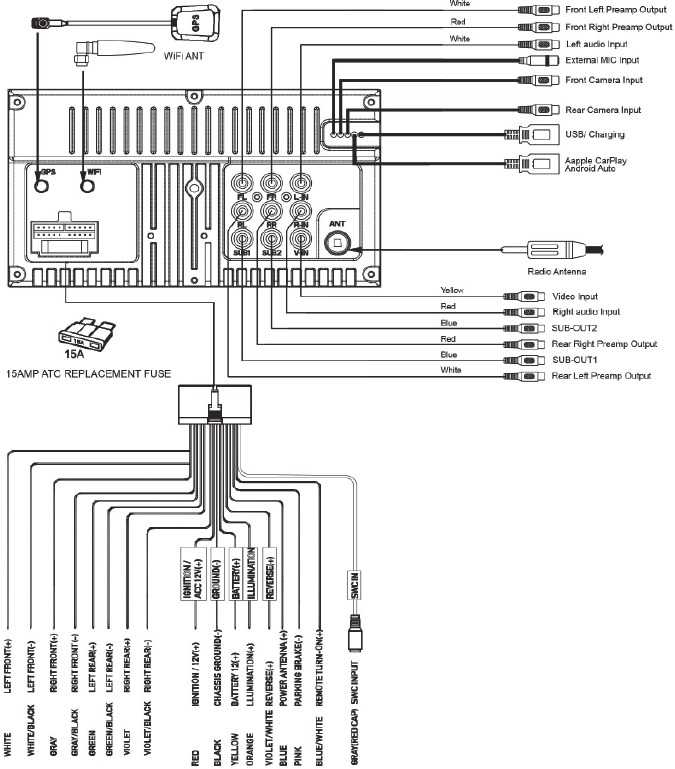
Note:
When replacing a fuse, make sure to use the correct type and amperage. Using an incorrect fuse could cause damage. The unit uses (1) 15 amp ATC mini style fuse located on the power connector.
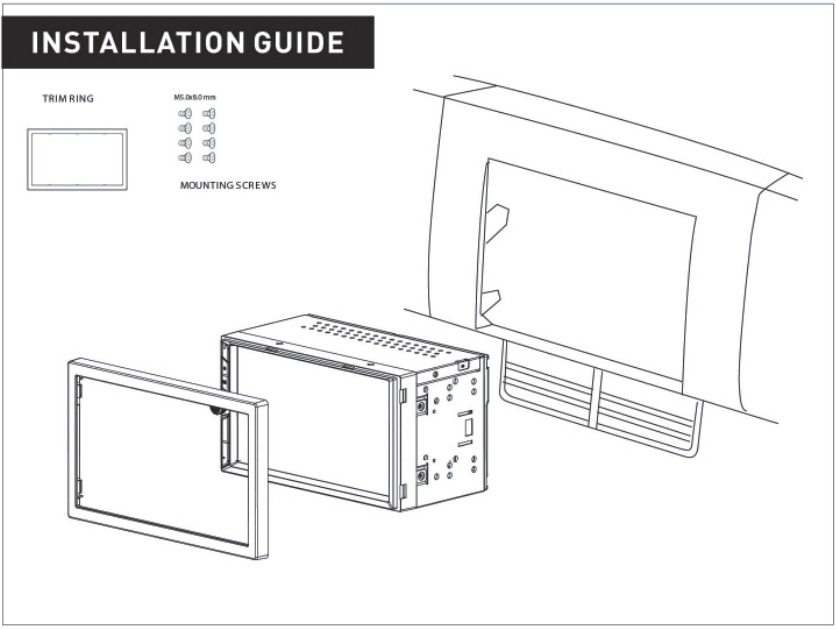
Preparation
Before You Start
Disconnect negative battery terminal. Consult a qualified technician for instructions.
Avoid installing the unit where it would be subject to high temperatures, such as from direct sunlight, or where it would be subject to dust, dirt or excessive vibration.
Control Locations
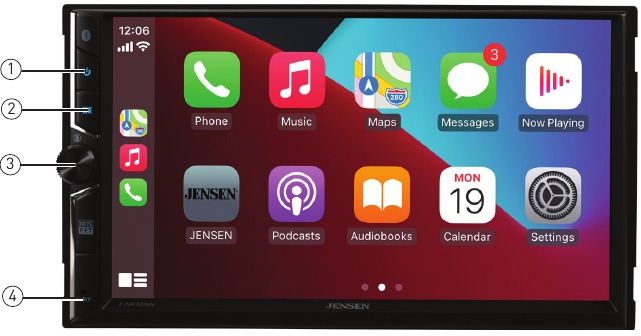
The radio display features the following functions and displays:
- Power
- Mute
- Volume/Voice Activation
- Reset
General Operation
| Power On/Off | Momentarily press  to turn the unit on. Press and hold to turn the unit off. to turn the unit on. Press and hold to turn the unit off. |
| Volume | Rotate the volume knob to increase or decrease the volume level. |
| Mute | Momentarily press MUTE to silence the audio. Momentarily press MUTE again to return to the previously selected volume. Rotating the volume knob while the volume is muted will also cancel the mute function. |
| Mode | Press SOURCE to step through the following modes of operation: Radio/BT Phone/BT Audio/Apple CarPlay/Android Auto/USB/ Camera/EQ/AV/Settings. Note: Modes of operation can also be accessed by selecting the corresponding icon from the main menu. |
| Main Menu | 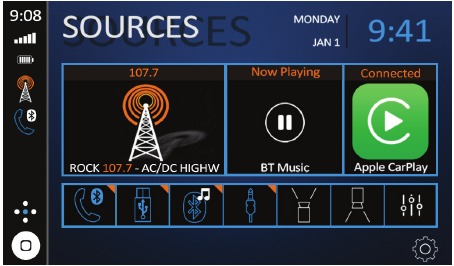 Press the  icon at the top left corner of the screen to display the OSD main menu. Press the Radio/BT Phone/BT Audio/Apple CarPlay/Android Auto/USB/Camera/EQ/AV/Settings icons to select the desired source. icon at the top left corner of the screen to display the OSD main menu. Press the Radio/BT Phone/BT Audio/Apple CarPlay/Android Auto/USB/Camera/EQ/AV/Settings icons to select the desired source. |
| A/V In | Connect external devices to the rear RCA Type A/V Input. |
| USB | Connect a USB flash drive to the rear USB Input. |
| Reset | To resolve abnormal operation or if the unit is inoperable, press the RESET button located on the front panel as shown in the Control Locations section. The unit will reset the main processor to the default settings. Note: Use the tip of a pen to access the reset button and restore the factory default software settings. |
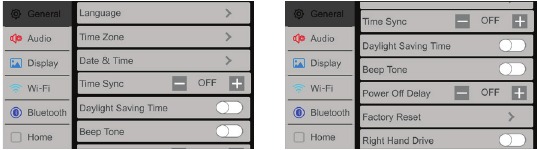
From the Main Menu screen, select Setup to access the Settings menu and select from eight categories represented by the icons on the left of the screen: General, Audio, Display, Wifi, Bluetooth, Camera, Region and Version. Select the category, and adjust any of the available options using the touch screen.
General:
- Language: Select between English and Spanish.
- Time Zone: Select desired time zone.
- Date & Time: Adjust the day, month, year, hour, minute and format.
- Daylight Savings Time: Turn On or Off.
- Beep Tone: Turn On or Off.
- Power Off Delay: Select 1 second, 2 second, 3 seconds or Off.
- Factory Default: Reset the unit to factory default settings.
- Right Hand Drive: Turn On or Off. When the item is off, it is left hand drive mode, and when the item is On, it is right hand drive mode. Default setting is Off (left hand drive mode).
Audio:
- Balance/Fader - Select to adjust balance/fader settings.
- Subwoofer - Turn the Subwoofer Control On/Off.
- Subwoofer Frequency- Select subwoofer frequency.
- Subwoofer Level - Select subwoofer 0-14 (7 is default).
- EQ - Select to adjust EQ settings.
- Loudness - Select to turn Loudness feature On or Off.
- Default Volume - Select adjust default volume settings.
- Source Level - Select to adjust source level settings.
Display:
- Illumination Control - Select to turn Illumination Control On or Off.
- Gray Level & Brightness - Adjust Gray Level & Brightness settings for Day and Night.
- LED - Select a colour for the LED button lights.
- LED Animation - Select to turn LED Animation On or Off.
- Wallpaper - Select from three wallpaper options.
WiFi: Turn WiFi On/Off, Reset Password or view Device List.
Bluetooth: Turn Bluetooth, Auto Connect and Auto Answer On/Off, view Device Name and clear Phone Book Names and Numbers.
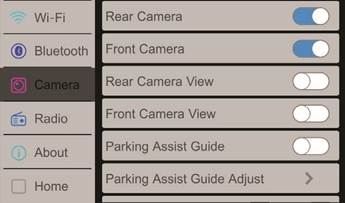
Camera: Turn Front and Rear Camera On/Off, reverse Camera Views, turn Parking Assistance On/Off, adjust Parking Assistance settings and adjust the Rear View Delay.
Radio: Adjust the Region, and turn TA and AF On/Off.
Version: View version information.
Audio Operation
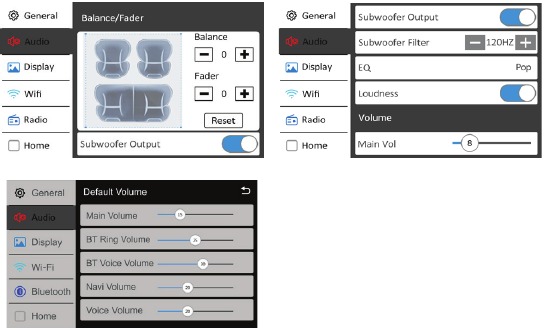
Audio Adjustment Menus
From the Settings screen, press the Equalizer icon (see #3 in On Screen Controls) to adjust Equalizer, (10-Band Tone Control and 7 Presets EQ Settings), Surround Sound and Fader / Balance controls,
AM/FM Tuner Operation
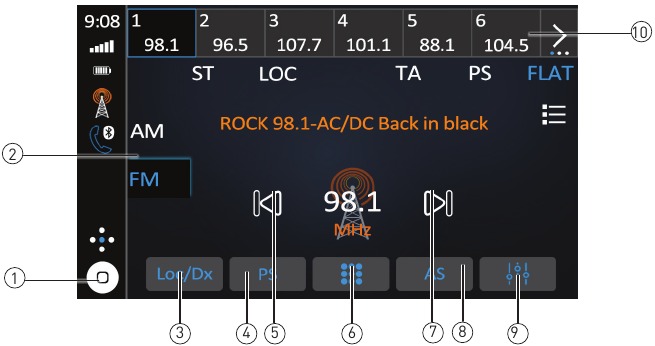
| Radio Operation | From the main menu, touch Radio Icon to select AM/FM tuner mode. |
| Press to return to Main Menu screen. |
| Press to step through three FM and two AM bands. |
| Press to toggle between local or distance tuning. |
| Press to scan through all tunable presets in the current band and play them for 3 seconds each. |
| Press to automatically tune to a lower frequency. |
| Press to display the keypad. |
| Press to automatically tune to a higher frequency. |
| Press to automatically search and store the six strongest stations in the current band. A total of 18 FM and 12 AM stations can be stored. |
| Press to access and adjust audio settings. |
| To store a station as a preset in the current band, tune to the desired station, then press and hold the desired preset number to store. Press any preset button to recall and begin playback of that station. (Hold this button down for a few seconds and it will switch between AS and PS) |
USB Operation
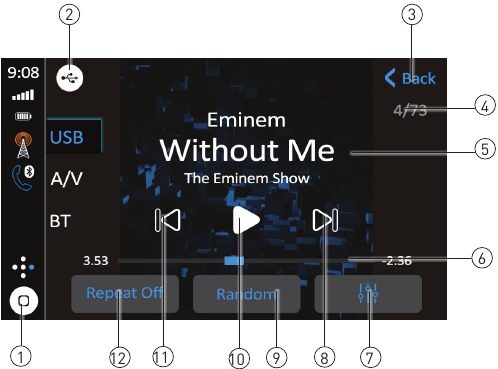
| USB | From the main menu, touch the USB icon on the main screen. |
| Press to return to Main Menu screen. |
| Displays source currently playing. |
| Press to go back to the previous screen. |
| Displays the current/total file numbers. |
| Displays the available information about the current file. |
| Displays the time elapsed/remaining on the current track. |
| Press to access and adjust audio settings. |
| Press to skip ahead to the next song |
| Press to shuffle all tacks in the current folder and again to shuffle all tracks. Press again to exit random mode. |
| Press to pause or resume playback. |
| Press to return to the beginning of the current track. |
| Press to repeat current track and adjust to repeat all tracks in the current folder. Press again to exit repeat mode. |
Media Compatibility
| File Type | MP3 | ||
| File System | FAT | FAT 12 | X |
| FAT 16/FAT 32 |  | ||
| File Extension | .mp3/.MP3/.Mp3/.mP3/.flac/ogg | | |
| .rmp/.m4a | X | ||
| MPEG Format | MPEG 1 | | |
| MPEG 2 | | ||
| MPEG 2.5 | | ||
| Sampling Frequency | MPEG 1 | 32/44.1/48kHz | |
| MPEG 2 | 12/16/22.05/24kHz | ||
| MPEG 2.5 | 8/11.025/12kHz | ||
| Bitrate | MPEG 1 | 32 ~ 320kbps | |
| MPEG 2 | 8 ~ 160kbps | ||
| MPEG 2.5 | 8 ~ 160kbps | ||
| Other Information | Directory Depth | Unlimited | |
| File Name Length | 32 bytes | ||
| Total File Number | 2000 files | ||
| Total Folder Number | 200 folders | ||
| File Number via Folder | 2000 files | ||
| MP3 ID3 TAG | ver.1.x | | |
| ver.2.x | | ||
| Title, Artist, Album | | ||
Notes:
- Due to ongoing technological advancement, some USB flash drives may be incompatible with this unit.
| Media Compatibility | The following types of files are not compatible:
|
| Playback Order | MP3 playback sequence begins in the root folder of the USB device. Any empty folders or folders that do not include MP3 files are skipped. |
| Compatible Recording Formats | ISO9660 standards:
|
| Notes | Some files may not play or be displayed correctly, depending on sampling rates and bit rates. For best results, use the following settings when ripping MP3 files: |
Bluetooth Operation
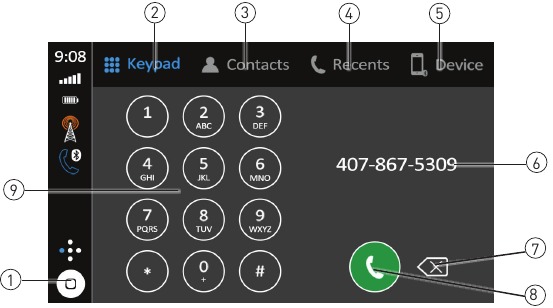
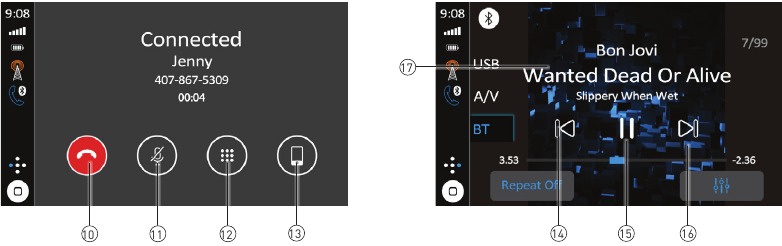
| Before using Bluetooth | Before you can use a Bluetooth device to make hands-free calls or stream audio, it must be authenticated. This is also referred to as "pairing" a device. |
| Pairing a New Device | The unit broadcasts the pairing signal constantly when no devices are currently connected. Complete the pairing sequence from your Bluetooth device. The device name is "CAR723W". The unit can be in any mode of operation when pairing is performed. On certain phones, pairing may need to be done more than once. |
| Connect | The head unit will automatically connect to the last connected device when the connect feature is set to Auto connect On. If the connect feature is set to Auto Connect Off, the head unit will not automatically connect to any device. |
| Bluetooth Phone | From the main menu, touch the Bluetooth on the screen. Bluetooth icon will appear anytime a Bluetooth device is connected. |
| Press to return to Main Menu screen. |
| Press to display the keypad. |
| Press to display contact list. |
| Press to display the recent call list. |
| Press to display the device list. |
| Displays the phone number as it's dialled. |
| Press to backspace when dialling a phone number. |
| Press to connect a call. |
| Use the Phone Keypad to enter a phone number. |
| Press to end a call in progress or reject an incoming call. |
| Press to turn the Microphone voice On or Off. |
| Press to enter a phone number. |
| Press to transfer audio between the unit and mobile phone. |
| Press  icon to return to the beginning of the current track. icon to return to the beginning of the current track. |
| Press  icon to pause or resume playback. icon to pause or resume playback. |
| Touch  icon to skip ahead to the next song. icon to skip ahead to the next song. |
| Press to transfer audio between the unit and mobile phone. |
Driving Orientation Settings
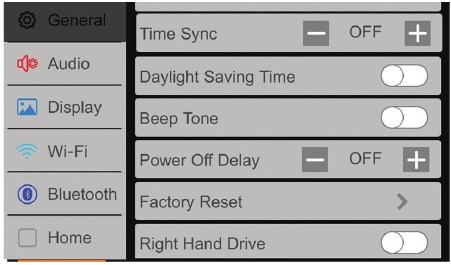
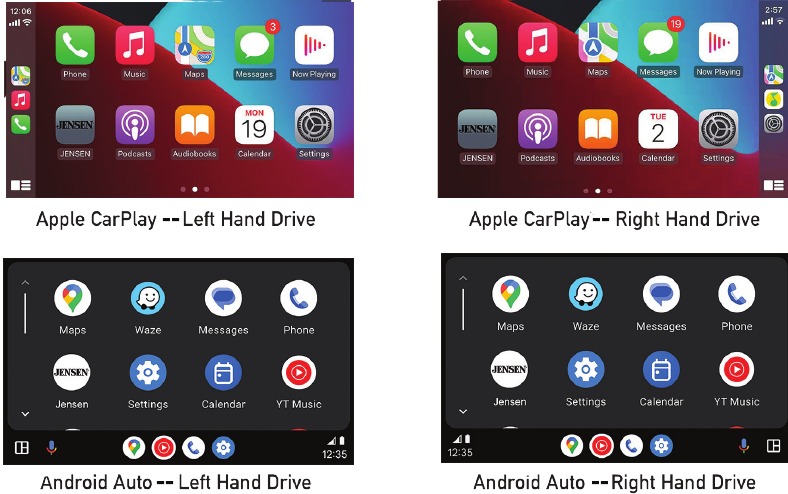
To enhance the driving experience, the CAR723W allows the user to configure Apple CarPlay and Android Auto for either Left Hand Drive (LHD) or Right Hand Drive (RHD) vehicles.
To select desired configuration, select either LHD or RHD from the Settings menu.
Note: If you change the setting for Right Hand Drive mode or Left Hand Drive mode while the phone is connected to the receiver, disconnect the phone from the receiver and re-connect it again.
The resulting configuration options are shown below:
Apple CarPlay Operation
Apple CarPlay is a smart interface for iPhone, allowing you to voice-control (via Siri) music, navigation, phone and messaging apps - significantly reducing driver distraction.
 | Phone - Use Siri to make calls, return missed calls, listen to voicemail messages, and view the caller ID on the receiver's screen. |
 | Messages - Ask Siri to send, read, and reply to text messages. This hands free operation minimises distraction and allows you to keep hands on the wheel and eyes on the road. |
 | Music - Access music by artist, song, playlist, and more through the receiver's touchscreen or via Siri. The receiver will mirror the iPhone screen with artist and track information. |
 | Maps - Use Siri to request turn-by-turn directions – search by address or points of interest. Apple Maps will be mirrored on the screen, including traffic information and estimated time to destination. |
Compatible Devices
Made for iPhone models:
iPhone 13 mini, iPhone 13, iPhone 13 Pro, iPhone 13 Pro Max, iPhone 12 mini, iPhone 12, iPhone 12 Pro, iPhone 12 Pro Max, iPhone 11 Plus, iPhone 11, iPhone XS Max, iPhone XS, iPhone XR, iPhone X, iPhone 8, iPhone 8 Plus, iPhone 7, iPhone 7 Plus, iPhone 6, iPhone 6S
Starting Apple CarPlay
Wireless CarPlay Connection Description.
- Enter the main UI and click BT Phone to enter the Bluetooth interface;
- Click Refresh to search nearby Bluetooth, click Pair to match Bluetooth;
- Open the iPhone WLAN to connect to the car, after the connection is successful, the Apple CarPlay icon in the device list will appear, and the Apple CarPlay connection is successful;
- Enter the Apple CarPlay interface, click the functions of Phone/Music/Map/Information/etc.
Note: For safety reasons, Apple CarPlay features are limited while driving and will vary with each Apple CarPlay-enabled app. Available functions are determined by each individual app provider. For more information, visit www.apple.com/ios/carplay.
Note: Certain iPhone functions may be illegal while driving in your location. Be sure to familiarise yourself with local and state laws regarding mobile devices. When in doubt, stop and park your vehicle before using any devices.
When the Apple CarPlay menu is displayed, the home button in the lower left corner work just like the home button on your iPhone.
 Press and hold it to summon Siri and begin your voice commands.
At any time during Apple CarPlay operation, you can press this button momentarily to return to the main Apple CarPlay menu screen.
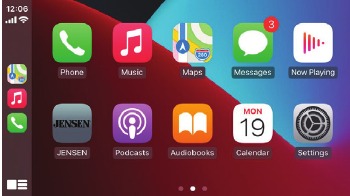
Press any Application button on the main Apple CarPlay menu to access that operation directly. The toolbar on the left side of the screen displays the time, signal strength and shortcuts to the most popular applications - Phone, Music and Navigation - so they can be accessed quickly and easily without returning to the main menu.
Controlling Apple CarPlay
The following basic controls will operate many standard Apple CarPlay features.
 | Touch - Briefly press the desired option. |
 | Swipe - Briefly swipe in the desired direction. |
 | Drag - Press, hold and drag to the desired location. |
Exiting Apple CarPlay
Disconnecting your iPhone will automatically exit Apple CarPlay mode. To exit Apple CarPlay mode while your phone is still connected, press the Power/Volume knob momentarily, and the unit's main menu will be displayed.
Android Auto Operation
Android Auto brings the most useful apps to your phone screen or your compatible car display, in a format that makes it easy for you to keep your main focus on driving. You can control things like navigation and maps, calls and text messages, and music.
Google Assistant
With your Google Assistant on Android Auto, you can keep your eyes on the road and your hands on the wheel while using your voice to help you with your day. Simply say, "Ok Google," or in compatible cars, long press the voice control button on your steering wheel.
Navigation
Get real-time traffic alerts to avoid hazards, speed traps, and find the fastest route. Or take a break and find a bite along the way.
Calls & Messages
Your Google Assistant lets you stay connected while you're driving. Your Assistant can help you call phone numbers from your contacts, chat with your favourite apps, read your messages aloud and text back, keeping your hands on the wheel.
Compatible Devices
Android Auto requires the Android Auto app from Google Play installed on an Android smartphone running Android Lollipop 5.0 or higher.

Certain uses of the smartphone may not be legal while driving in your jurisdiction, so you must be aware of and obey any such restrictions. If in doubt as to a particular function, only perform it while the car is parked. No feature should be used unless it is safe to do so under the driving conditions you are experiencing.
Starting Android Auto
Wireless Android Auto Connection Descriotion.
- Enter the main UI and click BT Phone to enter the Bluetooth interface;
- Click Refresh to search nearby Bluetooth, You'd better turn on your Phone's WLAN before you connect to Bluetooth, otherwise the connection will fail;
- Click Pair to match Bluetooth, then there will be a notification to select settings and select your mobile Phone, and the Android Auto connection is successful;
- Enter the Android Auto interface, click the functions of Phone/ Music/Map/ Information/etc.
Note: When the device for Android Auto is connected to this unit, the device is also connected via Bluetooth at the same time. If five devices are already paired, the message confirming whether to delete the registered device is displayed. If you want to delete the device, touch [Agree]. If you want to delete other device, touch [BT Settings] and delete the devices manually.
Note: If Android Auto is turned on during a call on a cellular phone other than the Android Auto compatible device, the Bluetooth connection will switch to the Android Auto compatible device after the call.
Using Android Auto
The Android Auto home screen displays personalized information, like time to your destination, reminders, recent calls incoming messages, the song you're listening to, and Google Now cards.
When the Android Auto menu is displayed, you can say "OK Google" or select the microphone in the upper right corner to talk to Google.
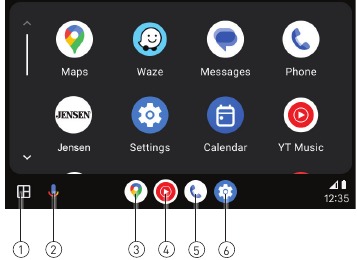
- Recent Apps
- Google Assistant
- Google Maps
- YouTube
- Phone
- Settings
Exiting Android Auto
To exit Android Auto, press the Exit button. Disconnecting your Android phone will automatically exit Android Auto mode.
Rear RCA Input
A/V IN Connect an optional audio/video source into the RCA (rear) input.
Adjust volume on the external audio source as needed (if connected to the headphone output of the device).
Front and Rear Camera Operation
(Optional)
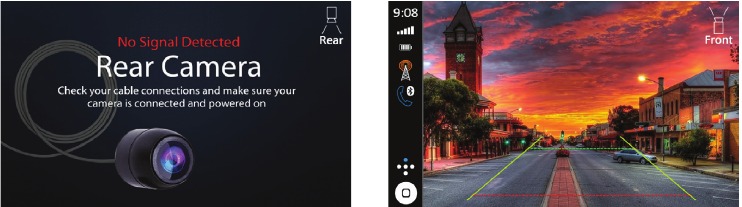
| Using the Cameras | Connect an optional camera to the front or rear Camera Input. Refer to the wiring diagram for details. |
| Auto Selection | The unit will automatically select camera mode when connected to the reverse lamp circuitry. Touch the CAMERA icon on the Main Menu (when enabled) to select camera mode. Touch the top left area of the screen to return to the Main Menu to turn this feature off. Note: The manual mode is for dedicated cameras that are connected to the 12VDC+ ignition wire and are always on while driving, it is not meant for cameras that are connected to the vehicle's reverse light. |
Adjusting Front and Rear Camera Screen Image
If your front or rear cameras appear to have a reversed image on the radio's display, go into the Camera section in the Settings menu to reverse the image of the camera. To do this, toggle the "Rear Camera View Reverse" or "Front Camera View Reverse" function to correct the viewing angle of the camera(s).
SWC Input Operation
The built-in SWC Interface is compatible with PAC steering wheel control modules.
The PAC SWI-RC is recommended. A third-party adapter must be used in order for the CAR723W to be compatible with any steering wheel controls. The following controls are available for most vehicles.
|
|
|
|
|
|
| |
|
|
|
Note: Not all OE steering wheel functions may be supported by the CAR723W.
PAC SWI-RC Installation Hints
- Set "Radio Select Switch". Set the SWI-RC to position 7 - "Pioneer/Other/Sony".
- To program, use the Pioneer/Sony/Other radio function mapping order for Jensen units.
- When programming the SWI-RC, if a function is not supported (or not desired), then the function MUST be skipped as per the PAC SWI-RC instructions.
- The SWC function MUST be programmed in the correct order per the PAC SWI-RC radio function mapping order instructions.
| Function Order | Function Mapping | SWI-RC (3.3VDC Reference) | |
| Center Pin (Ring) Voltage (Function Select) | Tip Pin Voltage | ||
| 1 | Preset Up/Down | L 0.0V | 1.54/1.81 |
| 2 | Mode | H 3.3V | 0.6 |
| 3 | Seek + / Track + | H 3.3v | 1.54 |
| 4 | Seek - / Track - | H 3.3v | 1.81 |
| 5 | Mute | H 3.3v | 1.01 |
| 6 | Volume + | H 3.3v | 2.07 |
| 7 | Volume - | H 3.3v | 2.32 |
| 8 | Band | H 3.3v | 2.73 |
| 9 | BT Talk | L 0.0V | 0.60 |
| 10 | BT End | L 0.0V | 1.01 |
Troubleshooting
| General | ||
| Problem | Cause | Action |
Unit will not turn on/no power | Yellow wire not connected or incorrect voltage Red wire not connected or incorrect voltage | Check connections for proper voltage (11~16VDC) |
| Black wire not connected | Check connection to ground | |
| Fuse blown | Replace fuse(s) | |
Unit has power but no sound | Speaker wires not connected | Check connections at speakers |
| One or more speaker wires touching each other or touching chassis ground | Insulate all bare speaker wires from each other and chassis ground | |
Unit blows fuse | Yellow or red wire touching chassis ground | Check for pinched wire |
| Speaker wires touching chassis ground | Check for pinched wire | |
| Incorrect fuse rating | Use fuses with correct rating | |
Unit has audio but no video | Parking brake safety circuit not connected Parking brake not applied | Check connections at parking brake Apply parking brake |
IR remote does not work | Dead battery | Replace battery |
Register Your Product
Register your product online at www.jensenmobile.com.
Specifications
| FM Tuner | Tuning range: 87.5MHz-107.9MHz Usable sensitivity: 10dBf 50dB quieting sensitivity: 20dBf Stereo separation @ 1kHz: 38dB Frequency response: 30Hz-13kHz |
| AM Tuner | Tuning range: 530kHz-1710kHz Usable sensitivity: 24uV Frequency response: 30Hz-2.3kHz |
| Rear USB | Compatibility: High Speed USB 2.0 USB Class: Mass storage class |
| Monitor | Panel size: 7" diagonal measurement View angle (up/down/left/right): 50/70/70/70 Resolution: 1024 (H) x 600 (V) Brightness (cd/m 2 ): 500 Contrast ratio: 500:1 Pixels: 1,152,000 |
| General | Speaker output impedance: 4 ohms Line output voltage: 4 volt RMS Line output impedance: 200 ohms Chassis dimensions: 7" X 4" X 4" (W x D x H) |
Design and specifications subject to change without notice.
CEA-2006 Power Standard Specifications
(reference: 14.4VDC +/- 0.2V, 20Hz~20kHz)
Power Output: 16 Watts RMS x 4 channels at 4 ohms and < 1% THD+N
Signal to Noise Ratio: 80dBA (reference: 1 watt into 4 ohms)
Safety Notes
This is a safety feature to prevent driver distraction. In-dash video functions will only operate when vehicle is in Park and the parking brake is engaged. It is illegal in most jurisdictions for the driver to view video while the vehicle is in motion.
The SAFETY NOTICE is reminder to drive responsibly and safely while using your mobile phone device, or any apps that are compatible with this unit.
It is highly recommended that your Jensen unit is installed by a professional installer or an authorised dealer.
This product is only for use in vehicles with 12VDC negative ground only.
To prevent damage or injury:
- Make sure to ground the unit securely to the vehicle chassis ground.
- Do not remove the top or bottom covers of the unit.
- Do not install the unit in a spot exposed to direct sunlight, excessive heat or the possibility of water splashing.
- Do not subject the unit to excessive shock.
- When replacing a fuse, only use a new one with the correct rating. Using a fuse with the wrong rating may cause the unit to malfunction.
- To prevent short circuits when replacing a fuse, disconnect the wiring harness first.
- Use only the provided hardware and wire harness.
- If you experience problems during installation, consult your nearest Jensen dealer.
- If the unit malfunctions, reset the unit as described. If the problem still persists, consult your nearest Jenses dealer or call technical assistance @ 1-888-921-4088.
- To clean the monitor, wipe only with a dry silicone cloth or other soft cloth. Do not use a stiff cloth or solvents such as paint thinner and alcohol, as these can scratch the surface of the panel and/or remove the printing.
- When the temperature of the unit falls (as in winter), the liquid crystal inside the screen will become darker than usual. Normal brightness will return after the unit is in use for a while.
- When extending the ignition, battery or ground wiring, make sure to use automotive-grade wiring with an a minimum AWG 16 or more to prevent voltage drops.
- Do not touch the liquid crystal fluid if the LCD is damaged or broken. The liquid crystal fluid may be hazardous to your health or fatal. If the liquid crystal fluid from the LCD contacts your body or clothing, wash it off with soap immediately.
Upon installation of this monitor/media player ("unit") into a vehicle, the driver of the vehicle must not operate this unit by watching videos or playing video games while driving. Failure to follow this instruction could lead to driver distraction which could result in serious injury or death to the vehicle's occupants or persons outside the vehicle and/or property damage.
Several states prohibit the installation of monitors/media players if the screen is visible from the driver's seat. If you reside in a jurisdiction which has enacted such a law, this unit must not be installed so that the screen is visible from the driver's seat. When installing this unit in the front console/dashboard, the unit must be positioned so that it is facing the front passenger seat only. Failure to follow this instruction could lead to driver distraction which could result in serious injury or death to the vehicle's occupants or persons outside the vehicle and/or property damage.
This unit is designed so that it may be operated only when the vehicle is in "Park" and the parking brake is fully engaged. To this end, this unit includes a parking brake lock-out feature which prohibits the unit from operating if the vehicle is not in "Park" and/or the parking brake is not fully engaged. When installing this unit, the installer must connect the parking brake detect wire to the parking brake mechanism in order to make the parking brake lock-out feature operable. DO NOT simply ground the parking brake detect wire to a metal portion of the vehicle. Failure to properly install the parking brake lock-out feature could lead to driver distraction which could result in serious injury or death to the driver's occupants or persons outside the vehicle and/or property damage.
Once the parking brake lock-out feature is installed, the owner/user must not attempt to disrupt/neutralize the parking brake lock-out feature by
- partially engaging the parking brake and/or
- purchasing/using any device or unit designed to send necessary brake signals to the unit.
Failure to follow these instructions could lead to driver distraction which could result in serious injury or death to the driver's occupants or persons outside the vehicle and/or property damage.
When operating this unit, keep the unit's volume level low enough so that the vehicle's occupants can hear traffic-related sounds such as police and emergency vehicles. Failure to follow this instruction could lead to driver distraction which could result in serious injury or death to the vehicle's occupants or persons outside the vehicle and/or property damage.
Limited Three Year Warranty
For more information and for the location of the nearest authorised service center please contact us by one of the following methods:
- Call us toll-free at (888) 921-4088
(Monday-Friday, 9:00 a.m. to 5:00 p.m. EST) - E-mail us at cs@jensenmobile.com
Customer Support
1-888-921-4088
(Monday-Friday, 9AM-5PM EST)
Visit https://www.jensenmobile.com
References


Download manual
Here you can download full pdf version of manual, it may contain additional safety instructions, warranty information, FCC rules, etc.
Download Jensen CAR723W - Media Receiver Manual


