How to Enable RAM Plus on Samsung Galaxy A56
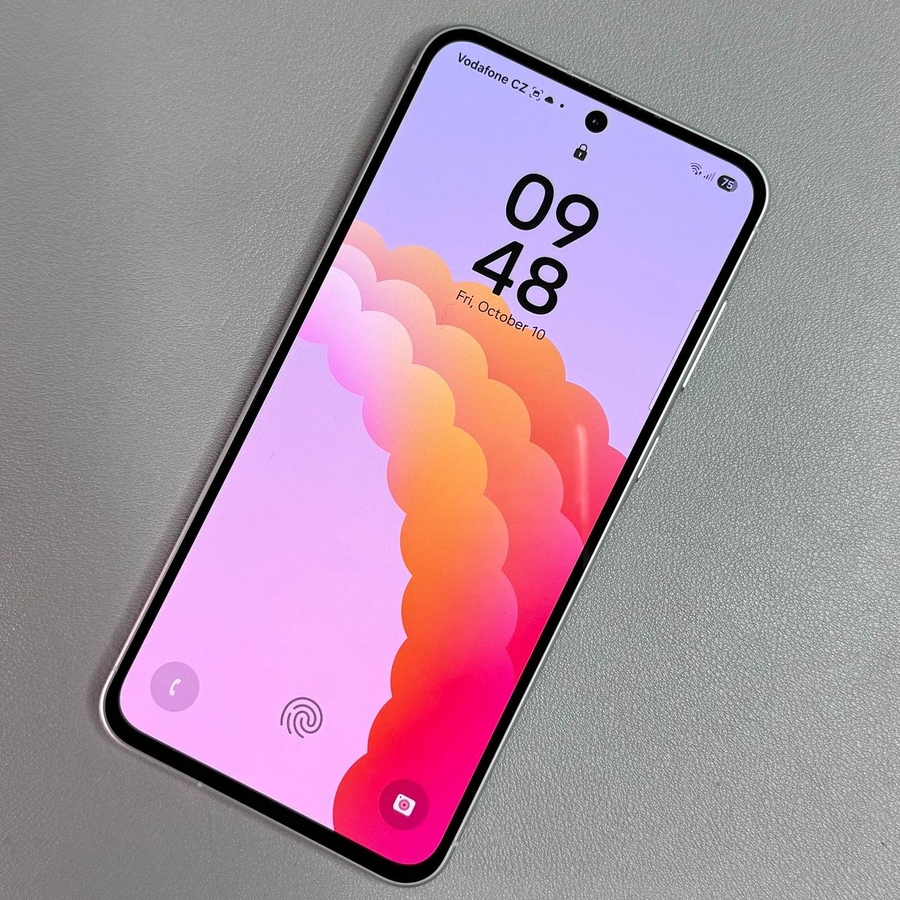
If you're looking to boost the performance of your Samsung Galaxy A56, the RAM Plus feature is a helpful solution. This feature allows you to use part of your device's storage as virtual RAM, which can enhance multitasking capabilities. Below, you'll find a simple guide on how to enable RAM Plus on your Galaxy A56, ensuring your device runs more smoothly and efficiently.
Step 1: Access Device Settings
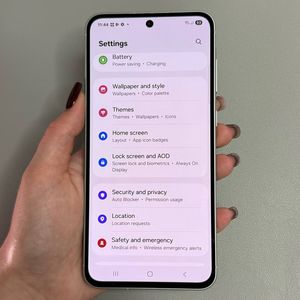
To begin the process of enabling RAM Plus, you need to unlock your Samsung Galaxy A56 and access the Settings app. This app is represented by a gear-shaped icon and can typically be found on your home screen, or within the app drawer where all apps are listed alphabetically. Once you find it, tap on it to open the app.

Step 2: Navigate to Device Care
Once you're in the Settings menu, scroll down and look for the Device Care option. This function helps you optimise and manage various aspects of your phone's performance. Tap on it to proceed.

Step 3: Select Memory
In the Device Care section, you'll find several options such as Battery, Storage, and Memory. Tap on the Memory option to access the settings where you can manage and optimise your device's memory usage.

Step 4: Enable RAM Plus
Scroll down the Memory settings page until you find the RAM Plus option. To activate it, tap on the toggle switch next to it. This enables the feature, allowing you to proceed with selecting the virtual RAM size.

Step 5: Choose Virtual RAM Size
With RAM Plus enabled, you can now select the amount of storage to use as virtual RAM. Depending on your device's available storage, you can choose between 2GB, 4GB, 6GB, and 8GB of virtual RAM. Make your choice by tapping on the desired option.

Step 6: Restart Your Device
Finally, to apply these changes, a restart of your Samsung Galaxy A56 is necessary. Follow any on-screen instructions to restart your device. Once restarted, the RAM Plus feature will be enabled, allowing you to experience improved performance due to increased virtual RAM.