Samsung Galaxy A56: How to Hide or Unhide Apps
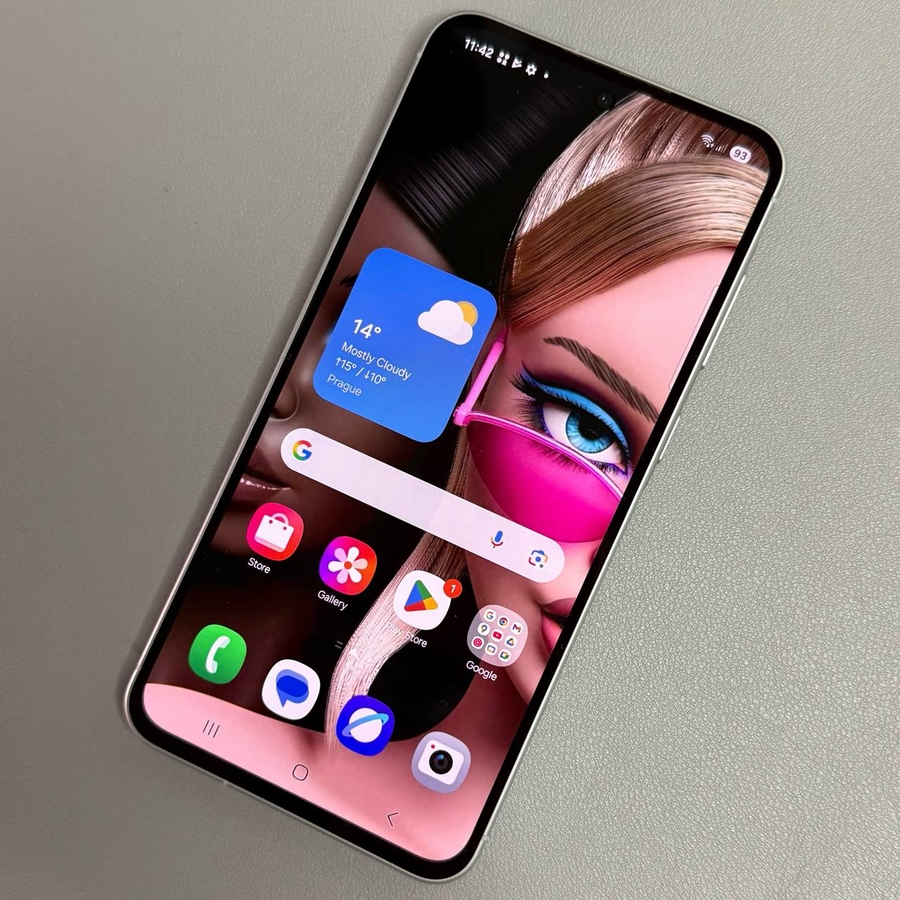
Are you looking to manage the visibility of your apps on your Samsung Galaxy A56? Whether you want to hide apps to declutter your screens or simply unhide them when needed, this guide will walk you through each step. Follow along to learn how to customise your app experience effortlessly.
Step 1: Access the Settings App
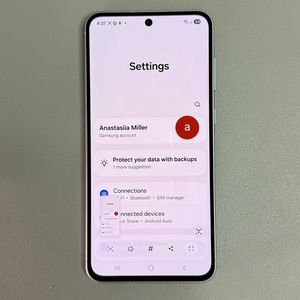
To get started, unlock your Samsung Galaxy A56 and open the main Settings app. Look for the gear-shaped icon, which is usually located on your home screen or within the app drawer.

Step 2: Navigate to Home Screen Settings
Scroll through the Settings menu until you find the option labelled "Home Screen." Tap on it to access more customisation options for your device's display and app organisation.

Step 3: Select 'Hide Apps' Option
Within the Home Screen menu, find and select the "Hide Apps" (hide apps) option. This will allow you to manage which apps are visible on your home screen and app drawer.

Step 4: Choose Apps to Hide
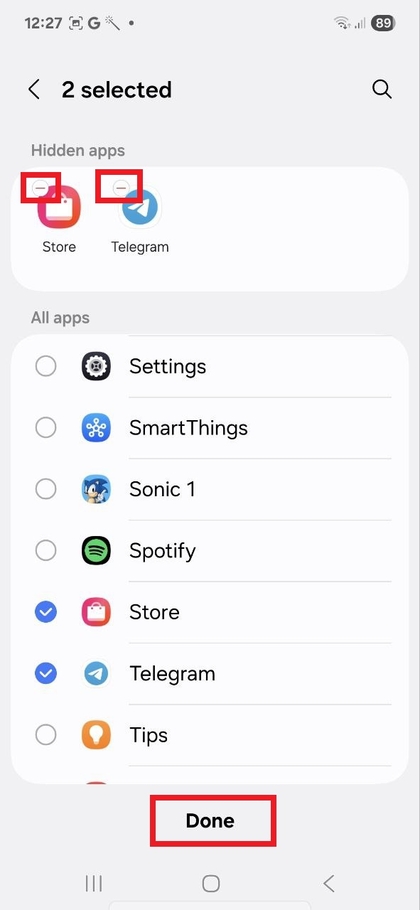
You'll see a list of all the apps installed on your phone. Tap on the apps you wish to hide. As you select each app, it will appear in the 'Hidden Apps' section at the top of your screen, helping you keep track.

Step 5: Save Your Changes
Once you have selected all the apps you want to hide, tap on "Done" (done) to save your changes. Your chosen apps will no longer be visible on your home screen or app drawer.

Step 6: Open a Hidden App
If you wish to access a hidden app, navigate to the Settings app and select "Apps" (apps). Here, you'll find the complete list of your installed apps. Choose the hidden app you want to open and tap "Open" (open) to launch it.

Step 7: Unhide Apps
To unhide an app, go back to the "Hide Apps" (hide apps) settings under the Home Screen menu. In the 'Hidden Apps' section, tap on the minus icon beside the app you want to unhide. Tap "Done" (done) to finalise your choices. The unhidden apps will reappear on your home screen or app drawer.