Step-by-Step Guide: Enable or Disable Always-On Display on Samsung Galaxy A56
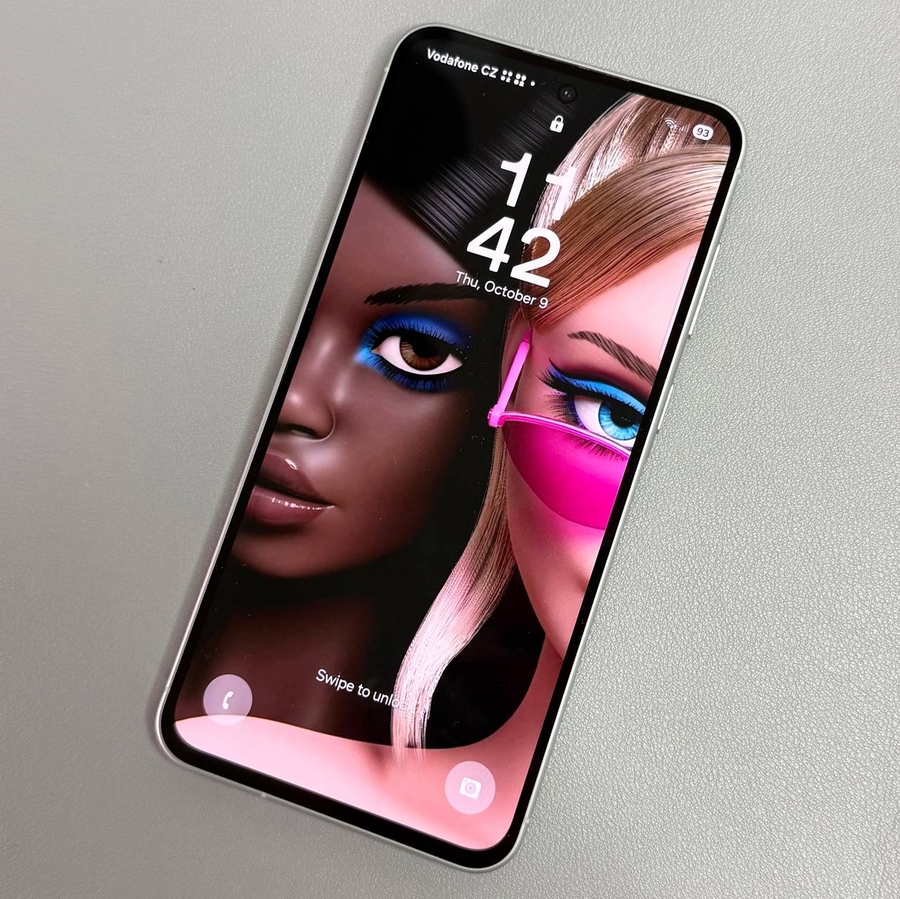
The Samsung Galaxy A56 is equipped with an Always-On Display feature that allows you to view key information at a glance, even when your device is in standby mode. Let's guide you through the process of enabling, customising, and disabling this feature step by step.
Step 1: Open Settings
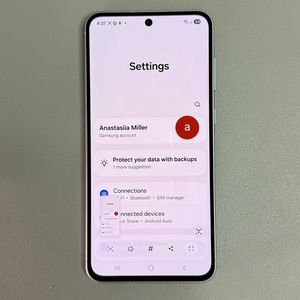
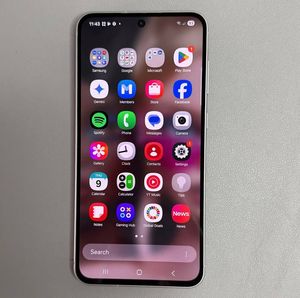
First, unlock your Samsung Galaxy A56 and locate the Settings app. This app is represented by a gear-shaped icon that is typically found on your home screen or within the app drawer. Tap on it to enter the settings menu.

Step 2: Navigate to Lock Screen Settings
Within the Settings menu, scroll down until you see an option labelled "Lock Screen". Tap on this category to proceed to the lock screen settings where you can manage your phone's display settings.

Step 3: Access Always-On Display Settings
In the Lock Screen settings, you'll find the "Always-On Display" option. Select it to access its specific settings, where you can configure how the feature functions according to your preferences.

Step 4: Enable Always-On Display
To activate the Always-On Display, simply toggle the switch at the top of the screen. This action will turn the feature on, presenting important information like the time, date, and notifications continually on your screen.

Step 5: Customise Activation Method
For a personalised experience, customise how and when the Always-On Display appears. Return to the Always-On Display settings and select "When to Show." Options include "Tap to Show", "Auto" (auto), "Scheduled" (scheduled), or triggering when new notifications are received. Choose the method that suits you best.

Step 6: Additional Customisation Options
You can further tailor the display to match your style by checking additional settings, such as show now bar. These customisations ensure your phone's display aligns perfectly with your preferences.

Step 7: Disable Always-On Display
Should you decide to turn off the Always-On Display for any reason, revisit the Settings app, tap on "Lock Screen", and enter "Always-On Display". Toggle the switch off to deactivate the feature. This step is particularly useful if you wish to conserve battery life.

By following these steps, you can efficiently manage the Always-On Display feature on your Samsung Galaxy A56, enhancing your smartphone experience according to your specific needs and preferences.