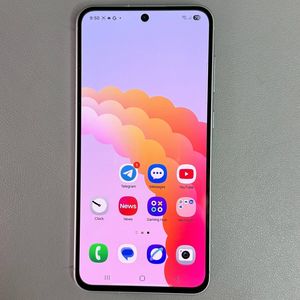
Samsung Galaxy A56: How to Show or Hide Battery Percentage
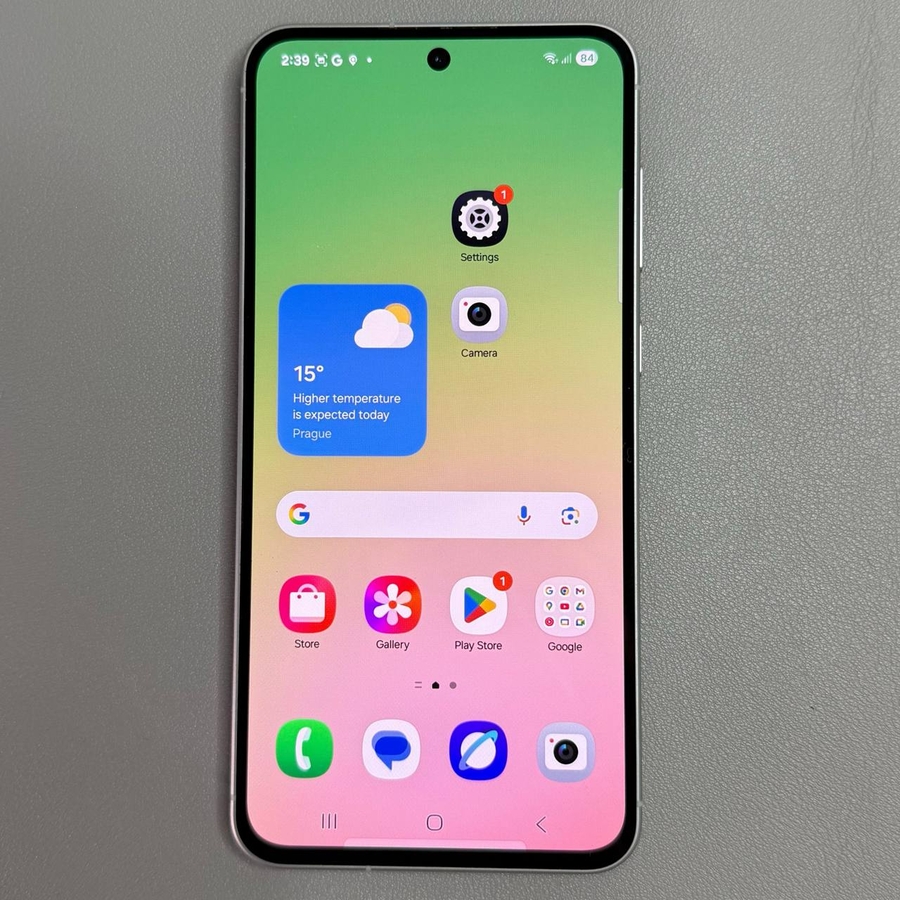
The battery percentage display on the Samsung Galaxy A56 can be a convenient feature, letting you easily see how much battery life remains. However, if you prefer a minimalist look, you might want to hide this information. Here's how you can toggle the battery percentage display to suit your preferences.
Step 1: Open the Settings App
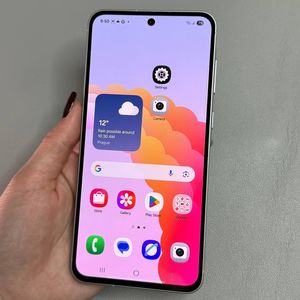
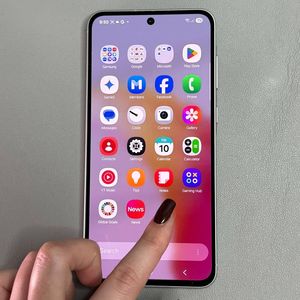
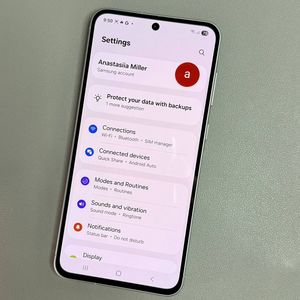
Start by unlocking your Samsung Galaxy A56. Look for the Settings app on your home screen or in the app drawer. The settings icon resembles a gear. Tap on it to access your device's settings.

Step 2: Go to Battery Settings
In the Settings menu, scroll down to find the "Battery" (battery) option. This is where you control all battery-related settings on your device. Tap "Battery" (battery) to proceed to the next set of options.

Step 3: Toggle the Battery Percentage Display
Within the Battery settings, scroll until you find the switch labelled "Show battery percentage" (show battery percentage). You will see a toggle switch next to it. If the toggle is enabled, the battery percentage will be shown in the status bar; otherwise, it will be hidden. Toggle this switch according to your preference—turn it off to hide the percentage or turn it on to show it.

Now, you can easily customise your Samsung Galaxy A56 to either display or conceal the battery percentage on your status bar. Adjust this setting at any time based on what works best for you.