How to Enable or Disable Google Assistant on Samsung Galaxy A56

The Samsung Galaxy A56 is a feature-rich smartphone that can become even more powerful with the Google Assistant at your fingertips. This hands-free tool can perform a myriad of tasks, making it essential for many users. Whether you want to enable or disable Google Assistant, this guide will walk you through every step on your Samsung Galaxy A56.
Step 1: Open the Google App
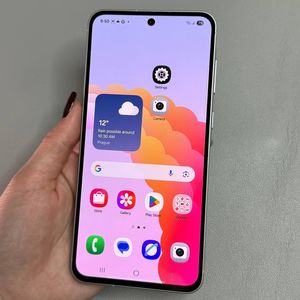
To begin, unlock your Samsung Galaxy A56 and locate the Google app, identified by its multi-coloured 'G' icon. Open the app to start the enabling process.

Step 2: Access Settings in the Google App
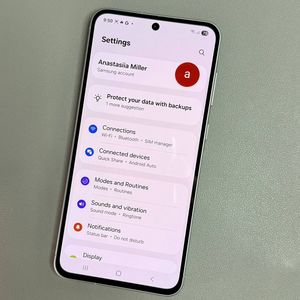
Once the Google app is open, look to the top-right corner for your profile picture and tap on it to access additional options. From there, select 'Settings' (settings).


Step 3: Enable Google Assistant
Within the 'Settings' (settings), find and select 'Google Assistant' to manage its features. Scroll to 'General' and use the toggle to switch Google Assistant on. Confirm your selection if asked.


Step 4: Train Voice Match
To personalise your Google Assistant, return to the main Google Assistant settings, select 'Voice Match', and toggle on the setting next to 'Hey Google'. Follow the instructions provided to complete the voice training process.

Step 5: Disable Google Assistant (If Needed)
If you need to turn off Google Assistant, begin by opening the 'Google' app on your Samsung Galaxy A56.Tap profile icon and choose settings. Then, scroll to 'Google assistant' and tap to open.


Within this menu, select 'General'. You can then toggle off Google Assistant using the provided switch, effectively disabling it until you decide to re-enable it.