Samsung Galaxy A56: How to Change the Default Keyboard
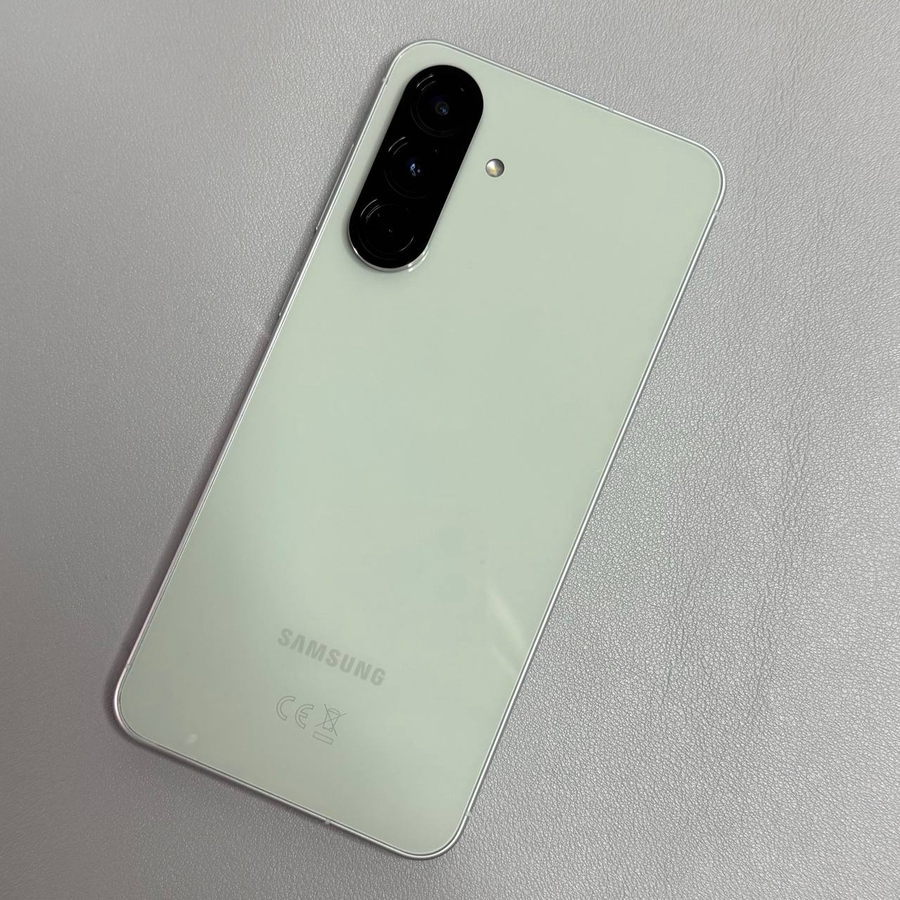
Switching the default keyboard on your Samsung Galaxy A56 is simple. Follow these steps to customise your typing experience with your preferred keyboard app.
Step 1: Access the Settings App
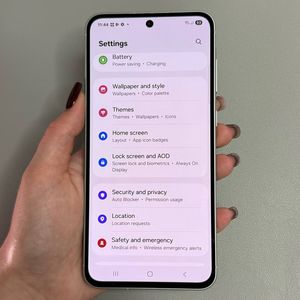
To get started, unlock your Samsung Galaxy A56 and open the main Settings app. You can usually find its gear-shaped icon on your home screen or within the app drawer. Tapping on this icon will bring up the main settings menu.

Step 2: Navigate to General Management
Once you're in the settings menu, scroll down to find the 'General Management' option. This section deals with a variety of core phone settings, including keyboard configurations. Tap on it to proceed.

Step 3: Select Keyboard List and Default
In the General Management section, you will see an option labelled 'Keyboard list and default.' Tap on it to access your keyboard settings, where you can view and select from the available keyboards installed on your device.

Step 4: Choose Your Default Keyboard
In this menu, tap on 'Default Keyboard.' You'll see a list of keyboards that are currently installed on your Samsung Galaxy A56. If you have Gboard set as your current default, it will be highlighted. Tap on any other keyboard, such as Microsoft SwiftKey or the Samsung Keyboard, to switch your default keyboard to that app.

Step 5: Confirm the Change
Once you have selected your preferred keyboard, the change is immediate. Now, whenever you type a message or enter text, you will see your newly selected keyboard pop up by default. Enjoy your personalised typing experience!