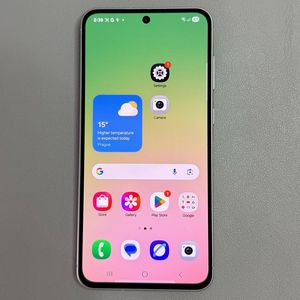
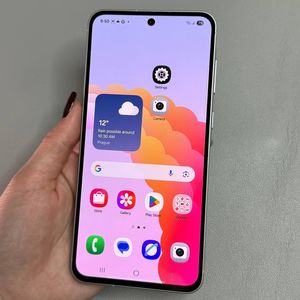
Samsung Galaxy A56: How to Add a Dual Clock Widget
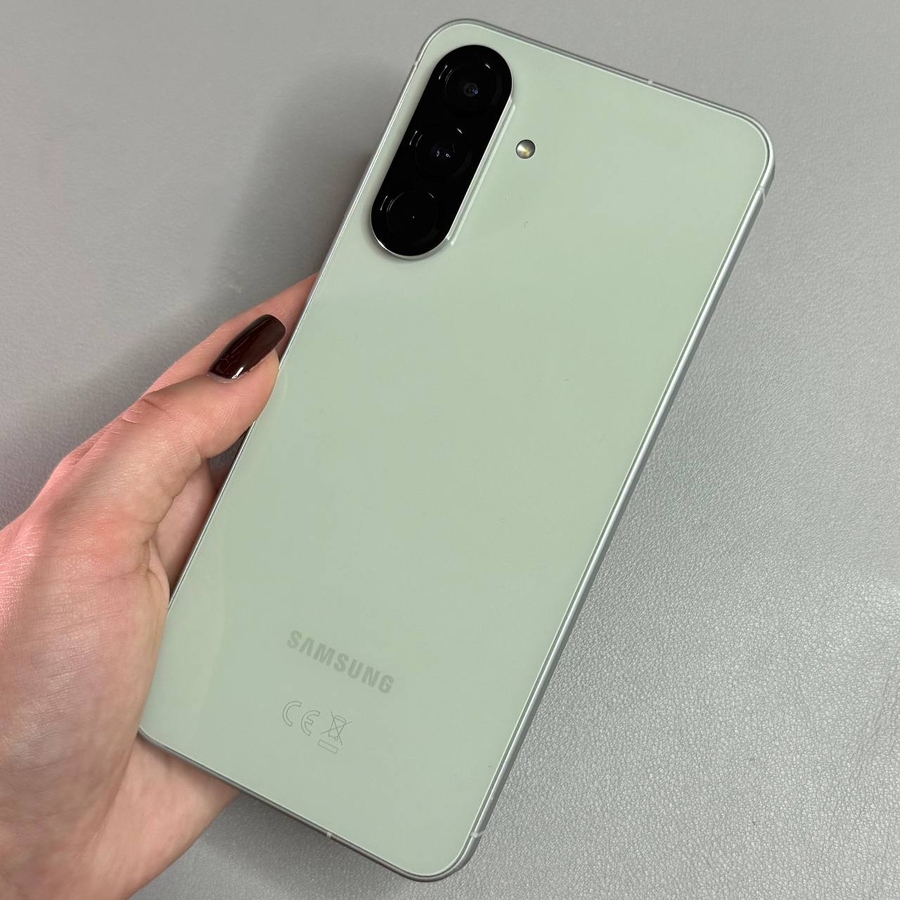
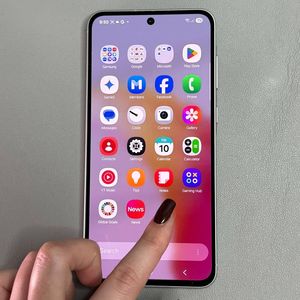
In this guide, we will walk you through the process of adding a dual clock widget to the home screen of your Samsung Galaxy A56. This feature is perfect for anyone who wants to keep track of the time in two different locations, right from the convenience of their home screen.
Step 1: Accessing the Home Screen Editor
To begin, locate an empty space on your home screen. Touch and hold (long press) on this empty spot to enter the home screen editing mode. This mode allows you to customise different elements of your home screen, including adding widgets.

Step 2: Selecting the Clock Widget
In editing mode, a menu bar will appear at the bottom. Tap "Widgets" to open the widget menu. Scroll through the list until you locate the "Clock" section. Tap on "Clock" to view the available clock styles, including the dual clock option.


Step 3: Adding the Dual Clock Widget
Within the Clock section, browse the various dual clock styles. Find a style you like and tap on it. Then, select "Add" (add) to place the widget onto your home screen. Your widget is now ready to be adjusted and positioned as needed.

Step 4: Positioning and Resizing the Widget
To move your widget, long press it and drag it to your chosen location. To adjust its size, long press again until the handles appear at the corners. Drag these handles to resize the widget according to your preference.


Step 5: Customising Widget Settings
For further customisation, long press the widget and tap "Settings" (settings). Here, you can change the displayed cities and other settings. Tap "City 1" or "City 2" to select and adjust the locations you want to view.


Step 6: Adjusting Background and Colours
Inside the settings, explore options to personalise the widget's background and colours. Choose between day and night themes or use custom colours. Adjust transparency to fit your home screen style, and remember to tap "Save" (save) to secure your changes.


Your personalised dual clock widget is now set up on your Samsung Galaxy A56. Enjoy the convenience of keeping track of two different time zones directly from your home screen!