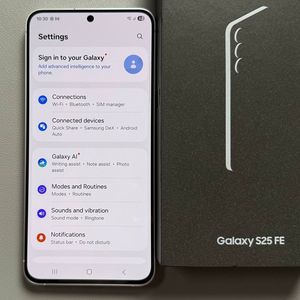
How to Enable or Disable NFC on Samsung Galaxy S25 FE
If you own a Samsung Galaxy S25 FE, managing your NFC settings is crucial for using contactless payment options effortlessly. In this guide, we'll walk you through each step for turning on or off the NFC feature, as well as managing your device's default wallet app.
Access the Settings App
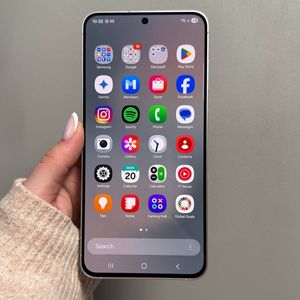
To start, unlock your Samsung Galaxy S25 FE and navigate to the main screen where your apps reside. Locate the Settings app—it usually looks like a gear-shaped icon—and tap on it to open.

Navigate to Connections
Once you have the Settings app open, scroll down or search for the "Connections" option. This section will help you manage various network and connectivity features on your device. Tap on "Connections" to proceed.

Locate NFC and Contactless Payments
Within the Connections menu, look for the option titled "NFC and Contactless Payments." Tapping on this option will allow you to manage your NFC settings, enabling you to turn NFC on or off as needed.

Enable or Disable NFC
To toggle the NFC feature, simply tap on the switch next to NFC. If the switch is moved to the right and shows a color (usually blue or green), NFC is enabled. Tapping it again will disable the feature.

Set Default Wallet App
Once NFC is enabled, look underneath the toggle switch for the "Default Wallet App" option. Tap on it to see a list of wallet apps installed on your phone. By default, it might be set to Samsung Wallet, but you can opt for Google Wallet or any other compatible app by selecting it from this list.

Following these steps allows you to easily manage NFC settings and ensure your payment method is set up correctly on your Samsung Galaxy S25 FE.