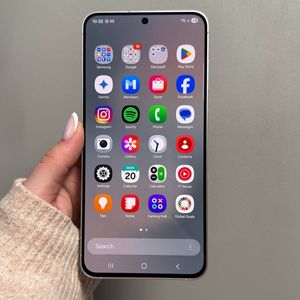
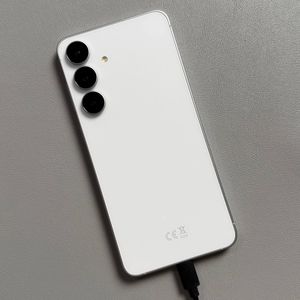
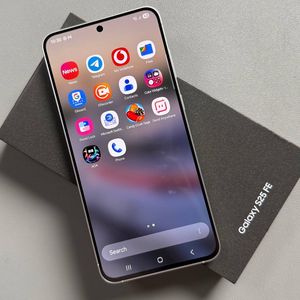
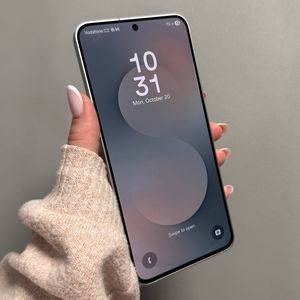
How to Connect an SD Card to Your Samsung Galaxy S25 FE
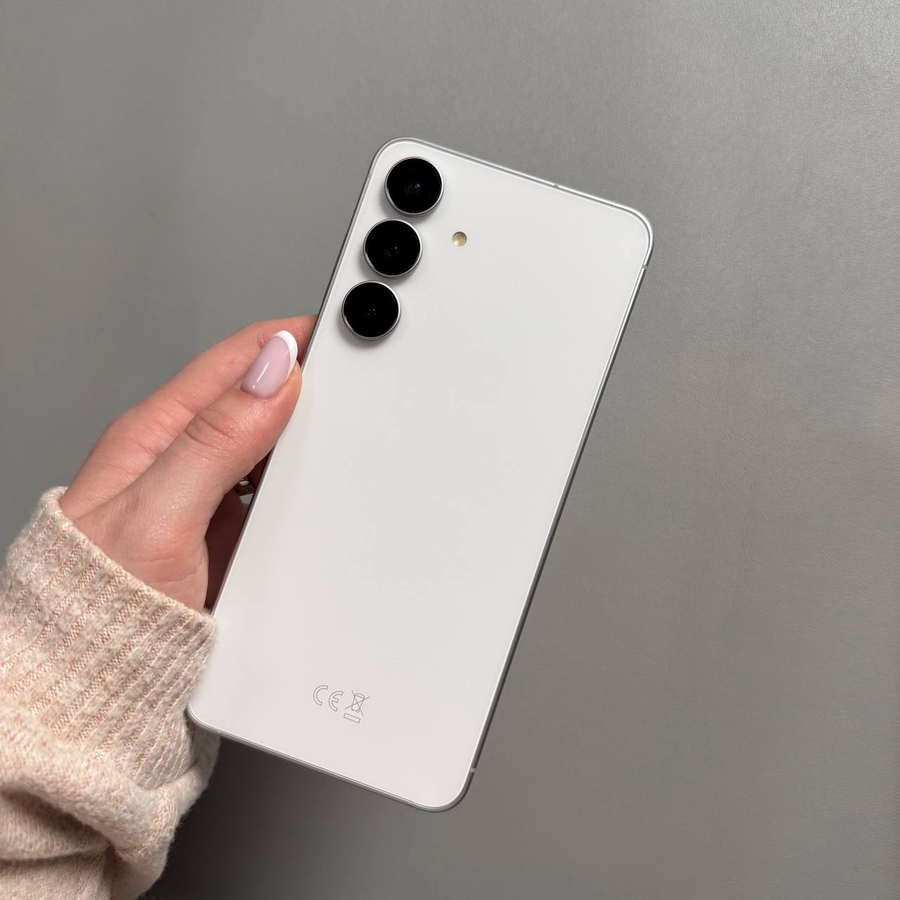
If you're looking to connect an SD card to your Samsung Galaxy S25 FE, you're in the right place. Although this model lacks a traditional SD card slot, you can easily use an adapter to access and manage your files. Let's walk through the process step by step.
Step 1: Understand Your Adapter
To connect an SD card to your Samsung Galaxy S25 FE, you will need a multi-device adapter. These adapters are versatile and come with a variety of slots, including USB ports, a micro SD card slot, a full-sized SD card slot, and a Type-C HDMI port. They are designed to handle data transfer tasks, making them very useful tools to have on hand.

Step 2: Insert the SD Card into the Adapter
First, insert your SD card or micro SD card into the appropriate slot on the adapter. Ensure it is securely placed to avoid any connectivity issues during the data transfer process. The adapter should have labels or instructions indicating which slot corresponds to SD or micro SD cards.

Step 3: Connect the Adapter to Your Phone
Next, connect the adapter to your Samsung Galaxy S25 FE using the Type-C connector. Your phone should recognize the adapter connection almost immediately, and you will see options to explore the files contained on the SD card.

Step 4: Access Files on the SD Card
Once connected, open the "My Files" app on your Samsung Galaxy S25 FE. Navigate through the app, and you should see a new entry labeled "USB storage" or something similar, indicating that the SD card is now accessible. Tap on this entry to browse the files available on your SD card.

Step 5: Edit or Copy Files
Now that you have accessed the files, you can view, edit, or copy them to your phone's internal storage. Applications such as Capcut or other video editing tools available on your Samsung Galaxy S25 FE can be used to edit these files directly from the SD card if desired.


Congratulations! You now know how to connect and utilize an SD card with your Samsung Galaxy S25 FE using a Type-C adapter.