How to Change the Default Keyboard on Samsung Galaxy S25 FE
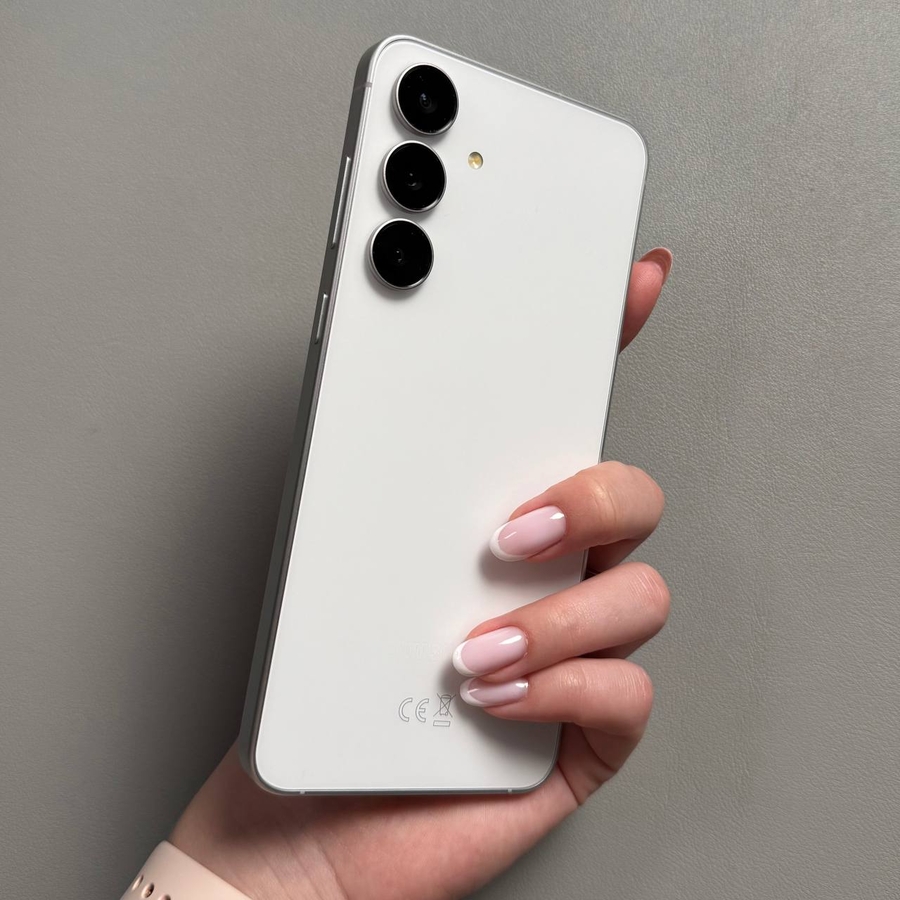
Changing the default keyboard on your Samsung Galaxy S25 FE is a task that enhances your typing experience by allowing you to choose a keyboard that best suits your needs. Whether you prefer the clean design of Gboard or the customizable features of Microsoft SwiftKey, this guide will walk you through the process of switching your default keyboard with ease.
Step 1: Install a Third-Party Keyboard
Before you can switch the default keyboard on your Samsung Galaxy S25 FE, you need to ensure that you have at least one third-party keyboard app installed on your device. Popular choices include Gboard or Microsoft SwiftKey. To install a new keyboard, open the Google Play Store on your phone, search for your desired keyboard app, and proceed with the installation.

Step 2: Accessing the Main Settings Menu
To begin changing your device's default keyboard, unlock your Samsung Galaxy S25 FE and locate the Settings app, which is identified by a gear-shaped icon. Tap this icon to open the Settings menu, where you can adjust various aspects of your phone.

Step 3: Navigating to General Management
Once inside the Settings menu, scroll down and find the "General Management" option. This section allows you to manage language, input, and other system settings. Tap on it to proceed to the next step.

Step 4: Selecting Keyboard List and Default
In the General Management section, you will find an option called "Keyboard." You will see a list of keyboards currently installed on your device, along with an option to choose your default keyboard.

Step 5: Changing the Default Keyboard
Now, select "Default keyboard" to view all available keyboards on your Samsung Galaxy S25 FE. From here, you can choose your preferred default keyboard by tapping on its name. If you installed Gboard or Microsoft SwiftKey earlier, they will appear in this list. Simply select the one you prefer, and your new default keyboard will be set.