Samsung Galaxy S25 FE - How to Set Up Mobile Hotspot
- 1 Open the Settings App
- 2 Navigate to Connections
- 3 Access Mobile Hotspot and Tethering
- 4 Activate and Configure Your Mobile Hotspot
- 5 Set Up Network Band Compatibility
- 6 Adjust Security Options
- 7 Explore Advanced Settings
- 8 Save Your Mobile Hotspot Settings
- 9 Prioritize Real-Time Traffic
- 10 In Other Languages
The Samsung Galaxy S25 FE offers a range of connectivity features, one of which is the ability to turn your phone into a mobile hotspot. This means you can share your internet connection with other devices, giving them access wherever you go. Follow this step-by-step guide to set up and customize the mobile hotspot on your handset.
Open the Settings App
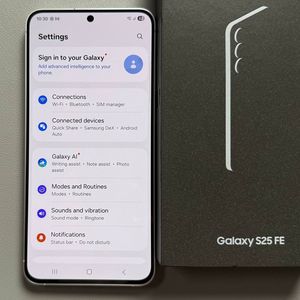
To get started, unlock your Samsung Galaxy S25 FE and access the main Settings app. This can typically be found on your home screen or within the app drawer, represented by a gear-shaped icon.

Navigate to Connections
Once you're in the Settings app, scroll down and tap on the 'Connections' option. This will take you to a menu where you can manage various connectivity settings on your device.

Access Mobile Hotspot and Tethering
In the Connections menu, locate and tap on 'Mobile Hotspot and Tethering'. This section allows you to control how your Samsung Galaxy S25 FE shares its internet connection with other devices.

Activate and Configure Your Mobile Hotspot
Here, you will find the option to activate or deactivate your mobile hotspot using a simple switch. Tap the switch to turn on your hotspot. After it's activated, you can tap the 'Mobile Hotspot' option to configure its settings, such as changing the network's name or updating the password.

Set Up Network Band Compatibility
Beneath the basic settings is a slider allowing you to select the network band between 2.4GHz, 5GHz, and the 6GHz frequencies. Keep in mind that while higher frequencies can offer faster speeds, they may not be compatible with all devices.

Adjust Security Options
For additional security, you can adjust the settings to manage password requirements. If you select 'Enhanced Open', the hotspot will not require a password, making it simple for anyone to connect.

Explore Advanced Settings
Explore further by tapping 'Advanced' to tweak settings like MAC address type and power-saving modes. Here, you can also set your device to turn off the hotspot automatically if no devices are connected after some time, and explore options for hidden network names, Wi-Fi 6, and Wi-Fi sharing.


Save Your Mobile Hotspot Settings
After configuring the hotspot to your preferences, don't forget to hit the save button to apply the settings. Additionally, you can enable 'Auto Hotspot' to seamlessly connect Samsung devices within your family group or account.

Prioritize Real-Time Traffic
For users who engage in bandwidth-intensive activities like gaming or video calls, enabling 'Prioritize Real-Time Traffic' ensures smoother experiences by giving preference to these tasks over your network.

By following these steps, you can successfully set up and customize the mobile hotspot feature on your Samsung Galaxy S25 FE to best suit your connectivity needs.