Samsung Galaxy S25 FE: How to Change Home Screen Layout
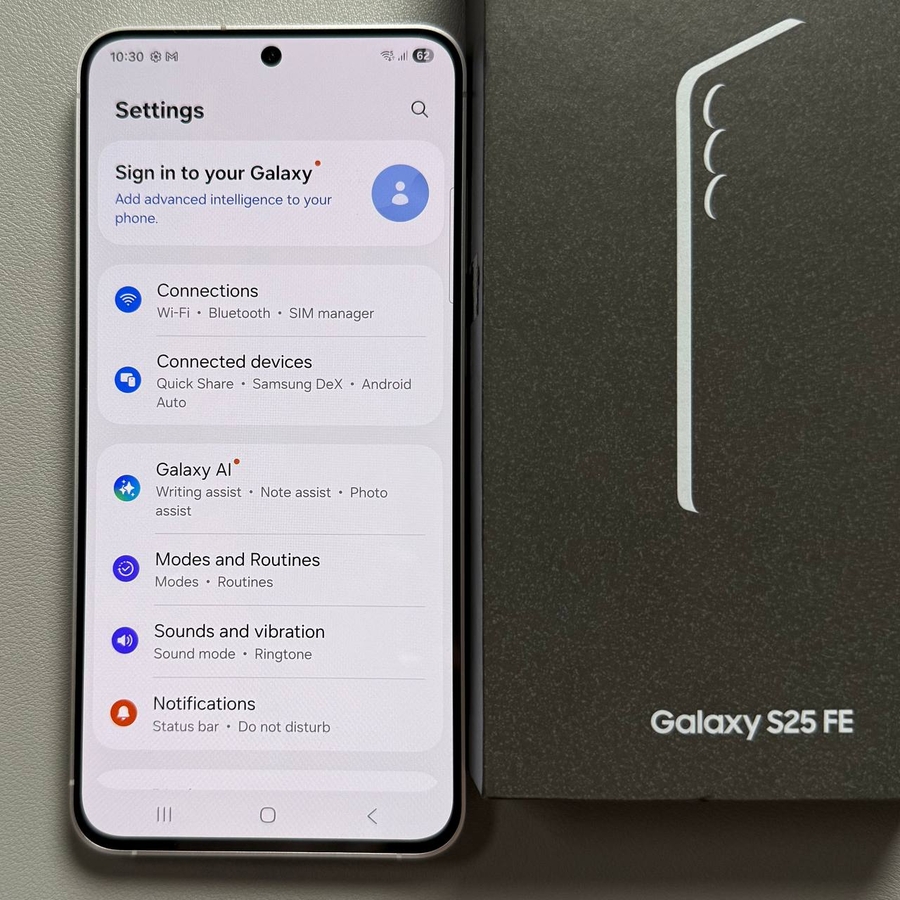
Welcome to your Samsung Galaxy S25 FE guide! Today, we will walk you through how to transform the look of your home screen by adjusting its layout. Whether you prefer having an app drawer or wish to keep everything on the home screen, this guide will make it an easy transition for you.
Step 1: Open the Settings App
To begin, unlock your Samsung Galaxy S25 FE and find the Settings app. The icon typically resembles a gear and is usually located directly on your home screen, ready for you to tap and open.

Step 2: Navigate to Home Screen Options
Once inside Settings, scroll down until you see the option labeled 'Home Screen'. Tap on this to proceed to the menu where you can make further customization.

Step 3: Access the Home Screen Layout Menu
Next, within the Home Screen menu, find and tap on the option called 'Home Screen Layout'. This allows you to choose between different layout configurations for your device's home screen.

Step 4: Choose Your Preferred Layout
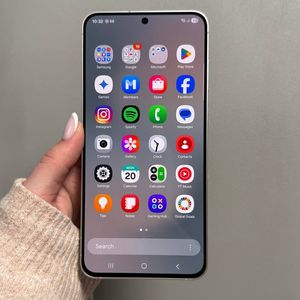
Here, you will be presented with two choices: 'Home and App Screens' and 'Home Screen Only'. If 'Home and App Screens' is selected, you can access your app drawer by simply swiping up from the home screen. Check this by swiping up on your home screen now.

Step 5: Apply Home Screen Only Option
If you prefer to have all your apps directly on your home screen with no separate drawer, return to the 'Home Screen Layout' options. Select 'Home Screen Only' and then tap 'Apply' to confirm this setting.

To ensure the change has been made, go back to your home screen. Try swiping up and see that the app drawer no longer appears. All your apps should now be conveniently located on the home screen for easy access. Enjoy your newly organized setup!