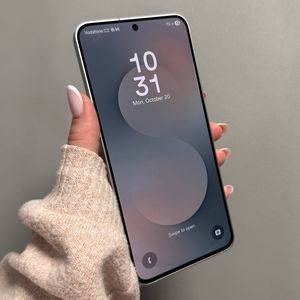
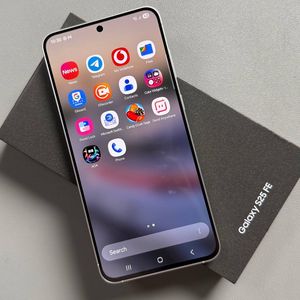
How to Block Ads on Samsung Galaxy S25 FE
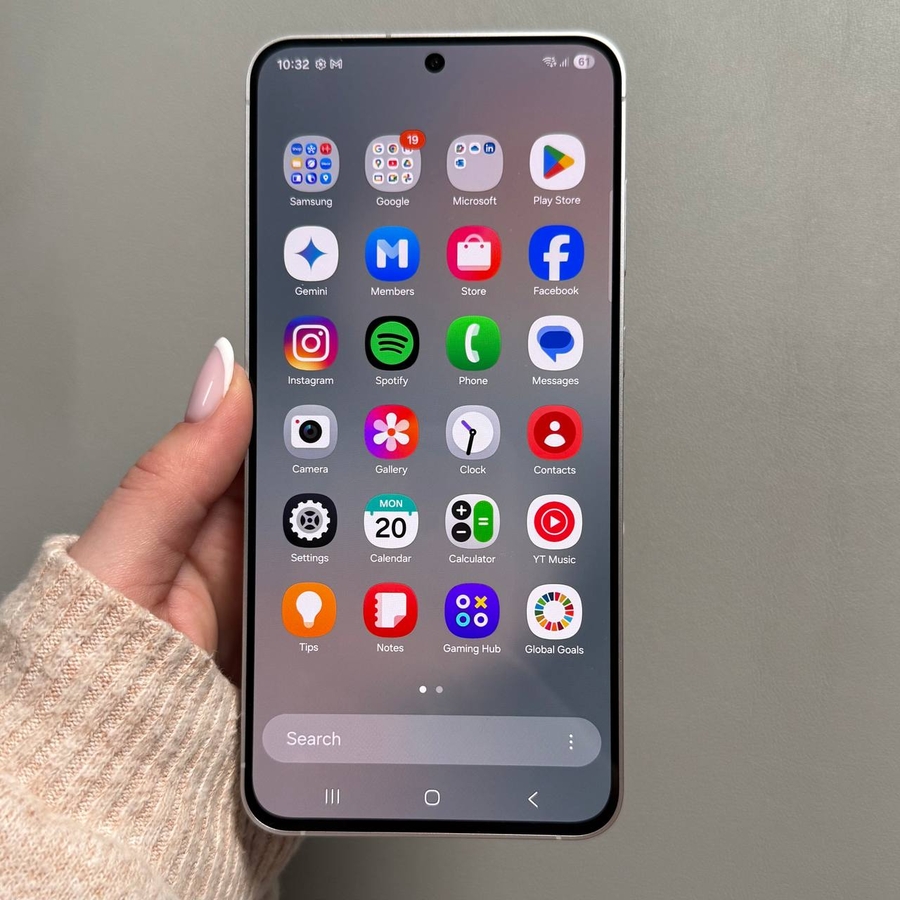
Are you frustrated with ads on your Samsung Galaxy S25 FE? We'll guide you through steps to eliminate these bothersome interruptions for a smoother experience.
Step 1: Access Google Settings
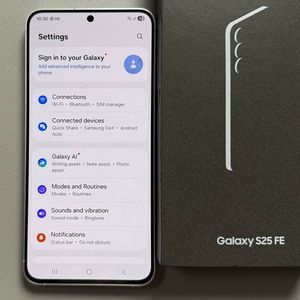
Unlock your Galaxy S25 FE and open the Settings app. Scroll to find the 'Google' section and tap on it to gain access to Google Services where we'll make adjustments.

Step 2: Navigate to Ads Section
Within Google Settings, switch to 'All services' and locate 'Ads'.Then tap on it. This action will open the list of options related to advertising ID and personalization.

Step 3: Deleting Advertising ID
In the 'Ads' menu, select 'Delete advertising ID' and then confirm it. This will reduce the delivery of personalized ads on your device.


Step 4: Disable Usage and Diagnostics
Return to the main Google Services menu, scroll to 'Usage and Diagnostics', and disable it to stop data sharing that can enhance ad targeting.


Step 5: Adjust Security and Privacy Settings
Navigate back to the main Settings menu and open 'Security and Privacy'. Access 'More privacy Settings', and disable 'Get news and special offers' along with 'Improve personalized advertising'.


Step 6: Block Pop-Up Ads in Browser
Open your preferred browser, tap the menu to access 'Settings'. Go to 'Site Settings' and ensure 'Pop-ups and redirects' are disabled to prevent browser interruptions.


Step 7: Change Private DNS
In the 'Settings', go to 'Connections', then 'More Connection Settings'. Select 'Private DNS', choose 'Private DNS Provider Hostname', and enter "dns.adguard.com" to enhance ad-blocking.


By following these streamlined steps, you can enjoy a cleaner, ad-free experience on your Samsung Galaxy S25 FE.