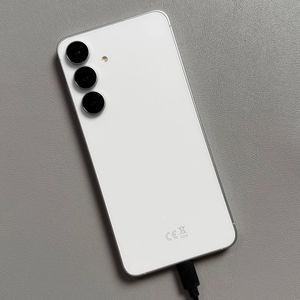
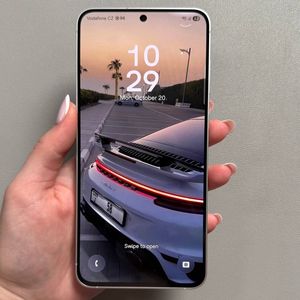
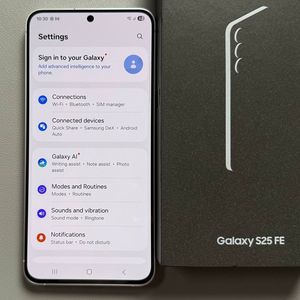
Samsung Galaxy S25 FE - How to Enable or Disable Auto Rotate
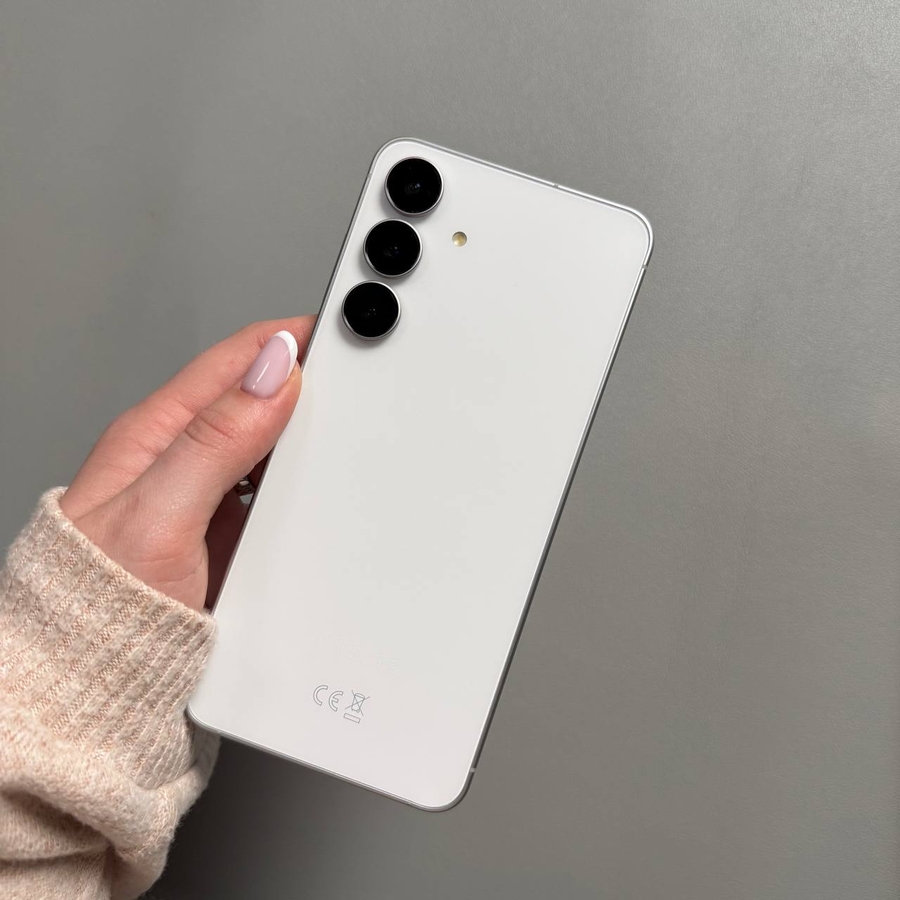
Welcome to our comprehensive guide on managing your display orientation settings on the Samsung Galaxy S25 FE. This tutorial will walk you through each step in a straightforward and friendly manner.
Step 1: Access the Quick Settings Panel
To start, you'll need to access the Quick Settings panel on your Samsung Galaxy S25 FE. Make sure your phone is unlocked, then swipe down from the top right corner of the screen. This action reveals a mini Quick Settings panel at the top of your display.

Step 2: Expand the Quick Settings Menu
Once the mini Quick Settings panel is visible, pull down on the handle to expand the full Quick Settings menu. This is where you will find more customization options for your device.

Step 3: Enable Auto Rotate
In the expanded Quick Settings menu, look for the "Auto Rotate" option. When this feature is activated, the icon will illuminate with a white glow, indicating that you can switch your screen orientation between landscape and portrait, depending on how you hold your phone.

Step 4: Test Screen Rotation
With Auto Rotate enabled, try opening any app on your Galaxy S25 FE. By simply tilting your phone, you should see the screen smoothly transition between portrait and landscape orientations. It's a great way to view content in the way that suits you best.

Step 5: Disable Auto Rotate
If you'd prefer to lock your screen in portrait mode and avoid unwanted rotations, return to the Quick Settings panel. Tap the "Auto Rotate" icon again, and it will gray out, signifying that the feature is now disabled.

Important Note
Keep in mind that some apps, such as specific games, have a fixed screen orientation determined by the app itself, typically in portrait mode. Therefore, even if your auto-rotate feature is activated, these apps will not switch to landscape mode.