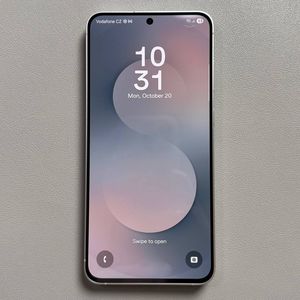
How to Block Spam and Scam Calls on Samsung Galaxy S25 FE
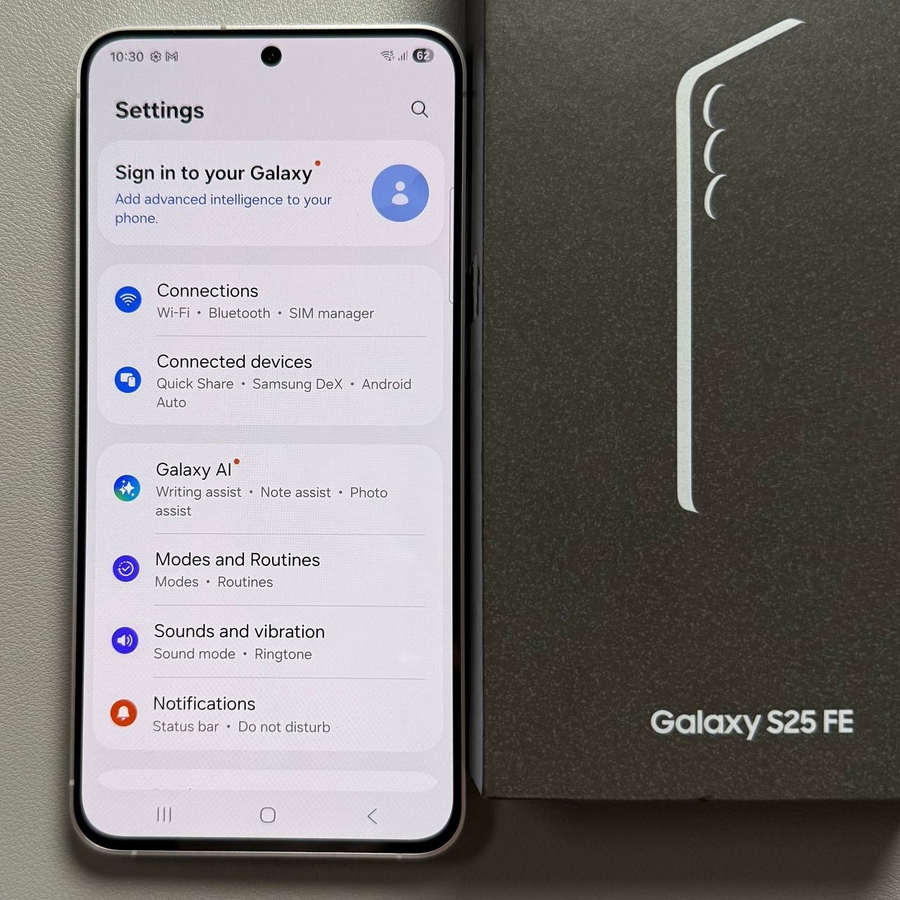
Managing spam and scam calls on your Samsung Galaxy S25 FE is easy once you know the steps. Follow this guide to enable or disable blocking for these unwanted calls.
Step 1: Return to the Home Screen
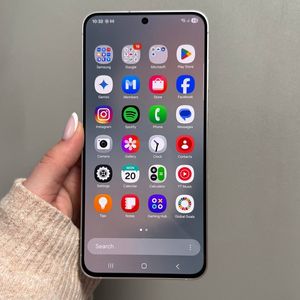
To begin setting up the call blocking feature on your Samsung Galaxy S25 FE, tap the home button to navigate back to your home screen. This will ensure you start from the main interface of your device, making it easier to follow the steps.
Step 2: Open the Phone Application
Once you have reached the home screen, look for the Phone app, which is usually located at the bottom of your screen. Tap to open it. This application is where you can manage your call settings, among other features.

Step 3: Access More Options
In the Phone app, locate the 3 dots icon situated at the top corner of the screen. Tap on it to reveal additional options. This will give you access to important settings necessary for blocking spam and scam calls.

Step 4: Go to Call Settings
From the menu that appears, tap on 'Settings.' This will take you to the section where all call-related configurations are made. Here, you'll be able to personalize how your phone handles incoming calls.

Step 5: Enable Caller ID and Spam Protection
Scroll down to find 'Caller ID and spam protection,' and make sure it is enabled. This is a crucial step as it will activate the feature that aids your phone in identifying and blocking unwanted calls.

Step 6: Block Spam and Scam Calls
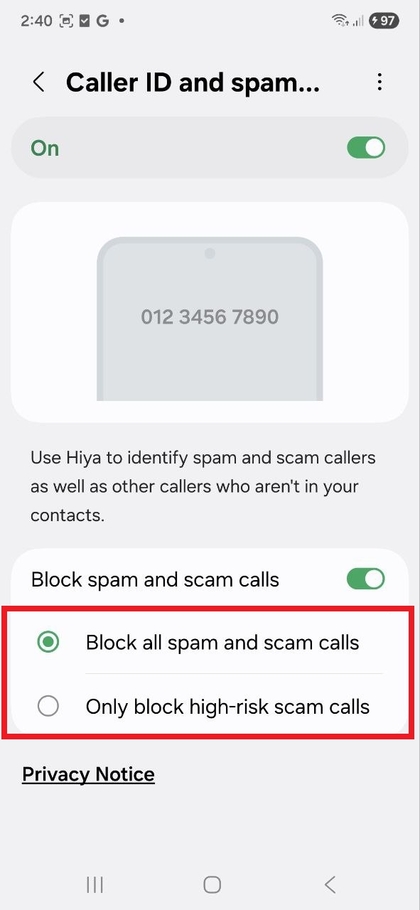
Within the Caller ID and Spam Protection menu, look for the 'Block spam and scam calls' option. Here, you'll see a switch button that you can toggle on or off. If you want to block these calls, simply turn this feature on.

Step 7: Select Your Blocking Preferences
Once the block feature is activated, you can choose whether to block only high-risk scam calls or all spam and scam calls. This customization allows you to tailor the protection level according to your needs.