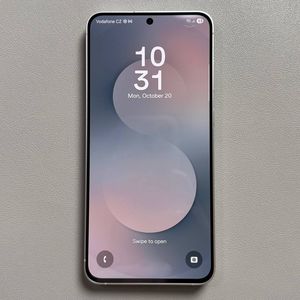
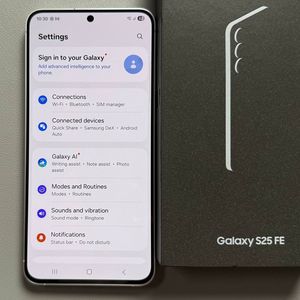
How to Change Wallpaper on Samsung Galaxy S25 FE
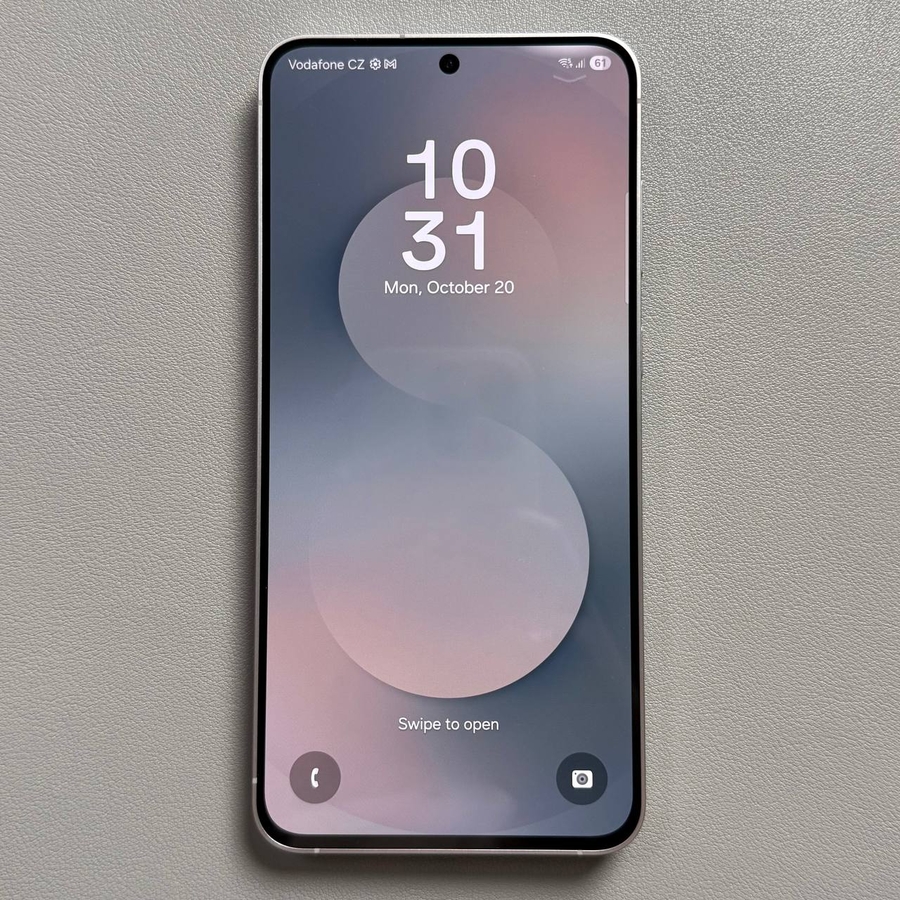
Welcome to the guide on changing the wallpaper on your Samsung Galaxy S25 FE. Personalizing your phone with a fresh wallpaper can provide a new look and feel to your device. In this tutorial, we'll walk you through three simple methods to update your wallpaper with ease.
Method 1: Using Wallpaper & Style
First, unlock your Samsung Galaxy S25 FE and navigate to your home screen. Tap and hold on an empty space until additional options appear. Here's what you need to do next:
Step 1: Access Wallpaper & Style
Select the "Wallpaper and Style" option from the menu that appears. This will take you to a new screen where you can explore the various wallpaper options.

Step 2: Choose or Browse Wallpapers
Once you are in the Wallpaper **SIGNamp; Style screen, tap "Change Wallpapers" to explore a collection of pre-installed backgrounds. For instance, you might find dynamic themes such as futuristic dogs or mineral closeups to choose from.

Step 3: Set Your Wallpaper
After selecting a wallpaper that appeals to you, tap "Next" to choose whether you want this image displayed on your Home screen, Lock screen, or both. Finally, tap "Done" to apply the selected wallpaper to your device.

Method 2: Using Your Photos
If you'd prefer to use a personal photo as your wallpaper, follow these steps:
Step 1: Open the Gallery App
Begin by opening the Gallery app on your Samsung Galaxy S25 FE. This app contains all the photos and videos saved on your device.

Step 2: Select a Photo
Browse through your images until you find the perfect photo for your wallpaper. Tap on the image to open it in full view.

Step 3: Set the Image as Your Wallpaper
With the image open, access the options menu, which is typically found as three vertical dots in the top right corner. In the menu, select "Set as Wallpaper." Decide if you want this image for the Lock screen, Home screen, or both, then tap "Done" to apply the change.


Method 3: Dynamic AI Generated Wallpapers
Your Samsung Galaxy S25 FE also enables you to use AI-generated wallpapers. Here's how you can do it:
Step 1: Access Wallpaper & Style
Just like before, start by unlocking your device and selecting an empty space on your home screen. From the options that appear, choose "Wallpaper and Style."

Step 2: Explore AI Generated Options
Look for the option to create wallpapers using AI. For instance, you might see themes like a close-up of minerals. Select the one you prefer, and then preview how it will look.

Step 3: Generate and Apply Wallpaper
Select your preferred AI theme, customize it as needed, and then tap "Generate." Once happy with the creation, tap "Set" to make it your new wallpaper for the Home screen, Lock screen, or both. Finally, tap "Done" when setup is complete.