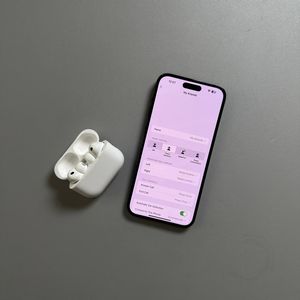
How to Find Your Lost Apple AirPods Pro 3 with Find My App
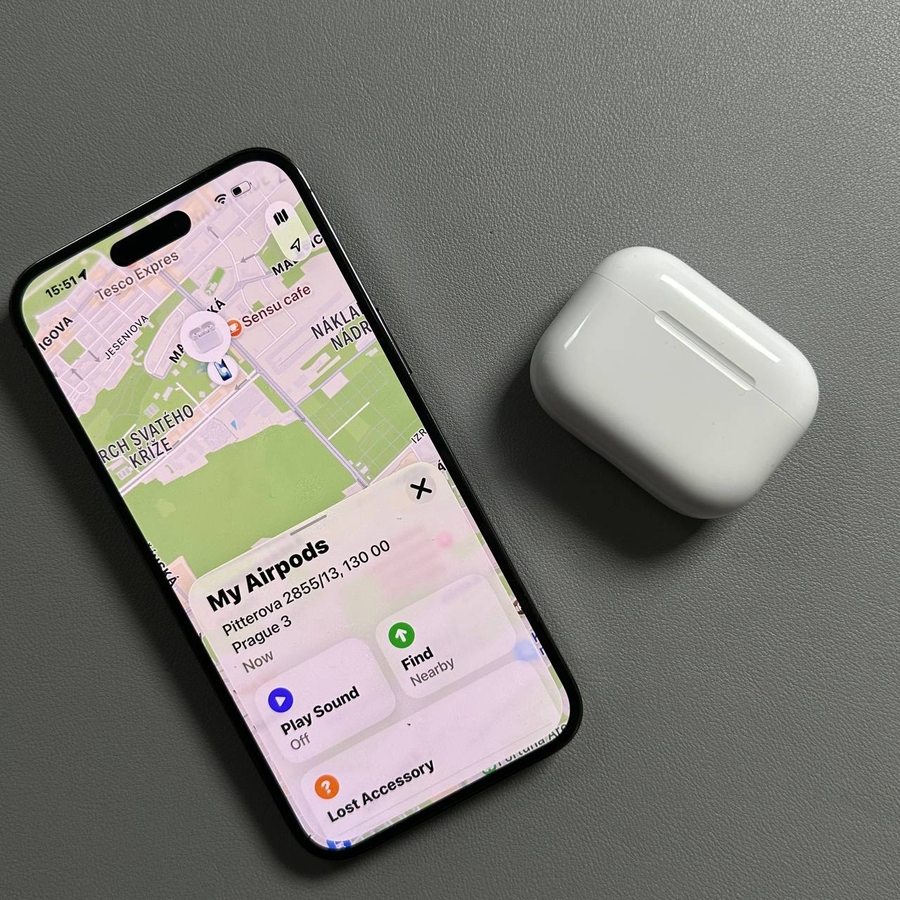
Misplacing your Apple AirPods Pro 3 can be troublesome, but the Find My app makes it easy to locate them. Follow these straightforward steps to recover your lost AirPods effortlessly.
Step 1: Access the Find My App
Open the Find My app on your iPhone by tapping the radar-like icon. Navigate to the "Devices" tab located at the bottom of the screen.

Step 2: Select Your AirPods Pro
In the Devices tab, browse the list of connected devices to find your AirPods Pro. Tap on your AirPods to select them for further actions.


Step 3: Use Directions or Play a Sound
If your AirPods are out of Bluetooth range, tap "Directions" to see their last known location in Maps. If they're nearby, click "Find" to start a search and play a chime by tapping "Play Sound" to locate them more easily.


Step 4: Precision Finding and Lost Mode
For compatible devices, use Precision Finding to direct you to your AirPods or activate "Lost Mode" to receive notifications when your AirPods connect to another device. Simply swipe up and tap "Activate" under "Mark As Lost."


These steps provide an easy way to find your lost AirPods Pro 3.