How to Adjust Press and Hold Duration on Apple AirPods Pro 3
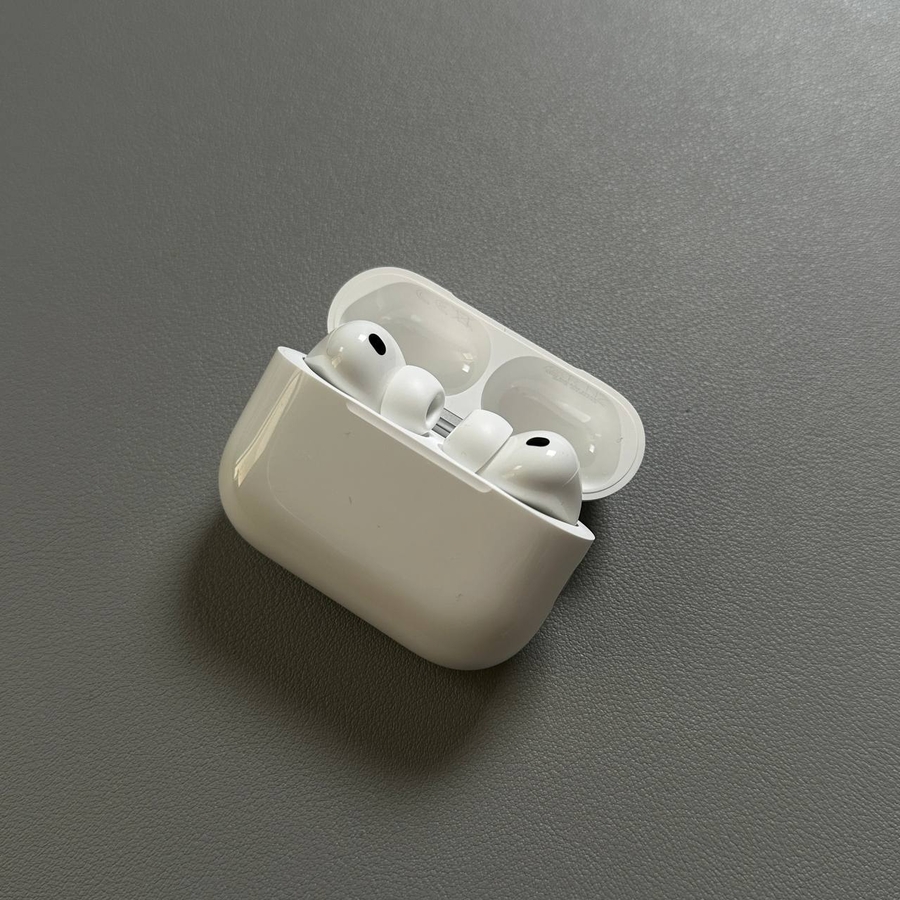
If you own a pair of Apple AirPods Pro 3, you might want to customize the 'press and hold' gesture duration to better fit your usage habits. This guide will walk you through the steps, ensuring you can easily make your AirPods Pro respond just the way you like.
Step 1: Open Settings on Your Phone
To begin customizing your AirPods Pro 3, first ensure your headphones are properly connected to your device. Once connected, unlock your iPhone and navigate to the home screen to find the 'Settings' app. The icon looks like a gray gear, and it's typically located on the first page of your apps.

Step 2: Access Your AirPods Menu
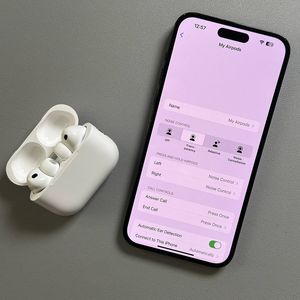
With the 'Settings' app open, you will see various options. At the top of the 'Settings' menu, look for the line that displays your AirPods Pro 3. Tap this line to open the specific headphones menu which allows further customization of your AirPods features.

Step 3: Navigate to Accessibility Settings
Once you are in the AirPods settings menu, scroll down the list of options until you find the section labeled 'Accessibility.' Tapping this will bring you to a range of settings designed to make your AirPods experience more adaptable.

Step 4: Adjust the Press and Hold Duration
In the 'Accessibility' settings of your AirPods, locate the option for 'Press and Hold Duration.' Here, you will be presented with three choices: Default, Shorter, and Shortest. Select the option that best meets your needs by tapping on it. You might want to test the duration in a practical setting to ensure it fits your preference, adjusting if necessary.

And that's it! You've successfully tailored the press and hold gesture of your Apple AirPods Pro 3.