How to Connect Your Apple AirPods Pro 3 to an iPhone
Connecting your Apple AirPods Pro 3 to an iPhone is a straightforward process that can enhance your audio experience significantly. Whether you're a new user or upgrading from an older model, this guide will walk you through each step clearly and concisely.
Step 1: Check for iOS Updates
To ensure compatibility and to take advantage of the latest features, it's essential to have the most recent iOS version on your iPhone. Begin by unlocking your iPhone and navigating to the Settings app, typically represented by a gear icon on your home screen. Once there, tap on "General" and select "Software Update" to check if your device is running the latest software. If updates are available, follow the on-screen instructions to install them.

Step 2: Prepare Your AirPods Pro 3
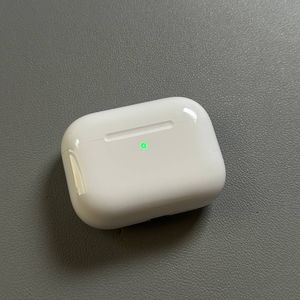
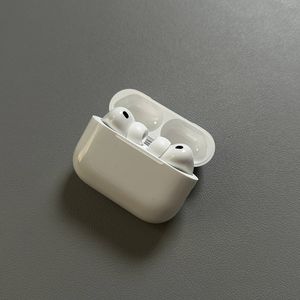
Before pairing, ensure that your AirPods Pro 3 are fully charged and securely placed in their charging case. You should notice a small LED light on the front, indicating the charging status. If not, try closing and reopening the case. This action should help reset any issues.

Step 3: Connecting AirPods to Your iPhone
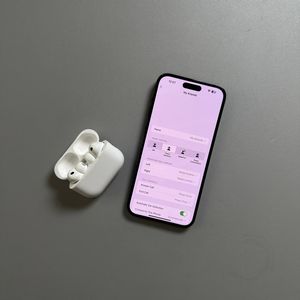
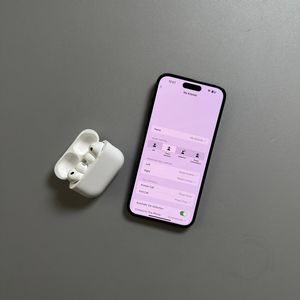
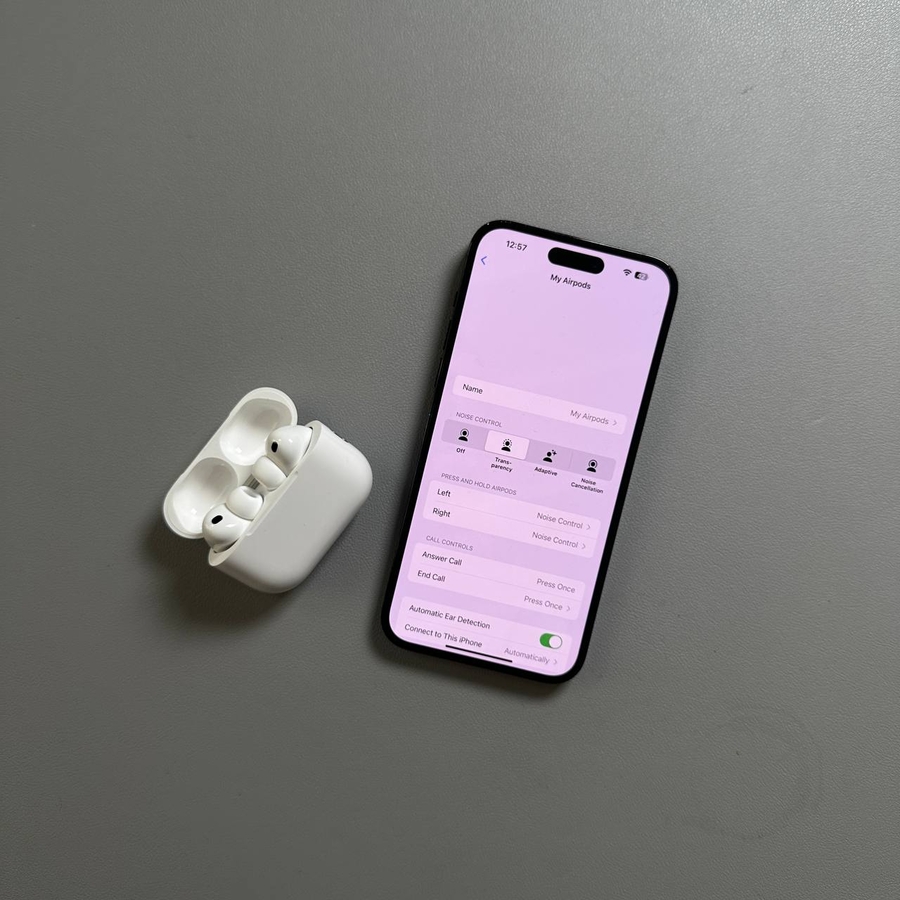
After ensuring your iPhone is updated and your AirPods are charged, open the case lid near your iPhone. You should see a pop-up notification on your screen. If no prompt appears, close and reopen the case. With the AirPods Pro 3, simply double-tap the front of the case. You should hear a connection sound, after which you can tap "Connect" on your iPhone screen. Place the AirPods in your ears and press "Continue" to proceed through the setup instructions.


Step 4: Customize AirPods Settings
During the setup process, you'll encounter options to personalize your AirPods experience. Follow the prompts to configure features like Spatial Audio, which delivers immersive sound equivalent to 3D audio. You can also choose to enable personalized volume adjustments for noisy environments and activate Siri for voice commands. These settings can significantly enhance how you interact with your AirPods.


Step 5: Additional Features
Finally, explore additional features such as controlling your AirPods using head movements - a nod can answer or end calls. You can also track fitness activities using the built-in heart rate monitor or enjoy live translation when traveling abroad. These additional features can expand your AirPods' functionality significantly.
Conclusion
Once you have followed these steps, your AirPods Pro 3 should be successfully connected to your iPhone, ready to deliver high-quality audio.