GMC SIERRA 1500 2025 Manual
- 1 Introduction
- 2 INSTRUMENT PANEL
- 3 REMOTE KEYLESS ENTRY TRANSMITTER (KEY FOB)
- 4 KEYLESS ACCESS SYSTEM
- 5 KEYLESS (PUSH-BUTTON) START
- 6 AUTO ENGINE STOP/START OPERATION
- 7 BUCKLE TO DRIVE
- 8 ELECTRONIC PRECISION SHIFT TRANSMISSION
- 9 DRIVER INFORMATION CENTER
- 10 MULTICOLOR HEAD-UP DISPLAY
- 11 POWER FRONT SEATS
- 12 CLIMATE CONTROLS/VEHICLE CONTROLS
- 13 VEHICLE CUSTOMIZATION
- 14 INFOTAINMENT SYSTEM
- 15 BLUETOOTH SYSTEM
- 16 4G LTE WI-FI HOTSPOT
- 17 WIRELESS PHONE CHARGING
- 18 LIGHTING
- 19 ADAPTIVE CRUISE CONTROL
- 20 TRACTION SELECT SYSTEM /FOUR-WHEEL DRIVE
- 21 DRIVER ASSISTANCE SYSTEMS
- 22 DRIVER ASSISTANCE SYSTEMS
- 23 REAR CAMERA MIRROR
- 24 CAMERA SYSTEM FEATURES
- 25 POWER MIRRORS
- 26 LOCKING FRONT AND REAR AXLES
- 27 HILL DESCENT CONTROL
- 28 TRUCK TIRE PRESSURE MONITORING SYSTEM
- 29 GMC MULTIPRO TAILGATE OPERATION
- 30 GMC MULTIPRO TAILGATE OPERATION
- 31 PROGRADE TRAILERING SYSTEM
- 32 ROADSIDE ASSISTANCE
- 33 MYGMC MOBILE APP
- 34 MY GMC ACCOUNT
- 35 References
- 36 Download manual
- 37 In Other Languages
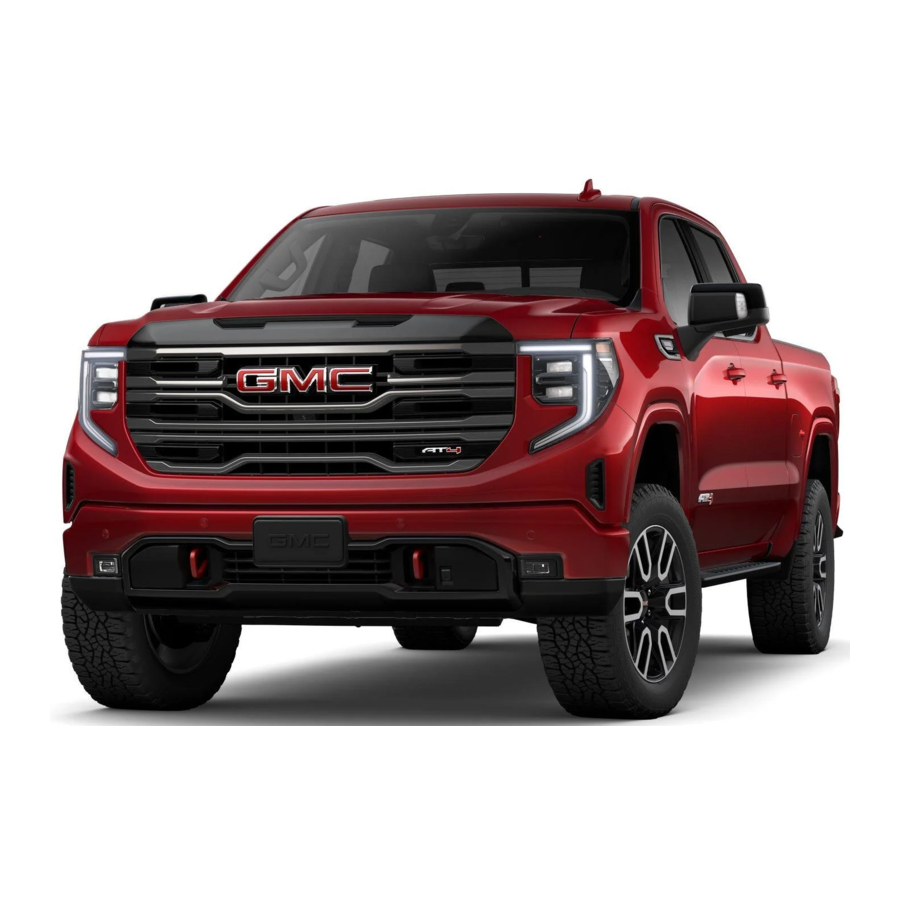
Introduction
Review this quick reference guide for an overview of some important features in your GMC Sierra 1500. Some equipment described in this guide may not be included in your vehicle. Contact your dealer for details on a specific vehicle. All information contained in this guide is based on the latest information available at the time of printing and is subject to change without notice. For easy reference, keep this guide in your glove box.
 Certain restrictions, precautions and safety procedures apply to your vehicle. Please read your Owner's Manual for complete instructions.
INSTRUMENT PANEL

Gasoline model shown.
Symbols
 | Low Fuel |  | StabiliTrak Off |  | Lights On Reminder |
 | Traction Control Off |  | Forward Collision Alert |  | Airbag Readiness |
 | Brake System |  | Security |  | Engine Oil Pressure |
 | Cruise Control |  | Electric Parking Brake |  | Check Engine |
 | StabiliTrak Active |  | Electric Parking Brake Service |  | Lane Keep Assist |
Certain features shown have limited or late availability, or are no longer available. See the window label or your dealer regarding the features on an individual vehicle.

Denali Ultimate model shown.
 | Vehicle Ahead |  | Driver Seat Belt Reminder |
 | Antilock Brake System |  | Passenger Seat Belt Reminder |
 | Low Tire Pressure |  | 4WD Modes |
 | Door Ajar | ||
 | Charging System |
Read your Owner's Manual to learn about the information being relayed by the lights, gauges and indicators on the instrument cluster.
See Introduction in your Owner's Manual.
Some equipment shown may not be included in your vehicle.
 Optional equipment
REMOTE KEYLESS ENTRY TRANSMITTER (KEY FOB)
 Lock
Lock
Press to lock all doors and tailgate.
 Unlock
Press to unlock the driver's door or all doors and tailgate.

Remote Windows 
Press and hold the  Unlock button until the windows are fully open. To enable, go to Settings > Vehicle > Remote Lock, Unlock and Start on the infotainment screen.
Remote Mirror Folding 
To turn the automatic mirror folding on or off, go to Settings > Vehicle > Comfort and Convenience on the infotainment screen.
 Vehicle Locator/Panic Alarm
Press and release to locate your vehicle. The exterior lamps flash and the horn chirps 3 times.
Press and hold to activate the alarm.
Press again to cancel the alarm.
 Power Release Tailgate
Press twice to lower the tailgate.
 Remote Vehicle Start
Press twice to start the engine from outside the vehicle. After entering the vehicle, press the ENGINE START/STOP button.
To cancel a remote start, press and hold the button until the parking lamps turn off.
Note: To change the remote settings, go to Settings > Vehicle > Remote Lock, Unlock and Start on the infotainment screen.
See Keys, Doors and Windows in your Owner's Manual.
KEYLESS ACCESS SYSTEM
The Keyless Access System enables operation of the doors and tailgate without removing the Remote Keyless Entry transmitter (key fob) from your pocket or bag. The key fob must be within 3 feet of the tailgate or the door being unlocked/locked.
KEYLESS UNLOCKING
With the key fob within range:

- Press the button on the driver's door to unlock the driver's door or all doors and tailgate.
- Press the button on a passenger door handle to unlock all doors and tailgate.
- Press the lower button on the tailgate to lower the standard tailgate.
KEYLESS LOCKING
With the ignition off, the key fob removed from the vehicle, and all doors closed:
- Press the button on any door handle to lock all doors and tailgate immediately.
- If Passive Locking is turned on in the Settings menu, all doors will lock automatically after a short delay.
Note: To change the lock settings, go to Settings > Vehicle > Remote Lock, Unlock and Start on the infotainment screen.
See Keys, Doors and Windows in your Owner's Manual.
Some equipment shown may not be included in your vehicle.
Optional equipmen
KEYLESS (PUSH-BUTTON) START
The Remote Keyless Entry transmitter (key fob) must be in the vehicle to turn on the ignition.
STARTING THE ENGINE/ON

- With the transmission in Park or Neutral, press and hold the brake pedal and then press the ENGINE START/STOP button to start the engine. The green button indicator will illuminate.
Note: If the key fob battery is weak, place the key fob in the pocket in the center storage compartment (under the bench seat) or center console cupholders (bucket seats) to start the engine. Replace the key fob battery as soon as possible.
STOPPING THE ENGINE/OFF
- Shift to Park and then press the ENGINE START/STOP button to turn off the engine.
ACCESSORY MODE
- With the engine off and the brake pedal not applied, press the ENGINE START/STOP button to place the ignition in Accessory Mode. The amber button indicator will illuminate. Press and hold the ENGINE START/STOP button for several seconds to place the ignition in Service Mode to operate additional systems.
See Driving and Operating in your Owner's Manual.
AUTO ENGINE STOP/START OPERATION
The fuel-saving Engine Stop/Start system automatically turns off the engine, referred to as an Auto Stop, when the brake pedal is pressed and the vehicle is at a complete stop, if certain operating conditions are met. In Auto Stop mode, the tachometer will read AUTO STOP. When the brake pedal is released or the accelerator pedal is pressed, the engine will restart. After parking the vehicle and turning off the engine, the tachometer will read OFF.
The engine may remain running or restart when the vehicle is stopped, depending on current operating conditions.
- Press the
![]() Auto Stop button on the center of the instrument panel to disable the system. The button indicator will turn off.
Auto Stop button on the center of the instrument panel to disable the system. The button indicator will turn off.

The Engine Stop/Start system is enabled each time the vehicle is started.
See Driving and Operating in your Owner's Manual.
BUCKLE TO DRIVE
Buckle to Drive prevents the vehicle from shifting out of Park if the engine is running, the brake pedal is pressed, and the driver's seat belt is not buckled. Buckle the seat belt to shift out of Park. If the seat belt remains unbuckled, the vehicle can be shifted out of Park after several seconds. Shifting from Park is prevented once each ignition cycle.
- To turn off or on again, go to Settings > Vehicle > Buckle to Drive on the infotainment screen. The vehicle may need to be restarted to register the setting change.
See Seats and Restraints in your Owner's Manual.
Some equipment shown may not be included in your vehicle.
Optional equipment
ELECTRONIC PRECISION SHIFT TRANSMISSION
The electronic transmission shift lever always starts in a centre position. The selected gear position illuminates in red. After shifting, the shift lever returns to the centre position.
Park – Press the P button (A) on the top of the lever to shift into Park. To shift out of Park, press the brake pedal and then press A and hold the shift lock button (B) while selecting the desired gear. B
Reverse – Press the brake pedal and then press and hold the shift lock button (B) on the side of the lever while moving the lever forward completely, past the detent, to shift into Reverse.

Neutral – Move the lever forward (to the detent) to shift into Neutral.
Note: The vehicle will not stay in Neutral for an extended period. It will automatically shift into Park.
Drive – Move the lever rearward to shift into Drive.
Low – With the transmission in Drive, move the lever rearward to shift into Low. Pull the left (-) paddle on the back of the steering wheel to downshift and the right (+) paddle to upshift. If engine speed is too high or low for the requested gear, the shift will not occur. Move the lever rearward again to return to Drive.
See Driving and Operating in your Owner's Manual.
DRIVER INFORMATION CENTER
The Driver Information Center (DIC) on the instrument cluster displays a variety of vehicle messages and system information.
MID-LEVEL AND UPLEVEL DIC CONTROLS
Use the controls on the right side of the steering wheel to view the various menus.

- Press the
![]() or
or ![]() button to highlight a menu.
button to highlight a menu. - Press the thumbwheel to open a menu, or to select or reset an item.
- Rotate the thumbwheel up or down to move through a menu.


SELECT INFO PAGES

- Open the Info or Options menu.
- Scroll to Info Page Options. Press the thumbwheel to enter the menu.
- Scroll through the list of items.
- Press the thumbwheel to select or deselect an item to display in the Info menu.
See Instruments and Controls in your Owner's Manual.
Some equipment shown may not be included in your vehicle.
Optional equipmen
MULTICOLOR HEAD-UP DISPLAY
The Head-Up Display (HUD) projects some operating information on the windshield. The HUD controls are located on the left side of the instrument panel.

 HUD Position
Lift up or press down to adjust the position of the image.
INFO
Press to select from four display views.
 Brightness
Lift up to brighten or press down to dim the display. Hold down to turn off the display.
See Instruments and Controls in your Owner's Manual.
POWER FRONT SEATS
SET MEMORY POSITIONS
- With the vehicle in Park, adjust the driver's seat and power outside mirrors
![]() to the desired positions.
to the desired positions. - Press and release the SET button on the driver's door. A beep will sound.
- Immediately press and hold button 1 or 2 until two beeps sound. Use the button that matches the Driver Information Center welcome message indicating driver 1 or 2 (key fob 1 or 2).
To store a seat position for more clearance when exiting the vehicle, repeat these steps using the  Exit button instead of button 1 or 2.
RECALL MEMORY POSITIONS

- Press and hold button 1 or 2 or
![]() Exit until the set position is reached.
Exit until the set position is reached. - To enable the memory positions to be recalled automatically when the ignition is turned on/off (for exit recall, the driver's door must be opened), go to Settings > Vehicle > Seating Position > Seat Entry Memory and Seat Exit Memory on the infotainment screen.

MASSAGE FEATURES
Denali Ultimate model shown.

- Turn the feature select knob (A) on B the side of the seat to view massage settings on the infotainment screen. Use the 4-way control on the knob to adjust the selected setting.
- Press the small button (B) on the side of the seat to activate the most recent massage setting.
See Seats and Restraints in your Owner's Manual.
Some equipment shown may not be included in your vehicle.
Optional equipmen
CLIMATE CONTROLS/VEHICLE CONTROLS

See Introduction in your Owner's Manual.
VEHICLE CUSTOMIZATION
Some features can be turned on/off or cus tomized using the Settings menus on the infotainment screen, including Remote Start, Auto Heated/Ventilated Seats , Power Mirror Folding , Power Running Boards and others.

- Select Settings on the Home page.
- Select the desired menu.
- Select the desired feature and setting.
- Press Back to exit each menu.
See Infotainment System in your Owner's Manual.
Some equipment shown may not be included in your vehicle.
Optional equipmen
INFOTAINMENT SYSTEM
Read your Owner's Manual for important information about using the infotainment system while driving.

The infotainment system uses a Bluetooth or USB connection to link to a compatible device, such as a smartphone or portable audio player/iPod ®, and offers hands-free voice control. For additional information, visit gmc.com/support.
MANAGING HOME PAGE ICONS
- Press the
![]() Home button.
Home button. - To enter edit mode, touch and hold the Home page icon to move.
- Continue holding the icon and drag it to the desired position, and then release.
 Home button.
STORING FAVOURITES
Radio stations from all bands (AM, FM or SiriusXM ) can be stored in any order.
- Tune in a radio station. The sources menu is at the top of the Audio page.
- Select a desired page of favourite buttons.
- Touch and hold one of the favorite buttons until a beep is heard.
See Infotainment System in your Owner's Manual.
Some equipment shown may not be included in your vehicle.
Optional equipment
SIRIUSXM WITH 360L
The personalized content of SiriusXM with 360L offers more than 200 channels, including ad-free music, sports, comedy, talk and news, along with access to On Demand shows, performances and interviews. Certain features require a SiriusXM subscription and a Connected Access plan. See siriusxm.com and onstar.com for details.
GOOGLE BUILT-IN
Google built-in provides access to your favorite apps, including Google Assistant, Google Maps and Google Play.
Google Assistant – Talk to Google to get hands-free help. Easily get directions, play media, control vehicle functions and more.
- To start, say "Hey Google," tap the Google Assistant icon in the App Tray on the Home page, or press the
![]() Push to Talk button on the steering wheel.
Push to Talk button on the steering wheel.

Google Maps – Reach your destination faster with real-time traffic information, automatic rerouting and voice control. Sign in for personalized maps with home and recent locations. Google Play – Download some of your favourite apps in your vehicle just as you would on your phone to listen to music, podcasts, audiobooks and more.
- Sign in to your Google Account to get your apps, messages, custom directions and more in your vehicle.
Note: Google built-in services are subject to limitations and availability may vary by vehicle, infotainment system and location. Select service plan required. Certain Google actions and functionality may require account linking. User terms and privacy statements apply.
APPLE CARPLAY® AND ANDROID AUTO™
Apple CarPlay or Android Auto capability is available through a compatible phone using the Apple CarPlay or Android Auto icon on the Home page.
- There are two ways to set up device projection:
- Wireless Connection – Connect your phone by pairing it to the in-vehicle Bluetooth system. Turn on wireless Apple CarPlay or Android Auto in your phone's settings.
- Wired Connection – Connect your phone to a USB data port using the USB cable provided with your phone. Aftermarket USB cables may not work.
- Follow the instructions on the infotainment screen and the phone.
- The Apple CarPlay or Android Auto icon will illuminate when connected. Touch the icon to have your apps displayed.
- To exit Apple CarPlay or Android Auto, press the
![]() Home button. To return to Apple CarPlay or Android Auto, press and hold the Home button.
Home button. To return to Apple CarPlay or Android Auto, press and hold the Home button.
 Home button. To return to Apple CarPlay or Android Auto, press and hold the Home button.
See Infotainment System in your Owner's Manual.
†Android, Android Auto, Google, Google Play and Google Maps are trademarks of Google LLC; Apple CarPlay is a trademark of Apple Inc.; SiriusXM is a trademark of Sirius XM Radio Inc.
Some equipment shown may not be included in your vehicle.
Optional equipment
BLUETOOTH® SYSTEM
Read your Owner's Manual for important information about using the Bluetooth system while driving.
Before using a Bluetooth-enabled device in the vehicle, it must be paired with the invehicle Bluetooth system. The vehicle must be stopped to pair a device. Not all devices will support all functions.
PAIR A PHONE
- To use voice recognition, press the
![]() Push to Talk button; after the beep, say "Pair my phone." To use the infotainment screen, select the Phone icon > Manage Phones > Add Phone.
Push to Talk button; after the beep, say "Pair my phone." To use the infotainment screen, select the Phone icon > Manage Phones > Add Phone. - Start the pairing process on your phone. From the phone's Bluetooth settings, select the name shown on the infotainment screen.
- Follow the pairing instructions.
- When pairing is complete, the phone screen is displayed.
FIRST TO CONNECT
Multiple phones can be paired to the Bluetooth system. The system connects to the phone that is set to First to Connect.
- To set the First to Connect phone, select the Phone icon > Settings > Connected Phone or Options.
See Infotainment System in your Owner's Manual.
4G LTE WI-FI® HOTSPOT
With the vehicle's available built-in 4G LTE Wi-Fi hotspot, up to 7 devices (smartphones, tablets and laptops) can be connected to high-speed internet.
- To retrieve the name and password for the hotspot, select the Wi-Fi Hotspot icon or go to Settings > Connections > Wi-Fi Hotspot on the infotainment system.
For more information, visit gmc.com/support.
See Infotainment System in your Owner's Manual.
WIRELESS PHONE CHARGING
The Wireless Phone Charging system for smartphones is located on the center console. Visit gmc.com/support to check device compatibility. See your phone retailer for any required phone accessories.

- The vehicle must be On, or Retained Accessory Power must be active.
- Remove all objects from the charging pad.
- Place the phone, screen up, on the pad.
- The
![]() charging symbol will appear on the infotainment screen when charging. If not charging, remove the phone for 3 seconds, and rotate it 180 degrees.
charging symbol will appear on the infotainment screen when charging. If not charging, remove the phone for 3 seconds, and rotate it 180 degrees.
 charging symbol will appear on the infotainment screen when charging. If not charging, remove the phone for 3 seconds, and rotate it 180 degrees.
See Instruments and Controls in your Owner's Manual.
Some equipment shown may not be included in your vehicle.
Optional equipment
LIGHTING
LAMP CONTROLS
Rotate the control knob to activate the exterior lamps.
 Off/On
AUTO
Automatically activates the exterior lamps, depending on outside lighting conditions.
 Parking Lamps
 Headlamps
 Fog Lamps
Press to turn the fog lamps on/off.
 Instrument Panel Brightness
Press and hold the +/– buttons to adjust the instrument panel lighting.
 Task Lighting
Press to turn the forward-facing outside mirror lamps on/off.
 Cargo Lamp
With the vehicle in Park, Reverse or Neutral, press to turn the cargo bed/hitch lamps and/or rear-facing mirror lamps on/off. The button indicator illuminates when the cargo bed lamps are on.

INTELLIBEAM SYSTEM
The IntelliBeam system automatically turns the high-beam headlamps on/ off based on traffic conditions at night when the lamp control is in the AUTO or  position and the system is activated, indicated by a green
  on the instrument cluster. A blue appears when the high-beam headlamps are on.
- To turn the IntelliBeam system on or off, press the
![]() button on the end of the turn-signal lever with the lamp control in the AUTO
button on the end of the turn-signal lever with the lamp control in the AUTO![]() or position.
or position.
Note: IntelliBeam activates the high-beam headlamps only when driving more than 25 mph. The fog lamps must be off.
See Lighting in your Owner's Manual.
ADAPTIVE CRUISE CONTROL
The system enhances regular Cruise Control to maintain a driver-selected following gap — the time between your vehicle and a vehicle detected directly ahead — by accelerating or braking automatically while you continue to steer.

- Press and hold the
![]() Cancel button to switch between regular
Cancel button to switch between regular ![]() Cruise Control and
Cruise Control and ![]() Adaptive Cruise Control.
Adaptive Cruise Control. - Use the RES+ and SET- controls to set/adjust Cruise Control or Adaptive Cruise Control.
- With Adaptive Cruise Control active, press and release the
![]() Following Gap button to select a targeted gap setting of Far, Medium or Near.
Following Gap button to select a targeted gap setting of Far, Medium or Near.


Note: Refer to the Getting to Know Super Cruise guide for information on Super Cruise functionality.
See Driving and Operating in your Owner's Manual.
Some equipment shown may not be included in your vehicle.
Optional equipment
TRACTION SELECT SYSTEM /FOUR-WHEEL DRIVE
TRACTION SELECT MODES
The Traction Select (Driver Mode) settings automatically adjust various vehicle control systems based on driving preferences, weather and road conditions. The modes are displayed on the Driver Information Centre.
4WD model shown.

- Rotate the control knob (A) to select a mode. Modes may include:
![]() Normal – Use for normal driving.
Normal – Use for normal driving.
![]() Sport – Use for enhanced responsiveness on paved roads.
Sport – Use for enhanced responsiveness on paved roads.
![]() Snow (2WD only) – Use for enhanced traction during slippery conditions.
Snow (2WD only) – Use for enhanced traction during slippery conditions.
![]() Off-Road (4WD only) – Use for enhanced control on unpaved roads or trails at moderate speeds.
Off-Road (4WD only) – Use for enhanced control on unpaved roads or trails at moderate speeds.
![]() Terrain (4WD only) – Use for enhanced control in low-speed off-road conditions in
Terrain (4WD only) – Use for enhanced control in low-speed off-road conditions in ![]() . The system automatically provides light vehicle braking to simulate engine vehicle braking.
. The system automatically provides light vehicle braking to simulate engine vehicle braking.
![]() Tow/Haul – Press the
Tow/Haul – Press the ![]() button to reduce shift cycling when towing or hauling heavy loads in stop-and-go traffic, on rolling hills or in busy parking lots.
button to reduce shift cycling when towing or hauling heavy loads in stop-and-go traffic, on rolling hills or in busy parking lots.


FOUR-WHEEL DRIVE
- Use the four-wheel-drive buttons (B) on the left side of the instrument panel to shift into and out of four-wheel drive. The Driver Informa tion Center displays the current status of the transfer case.
AUTO Automatic Four-Wheel Drive High – Use when traction conditions vary for automatic shifting between 2WD and 4WD. Shift into this mode at any speed except when shifting from  .
.
Uplevel 4WD model shown.

 Two-Wheel Drive High – Use for most streets and highways. Shift into this mode at any speed except when shifting from
  .
.
 Four-Wheel Drive High – Use when extra traction is needed or in most off-road driving. Shift into this mode at any speed except when shifting from
  .
.
 Four-Wheel Drive Low – Use when driving off-road in deep sand, mud or snow, or on steep hills. Shift into or out of this mode when the vehicle is stopped or moving less than 3 mph with the transmission in Neutral.
N Neutral – Use to dolly or dinghy tow the vehicle behind an RV. Neutral is not available with the single-speed transfer case. Refer to your Owner's Manual for the shift procedure.
See Driving and Operating in your Owner's Manual.
Some equipment shown may not be included in your vehicle.
Optional equipment
DRIVER ASSISTANCE SYSTEMS
Safety or driver assistance features are not a substitute for the driver's responsibility to operate the vehicle in a safe manner. The driver should remain attentive to traffic, surroundings and road conditions at all times. Read your Owner's Manual for important feature limitations and information.
- To turn the following driver assistance systems on/off or to change system settings, go to Settings > Vehicle > Collision/Detection Systems on the infotainment screen.
SAFETY ALERT SEAT – The driver's seat pulses — left side, right side or both sides — to alert the driver of the direction of potential hazards. Audible alerts may be selected instead.
FORWARD COLLISION ALERT – The  Vehicle Ahead indicator is green when a vehicle that you're following is detected and is amber when you're following a vehicle ahead much too closely. When approaching a vehicle directly ahead too rapidly, a red alert flashes on the windscreen and the Safety Alert Seat pulses or rapid beeps sound (if selected).
- Press the
![]() Forward Collision Alert button on the steering wheel to set the alert timing to Far, Medium or Near.
Forward Collision Alert button on the steering wheel to set the alert timing to Far, Medium or Near.

FOLLOWING DISTANCE INDICATOR – The following distance to the vehicle ahead is indicated in seconds under the Info menu on the Driver Information Centre. If no vehicle is detected ahead, dashes are displayed.
AUTOMATIC EMERGENCY BRAKING – The system works with Forward Collision Alert to help you avoid or reduce the severity of front-end collisions with a detected vehicle you're following. The system works at speeds below 50 mph. Camera technology is used to automatically provide hard emergency braking or enhance the driver's hard braking.
FRONT PEDESTRIAN BRAKING – During daytime driving below 50 mph, the system can detect pedestrians directly ahead and displays an  amber indicator. When approaching a detected pedestrian too quickly, a red alert flashes on the windscreen and the Safety Alert Seat pulses or rapid beeps sound (if selected). The system may automatically provide hard emergency braking or enhance the driver's hard braking. Nighttime and low-visibility performance are limited.
REAR PEDESTRIAN ALERT – During daytime driving with the vehicle in Reverse, the system can detect pedestrians directly behind the vehicle and will display an amber indicator on the infotainment screen. When a pedestrian is detected close to the vehicle, the indicator flashes red and the Safety Alert Seat pulses or rapid beeps sound (if selected). Nighttime and low-visibility performance are limited.
LANE CHANGE ALERT WITH SIDE BLIND ZONE ALERT /TRAILER SIDE BLIND ZONE ALERT – While driving, the system displays a  warning symbol on the left- or rightside mirror when a moving vehicle is detected rapidly approaching or is in that side blind zone, including the extended blind zone along the side of a trailer.* The warning symbol flashes if a turn signal is activated when a vehicle has been detected on the same side.
See Driving and Operating in your Owner's Manual.
*Not compatible with all trailers.
Some equipment shown may not be included in your vehicle.
Optional equipment
DRIVER ASSISTANCE SYSTEMS
LANE KEEP ASSIST WITH LANE DEPARTURE WARNING – The system may help you avoid collisions due to unintentional lane departures. The  Lane Keep Assist indicator is green if the system is available to assist. If the vehicle approaches a detected lane marking, the system may assist by gently turning the steering wheel to help prevent lane departure and displays an amber . If active driver steering is not detected, the amber may flash and the Safety Alert Seat may pulse or beeps may sound (if selected) on the side of the departure direction as the lane marking is crossed. The system does not continuously steer the vehicle; the driver needs to steer and be in complete control of the vehicle. Alerts do not occur when using the turn signal in the lane departure direction or intentional lane departure is detected.
- To turn on or off, press the
![]() Lane Keep Assist button on the instrument panel.
Lane Keep Assist button on the instrument panel.

FRONT AND REAR PARK ASSIST– During low-speed parking manoeuvres, the system provides "distance to closest object" information on the Driver Information Center and the Safety Alert Seat pulses or a beep sounds (if selected). When an object is very close, the Safety Alert Seat pulses or a continuous beep sounds (if selected).
- To turn on or off, press the
![]() Park Assist button on the instrument panel.
Park Assist button on the instrument panel.


REAR CROSS TRAFFIC BRAKING – When in Reverse, the system warns of detected cross traffic approaching in either direction and provides alerts and hard emergency braking to help reduce the severity or help avoid collisions at very low speeds.
See Driving and Operating in your Owner's Manual.
REAR CAMERA MIRROR
The rear camera mirror provides a wider, less-obstructed field of view than a traditional mirror to assist when driving, changing lanes and checking traffic conditions.
See Keys, Doors and Windows in your Owner's Manual.

- On/Off
Pull or push the lever at the bottom of the mirror to turn the video display on or off. - Selection Control
Press and release the button to select the brightness, zoom or tilt setting. - Adjustment Controls
Press and release either button to adjust the selected setting.
See Keys, Doors and Windows in your Owner's Manual.
Some equipment shown may not be included in your vehicle.
Optional equipment
CAMERA SYSTEM FEATURES
The available camera systems feature up to 8 cameras with up to 14 views to help make it easier to hitch a trailer and provide better visibility while towing.
REAR VISION CAMERA
When the vehicle is in Reverse, a view of the area directly behind the vehicle displays on the infotainment screen. Camera view buttons are on the screen.
- Touch the
![]() Guidance Lines/
Guidance Lines/ ![]() Hitch Guid ance button to change guidelines.
Hitch Guid ance button to change guidelines. - Touch the
![]() Hitch View button for a zoomed-in view of the hitch area.
Hitch View button for a zoomed-in view of the hitch area.


SURROUND VISION
The system uses multiple cameras to display a high-resolution image of the area around your vehicle along with front- and rear-camera views on the infotainment screen. Camera view buttons are on the screen.
Surround View screen

- Touch the
![]() Guidance Lines/
Guidance Lines/ ![]() Hitch Guidance button to change guidelines.
Hitch Guidance button to change guidelines. - Touch the
![]() Bed View button to check cargo. Zoom functionality also available.
Bed View button to check cargo. Zoom functionality also available. - To check the available camera views when in Drive above 8 mph, touch the Camera icon on the infotainment screen and select the desired view. Touch X to exit the view.


ADDITIONAL TRAILER CAMERA VIEWS
Multiple views to aid in trailering are shown on the infotainment screen using the vehicle cameras and up to two additional wired GMC accessory trailer cameras mounted on the rear or interior of the trailer.
- Touch the
![]() Rear Side View button for a biased split view of each side of the trailer (more of the left or right side will be shown based on trailer position).
Rear Side View button for a biased split view of each side of the trailer (more of the left or right side will be shown based on trailer position).
Bed View screen

- Touch the
![]() Transparent Trailer View button for a view behind the trailer. Compatible with most conventional box trailers*; requires accessory camera
Transparent Trailer View button for a view behind the trailer. Compatible with most conventional box trailers*; requires accessory camera![]() .
.
Transparent Trailer View screen


Jack-Knife Alert * – The Jack-Knife Alert displays a warning symbol when the truck/ trailer angle is in a possible jack-knife position and there is a potentially imminent collision situation. The Safety Alert Seat may pulse or beeps may sound (if selected).
Note: The GMC accessory trailer camera system is compatible with most trailer and hitch types.
See Driving and Operating in your Owner's Manual.
* Not compatible with all trailers.
Some equipment shown may not be included in your vehicle.
Optional equipment required.
POWER MIRRORS
POWER MIRROR ADJUSTMENT
- Press the
![]() Mirror Selector button to select the driver or passenger side mirror; use the four-way control pad to adjust the mirror.
Mirror Selector button to select the driver or passenger side mirror; use the four-way control pad to adjust the mirror.

POWER FOLDING MIRROR
- Press the
![]() Folding Mirror button to fold or unfold the mirrors.
Folding Mirror button to fold or unfold the mirrors.


See Keys, Doors and Windows in your Owner's Manual.
LOCKING FRONT AND REAR AXLES
Lock the front and rear axles using the  /
/ Locking Axle switches on the instrument / panel to gain additional traction in off-road conditions. The vehicle must be stopped to lock either axle. The transfer case must be in 4 Low to lock the front axle. Do not drive the vehicle on pavement with the axles locked.

See Driving and Operating in your Owner's Manual.
HILL DESCENT CONTROL
The system maintains vehicle speed from 1–14 mph while descending a steep incline in a forward or reverse gear. Vehicle speed must be below 31 mph to enable the system.
- Press the
![]() Hill Descent Control button on the instrument panel. The current speed will be the set speed. The
Hill Descent Control button on the instrument panel. The current speed will be the set speed. The ![]() symbol will illuminate on the instrument cluster.
symbol will illuminate on the instrument cluster. - Adjust speed by applying the accelerator or brake pedal, or use the Cruise Control +/– controls on the steering wheel. The adjusted speed becomes the new set speed. The
![]() symbol flashes when the system is actively applying the brakes.
symbol flashes when the system is actively applying the brakes.
 Hill Descent Control button on the instrument panel. The current speed will be the set speed. The
  symbol will illuminate on the instrument cluster.
 symbol flashes when the system is actively applying the brakes.
See Driving and Operating in your Owner's Manual.
TRUCK TIRE PRESSURE MONITORING SYSTEM
The  Low Tire Pressure warning light on the instrument cluster illuminates when one or more of the vehicle's tyres is significantly underinflated. Fill the tyres to the proper tire pressures listed on the Tire and Loading Information label, located below the driver's door latch. Current tire pressures can be viewed on the Driver Information Center.
The Tire Fill Alert provides visual and audible alerts to help with inflating a tire to the recommended tire pressure (does not apply to spare tire). When the recommended pressure is reached, the horn sounds and the turn signals change from a flashing light to a solid light.
Note: Refer to your Owner's Manual for accessory trailer tire pressure monitoring information.
See Vehicle Care in your Owner's Manual.
Some equipment shown may not be included in your vehicle.
Optional equipment
GMC MULTIPRO TAILGATE OPERATION
The tailgate has 6 functional positions to improve loading, unloading and access to the cargo box. To operate the tailgate, it must be unlocked or the key fob must be within 3 feet of the tailgate.
- Primary Gate
Open the primary gate for access to the cargo box.

- Primary Gate Load Stop
With the primary gate open, the load stop helps keep longer items secure in the cargo box.

- Easy Access
The inner gate folds down for easier reach into the cargo box to access items near the cab.

- Full-Width Step
With the primary gate open, the inner gate folds into a sturdy step (up to 375 lbs.) with a convenient handle for easy cargo box entry and exit.

- Inner Gate Load Stop
With the primary gate closed, fold the inner gate for two-tier storage and open the load stop to help keep longer items secure.

- Inner Gate Work Surface
With the primary gate closed, fold the inner gate for two-tier storage or for use as a standingheight work surface.


OPEN THE INNER GATE
- Press the upper button (A) on the tailgate.
Note: Do not lower the inner gate with the primary gate open if a hitch ball or trailer is attached.
ENABLE/DISABLE THE INNER GATE
The inner gate can be disabled to prevent it from being opened when a hitch or other equipment is installed.

- To disable/enable the inner gate, press and hold the upper button (A) for 7 seconds.
OPEN THE PRIMARY GATE
- Press the lower button (B) on the tailgate.
- Press the
![]() Power Release Tailgate button twice on the key fob.
Power Release Tailgate button twice on the key fob. - Press the
![]() Power Release Tailgate button on the center of the instrument panel.
Power Release Tailgate button on the center of the instrument panel.


See Keys, Doors and Windows in your Owner's Manual.
Some equipment shown may not be included in your vehicle.
Optional equipment
GMC MULTIPRO TAILGATE OPERATION
OPEN THE PRIMARY GATE AND INNER GATE
- Press the lower button (B) and then upper button (A) on the tailgate consecutively.
OPEN THE LOAD STOP OR STEP
- Press the release bar (C).
![]()

See Keys, Doors and Windows in your Owner's Manual.
PROGRADE TRAILERING SYSTEM
IN-VEHICLE TRAILERING APP
The in-vehicle trailering app on the infotainment screen allows customized trailer profiles with a variety of helpful towing assistance features, including a hitching and setup checklist, trailer tyre pressure and temperature monitoring , trailer light testing, Gross Combined Weight Alert * , trailer theft detection and more. Trailering app information also is available with the myGMC mobile app.
Note: The trailering app will monitor trailer presence, even while the vehicle is off, by periodically checking the trailer lighting circuits. On trailers equipped with LED lights, these periodic checks may cause the trailer lights to flash. This flashing will become more frequent if Theft Alert is enabled.
HITCH AREA LIGHTING
- Press the
![]() Cargo Lamp button on the left side of the instrument panel to turn the cargo bed lamp or conventional hitch lamp on/off.
Cargo Lamp button on the left side of the instrument panel to turn the cargo bed lamp or conventional hitch lamp on/off.

TRAILERING INFORMATION LABEL
The Trailering Information Label, located on the pillar between the driver and rearpassenger doors, provides vehicle-specific weight and capabilities ratings.
INTEGRATED TRAILER BRAKE CONTROL (ITBC)
The ITBC system can be used to adjust the power output, or Trailer Gain, to the trailer brakes. The control panel is on the center console. ITBC information is displayed on the ITBC page on the Driver Information Center.

- Squeeze the control together to manually apply the trailer brakes.
- Adjust the Trailer Gain by pressing the +/– adjustment buttons.
See Driving and Operating in your Owner's Manual.
* Not compatible with all trailers.
Some equipment shown may not be included in your vehicle.
Optional equipment required
ROADSIDE ASSISTANCE
1-888-881-3302
TTY Users: 1-888-889-2438
As the owner of a new GMC, you are automatically enrolled in the GMC Roadside Assistance program for up to 5 years/60,000 miles, whichever occurs first, at no expense to you. The GMC Roadside Assistance toll-free number is staffed by a team of trained advisors who are available 24 hours a day, 365 days a year, to contact a service provider for light services (fuel delivery, jump start, flat tyre and lockout) or make arrangements to tow your vehicle to the nearest GMC dealer for any repairs.
ONSTAR ® ROADSIDE ASSISTANCE
If you have a current OnStar Safety & Security plan, press the blue OnStar button or red Emergency button (for emergencies only) to get the help you need. An OnStar advisor will use GPS technology to pinpoint your vehicle location and contact the nearest service provider.
To learn more about OnStar services, press the blue OnStar button, visit onstar.com, call 1-888-4-ONSTAR (1-888-466-7827), or refer to your Owner's Manual.
MYGMC MOBILE APP
Download the myGMC app to your compatible smartphone (or device) and, if your vehicle is properly equipped, you can use your device to start or turn off your engine, lock or unlock your doors, view key diagnostic information, see your parking location and more.
The app is available on select Apple and Android devices. Service availability, features and functionality vary by vehicle, device and data plan. Device data connection required. Visit onstar.com for more details. Download the mobile app from the App Store or Google Play Store.
MY GMC ACCOUNT
Get to know your vehicle as well as view your plans, services and rewards with your GMC account. Check out an online Owner's Manual and how-to videos, track your service history and warranty status, manage your OnStar and Connected Services vehicle plans, review your current Vehicle Diagnostics report (active service account required) and more. Create an account today at gmc.com/owners.

References
GMC Support Center: Vehicle How-to, Information and Help
![siriusxm.com]() SiriusXM: Music, Sports, Talk & Podcasts, Live & On Demand
SiriusXM: Music, Sports, Talk & Podcasts, Live & On DemandOnStar® Connected Vehicle Services | Safety & Support 24/7
My GMC Account: Sign in | GMC


Download manual
Here you can download full pdf version of manual, it may contain additional safety instructions, warranty information, FCC rules, etc.
Download GMC SIERRA 1500 2025 Manual


