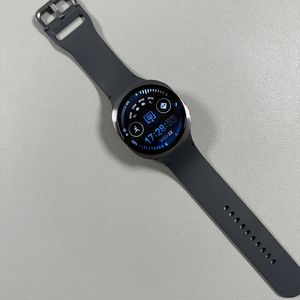
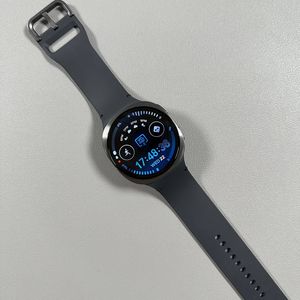
Samsung Galaxy Watch 8 LTE - How to Install or Uninstall Apps
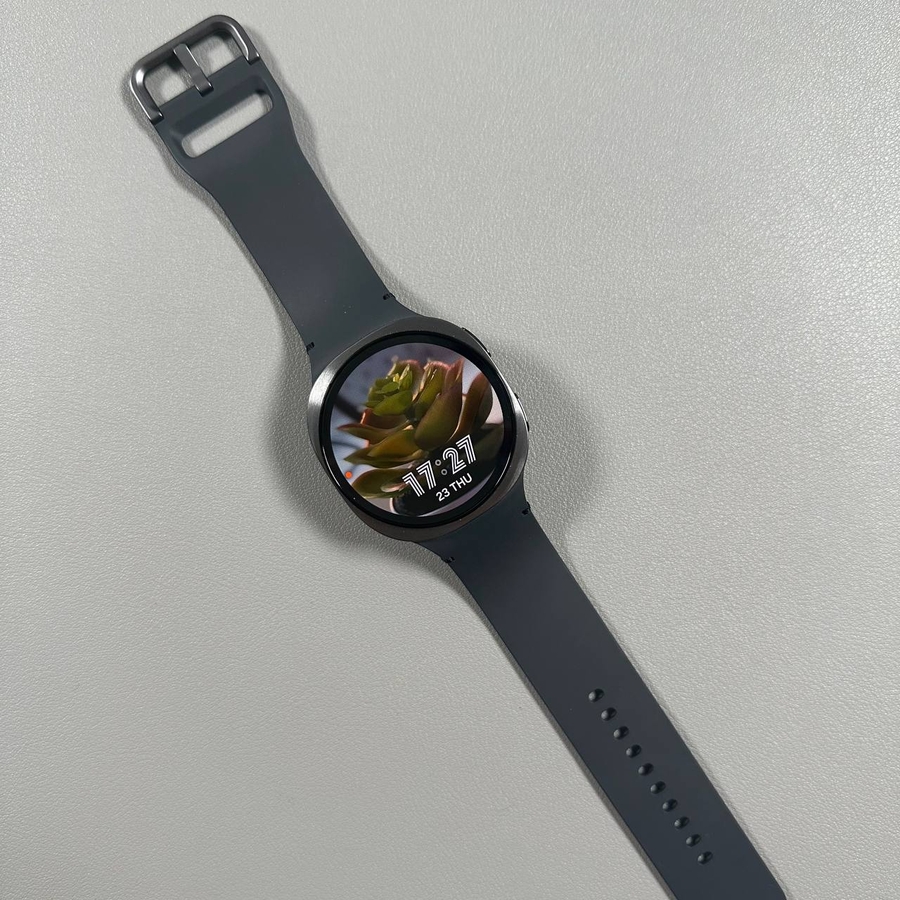
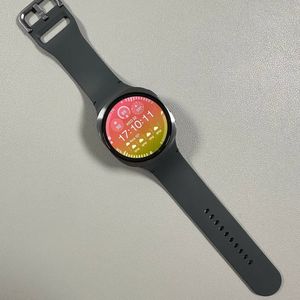
The Samsung Galaxy Watch 8 LTE is a remarkable gadget packed with features. With 32 GB of internal storage, users have immense potential to personalise their experience by installing various applications. This guide will walk you through the steps to install or uninstall apps on your Galaxy Watch 8 LTE with ease.
Installing Apps on Galaxy Watch 8 LTE
To begin adding new apps to your Galaxy Watch 8 LTE, you'll first need to unlock the smartwatch. Next, swipe up on the watch face to access the apps screen. Here, find and tap the Play Store icon, which resembles a colourful triangle. It's essential to ensure your watch is connected to your smartphone via Bluetooth and that you have an active internet connection to browse and download apps.

Navigating the Play Store
Once inside the Play Store, you'll be greeted with a selection of recommended apps tailored for the Galaxy Watch. If a specific app catches your eye, tap on it to view more details, including user reviews and screenshots. When you're ready, tap the 'Install' (install) button. Your watch will then proceed to download and install the app. Remember, the Galaxy Watch 8 LTE supports only those apps explicitly designed for wearables, which are a subset of the entire Play Store collection.

Locating Installed Apps
Once the app is installed, you can find it within the apps list on your watch. Newly installed applications typically appear towards the end of your app list. To open your new app, simply locate it in the list and tap its icon.

Uninstalling Apps
If you find yourself not using an app often and want to free up some space, you can easily uninstall it. Navigate to the app within your apps list, press and hold its icon for a few seconds until a menu appears. Then tap 'Uninstall' (uninstall) to remove the app from your Galaxy Watch 8 LTE.

Exploring Advanced Options
For those interested in more advanced app management, it is possible to enable developer mode on your watch. This offers additional options such as sideloading apps using wireless debugging. However, this process requires some technical know-how.
Conclusion
And there you have it! The Galaxy Watch 8 LTE offers a seamless experience in managing your apps, allowing you to tailor your smartwatch to suit your needs.