Samsung Galaxy Watch 8 LTE - How to Use Google Maps
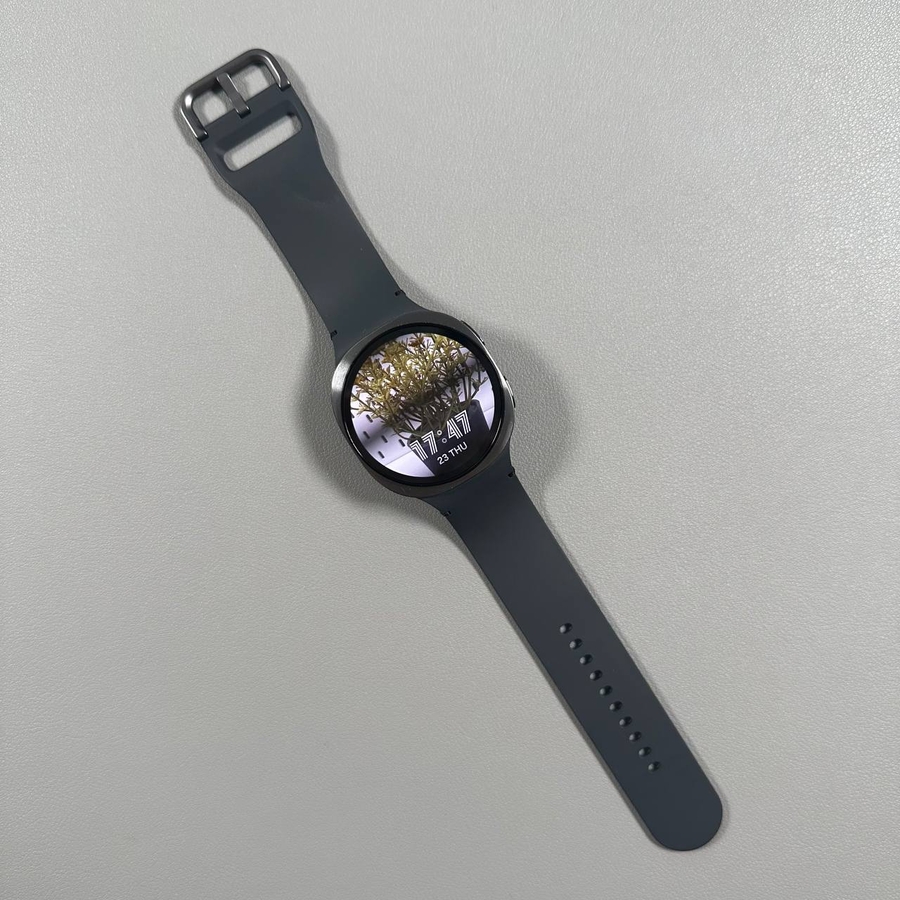
Discovering how to make the most out of your Samsung Galaxy Watch 8 LTE can be an exciting journey, especially when it comes to utilising features like Google Maps. This guide will walk you through how to access and use Google Maps, ensuring seamless navigation right from your wrist.
Step 1: Open Settings on Your Watch
To begin, you'll want to ensure that location services are enabled on your Samsung Galaxy Watch 8 LTE. First, access your watch's app list and locate the 'Settings' (settings) application. This app is typically represented by a tiny gear icon. Once you find it, give it a tap to open the settings menu.

Step 2: Enable Location Services
After entering the settings menu, scroll until you find the 'Location' (location) option. Tap on it, and make sure to toggle the switch to turn on location services. This step is crucial for Google Maps to fetch your current location accurately and provide optimal navigation guidance.


Step 3: Grant Location Permission to Google Maps
Next, ensure Google Maps and related services have permission to access your location. Navigate to 'Apps' (apps) within the settings menu, select 'Google Maps' (Google Maps), and navigate to 'Permissions' (permissions). Set the location permission to 'Allow all the time' (allow all the time) to ensure continuous access. For enhanced accuracy, you can also turn on 'Precise Location' (precise location) if available.

Step 4: Launch Google Maps
With the location settings configured, return to your watch's home screen. Locate and tap on the Google Maps app to open it. You'll find a search bar where you can input your desired destination. For example, if you're planning a visit to Vienna, simply input 'Vienna' and hit enter to begin navigation.

Step 5: Choose Your Navigation Mode
Once you've entered your destination, Google Maps will prompt you to select a mode of transportation. Options typically include driving, public transit, walking, or cycling. You can then choose 'Walking' (walking) to start the navigation process suited for pedestrians.

Step 6: Utilise Navigation Features
As you navigate, the map display will show your route. You can zoom in or out by pinching or spreading using the touchscreen. If you wish to return to the map overview or adjust your route, simply tap on the map, and use the exit option to end navigation once you reach your destination.