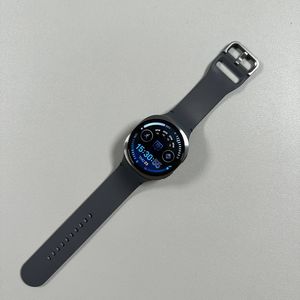
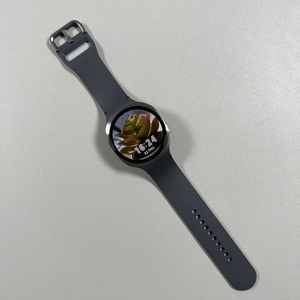
Samsung Galaxy Watch 8 LTE: How to Change Vibration Intensity
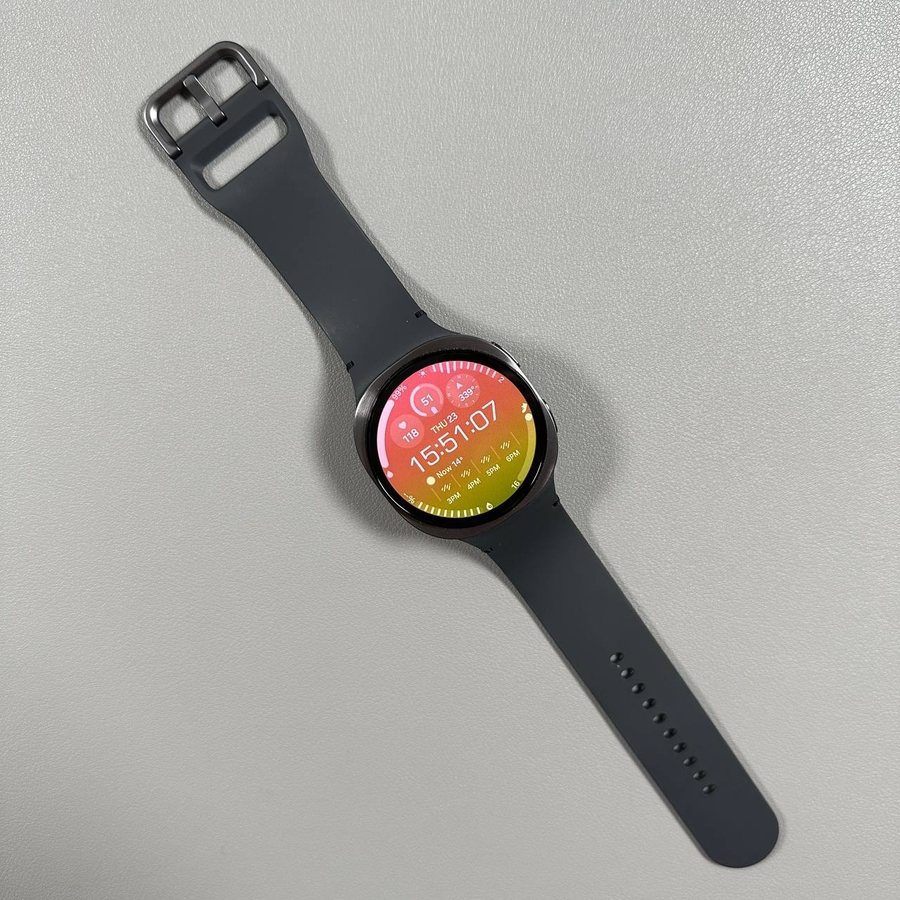
The Samsung Galaxy Watch 8 LTE is a feature-rich smartwatch that allows you to customise settings to your preference. In this guide, I'll show you how to adjust the vibration intensity to suit your comfort level. Whether you prefer a subtle tap of vibration or a more pronounced alert, you can easily change these settings on your watch or through your paired smartphone.
Waking Up Your Samsung Galaxy Watch 8 LTE
Start by waking up your Samsung Galaxy Watch 8 LTE. You can do this by either tapping the screen or by pressing the upper button on the side of the watch. This will take you to the home screen where you can see your current watch face.

Accessing the Settings Menu
Once you're at the home screen, swipe up from the bottom of the screen to access the main menu. Scroll through the menu options until you find the "Settings" (settings) icon, and then tap on it to enter the settings menu.

Navigating to Sounds and Vibration
In the "Settings" (settings) menu, look for the option labelled "Sounds and Vibration." Tap on this option to enter the sound and vibration settings where you can customise your preferences.

Adjusting Vibration Duration and Intensity
Within the "Sounds and Vibration" (sounds and vibration) settings, select the option named "Vibration." Here, you will find two settings to adjust—vibration duration and intensity. First, choose between a short or long vibration duration to suit your needs. Once you are satisfied, move on to adjust the vibration intensity to either light or strong, based on your preference.

Changing Vibration Intensity via Your Phone
If your Samsung Galaxy Watch 8 LTE is paired with a smartphone, you have the option to change these settings through the Galaxy Wearable app. Open the app on your phone and select "Watch Settings." Then, navigate to the "Sounds and Vibration" (sounds and vibration) section. Similarly, you can select the duration and intensity, choosing between long or short, and light or strong options. Once you've made your selection, simply close the app.


And there you have it! You have successfully changed the vibration intensity on your Samsung Galaxy Watch 8 LTE.