How to Enable or Disable Developer Mode on Samsung Galaxy Watch 8 LTE
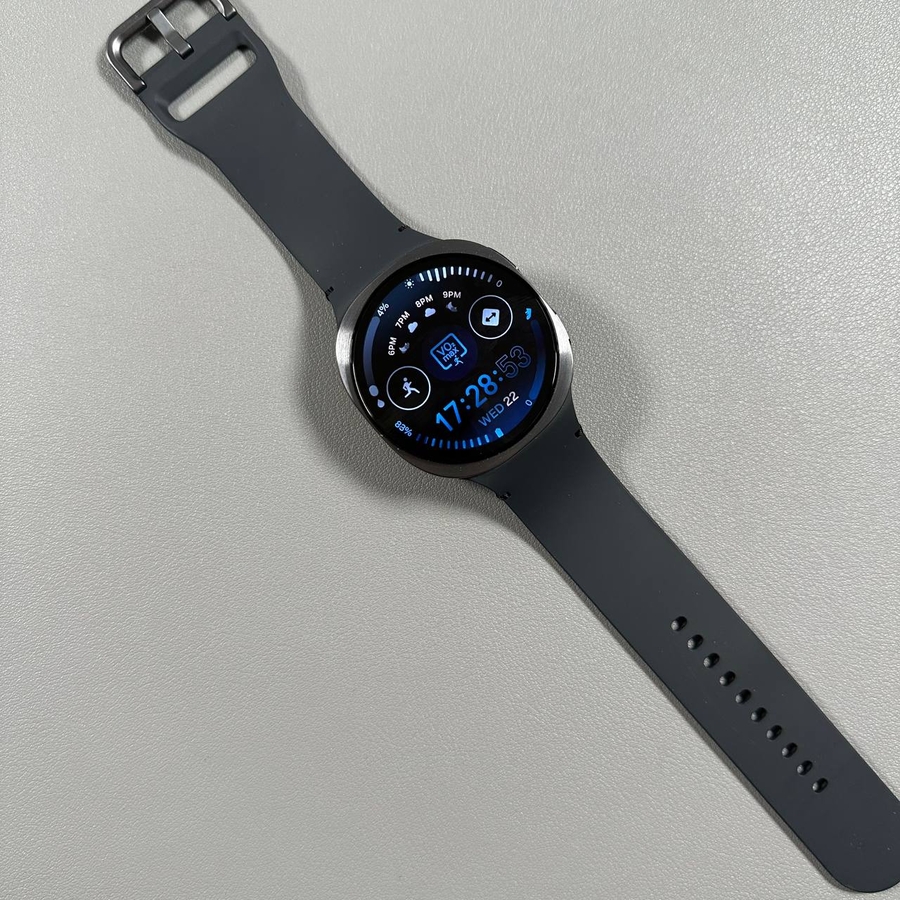
Are you looking to unlock more advanced features on your Samsung Galaxy Watch 8 LTE? Enabling Developer Mode can open up new possibilities for app management and customisation (customization). This guide will walk you through the process of enabling and disabling Developer Mode on your smartwatch. Let's dive in!
Step 1: Access the Settings Menu
To get started with enabling Developer Mode, begin by accessing the Settings menu on your Samsung Galaxy Watch 8 LTE. Simply swipe up from the main screen to reveal the app menu. From there, locate and select the gear icon, which represents the Settings app.

Step 2: Navigate to 'About Watch'
Once you are in the Settings menu, scroll down until you find the "About Watch" section. Tap this option to open a new menu that provides detailed information about your watch.

Step 3: Find the 'Software Information'
In the "About Watch" menu, continue scrolling until you reach the "Software Information" section. This area contains vital information about your watch's operating system and software version.

Step 4: Enable Developer Mode
Now, it's time to enable Developer Mode. Tap on "Software Version" repeatedly. After several taps, you will receive a notification confirming that Developer Mode has been activated. If done correctly, this setting will now be accessible within your Settings menu.

Step 5: Explore Developer Options
Return to the main Settings menu, and you'll now see a new "Developer Options" entry. This section offers a variety of advanced features, such as "Wireless Debugging," which is beneficial for sideloading apps and more. Ensure that both your watch and connected smartphone are on the same Wi-Fi network to ensure seamless connectivity.

Step 6: How to Disable Developer Mode
If you wish to disable Developer Mode, simply go back to the "Software Information" menu and tap on "Software Version" repeatedly. This will remove the developer features from the Settings menu, restoring your watch to its regular mode.