How to Set Up and Use Gemini Assistant on Samsung Galaxy Watch 8 LTE
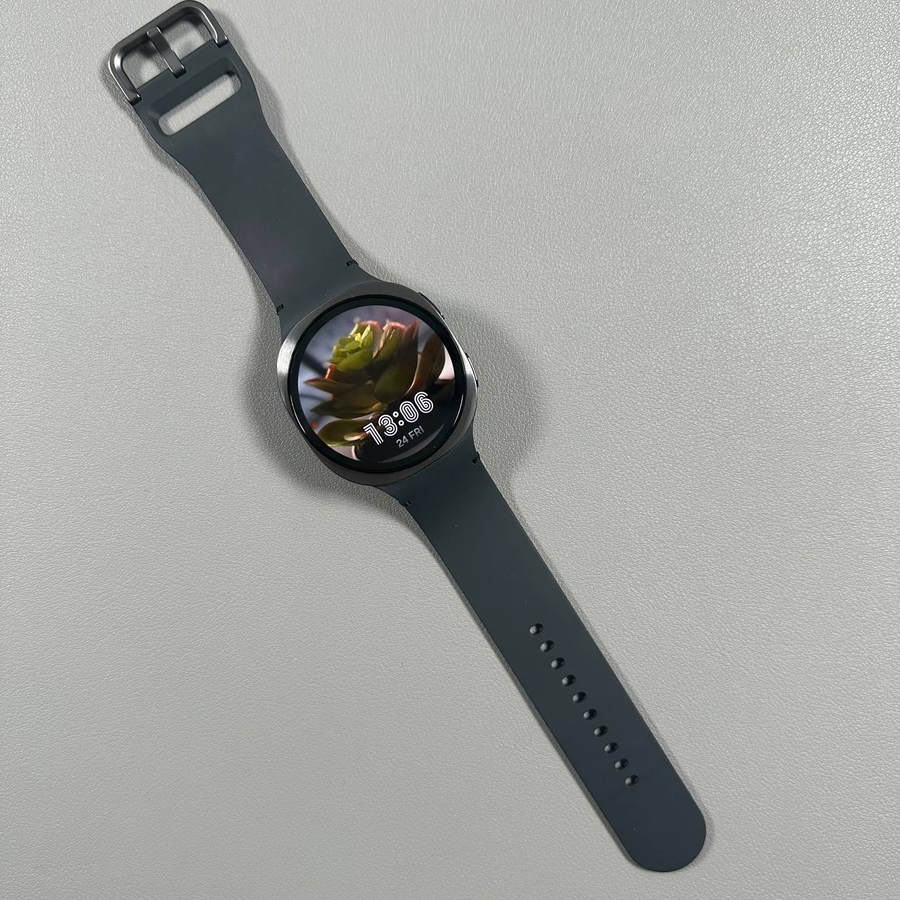
Your Samsung Galaxy Watch 8 LTE offers impressive features, including the innovative Gemini Assistant that can make your smartwatch experience more dynamic and helpful. This guide will take you step-by-step through enabling and using Gemini Assistant, ensuring you make the most out of your device.
Step 1: Enable Gemini Assistant on Your Watch
To enable the Gemini Assistant on your Samsung Galaxy Watch 8 LTE, you should start by swiping down from the top of your watch screen to access the quick settings menu. From there, find and tap on the settings gear icon to enter the "Settings" (settings) menu. Scroll through the list until you see the option labelled "Google." Tap on it to proceed to the Google settings.

Step 2: Get Started with Gemini Assistant
Within the Google settings menu, find and select "Digital Assistant." Once selected, tap on the button labelled "Get Started" (get started). You'll be prompted to pick up your connected phone. Your phone should automatically display a window prompting you to continue setting up Gemini Assistant. Follow the instructions on your phone and tap "Continue" (continue) to proceed.

Step 3: Use Voice Commands with Gemini Assistant
Once setup is complete, you can start using voice commands to interact with the Gemini Assistant. Simply say "Hey Google," followed by your command. For example, you can ask, "Hey Google, research the differences between the Samsung Galaxy Watch 8 and 7," to initiate a research query. The assistant will provide detailed information as requested.

Step 4: Set Timers and Control Watch Features
In addition to research, you can use Gemini to manage various smartwatch tasks. For example, you might say "Hey Google, set a timer for 7 minutes," and the assistant will promptly start a timer. This functionality allows you to handle tasks hands-free and efficiently.

Step 5: Launch Gemini Assistant via Button and Gesture Control
You can also customise your Samsung Galaxy Watch 8 LTE by setting the upper button to launch Gemini Assistant. Go back into the "Settings" (settings) menu, choose "Buttons and Gestures" (buttons and gestures), and configure the long-press action to activate the digital assistant. Simply hold down the upper button to quickly access Gemini anytime.