How to Control Keyboard Sounds on Your Google Pixel 10 or 10 Pro
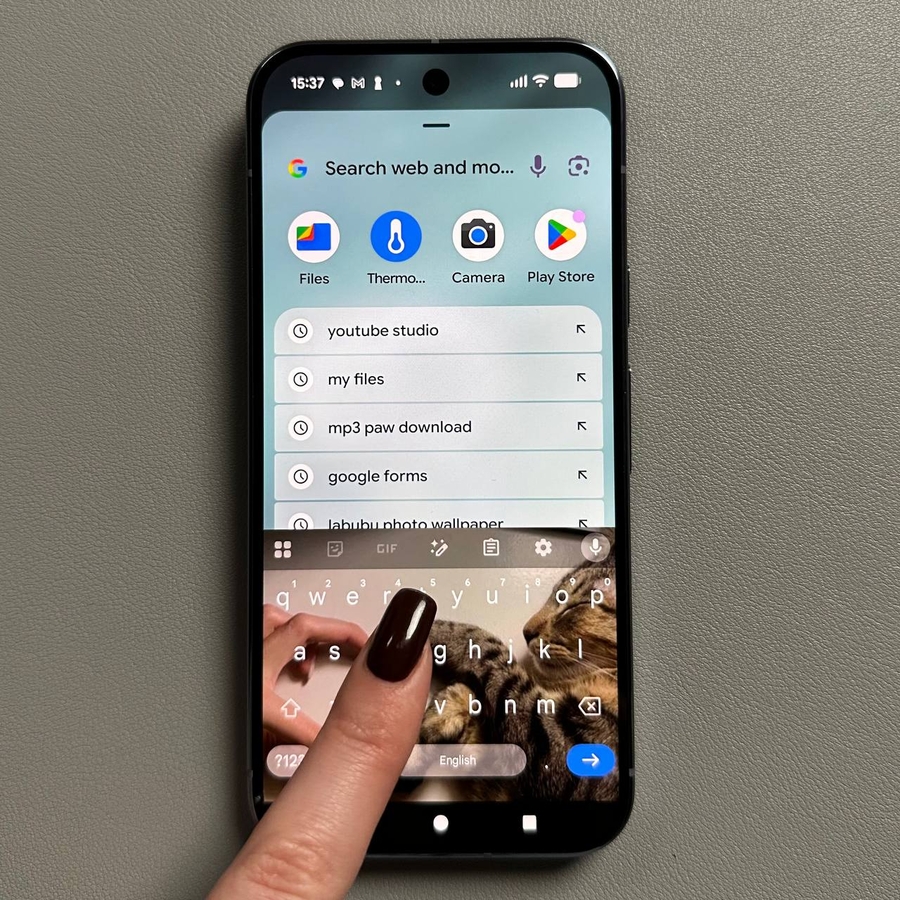
Are you looking to silence your typing or perhaps bring back that satisfying click sound? This easy-to-follow guide will walk you through enabling and disabling the keyboard sounds (key-tap sounds) for the Gboard app on your Google Pixel 10 or Google Pixel 10 Pro. It's a quick change you can make directly in your device's settings, ensuring a typing experience that is perfect for you.
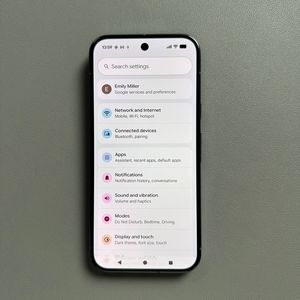
Step 1: Open Your Device Settings
To begin, unlock your Google Pixel 10 device and locate the main Settings app. You can usually find its distinctive gear-shaped icon on your Home Screen or within the main App Drawer.

Step 2: Navigate to System Settings
Once in the main Settings menu, scroll down the list of options until you see System. Tapping this will take you to a new page containing controls for language, gestures, and software updates.

Step 3: Access On-Screen Keyboard Settings
In the System settings, look for the option labelled Keyboards and tap on it. Next, tap on On-screen keyboard to view all of the installed typing applications on your device.

Step 4: Choose Gboard Preferences
A list of installed keyboards will appear. Tap on Gboard, which is the standard keyboard application for your Google Pixel device. This action will open the specific settings menu for the Gboard app.

Step 5: Go to Preferences
Inside the Gboard settings, select Preferences. This comprehensive section is where you can manage various behaviours of your keyboard, including haptics, layout, and, most importantly, the key-tap sound behaviour.

Step 6: Toggle the Keypress Sound On or Off
Scroll down within the Preferences menu until you find the section labelled Key press. The option you are looking for is called Sound on keypress. To enable the key-tap sounds, simply tap the toggle switch next to Sound on keypress to the On position (it will usually turn blue). To disable the sound and enjoy completely silent typing, tap the toggle to the Off position.


Step 7: Adjust the Volume (Optional)
If you decided to enable the sounds, you can fine-tune them immediately below the toggle. Look for the Volume on keypress slider and drag it left or right to set your preferred volume level. This is perfect for setting a subtle click without annoying others around you.

And that's all there is to it! Your Google Pixel 10 is now set up to match your preferred typing experience, whether you like a quiet tap or a noticeable sound with every keypress.