How to Change Display Size on Xiaomi 15T Pro
Whether you want larger text and icons or need to adjust the display for better readability, this step-by-step instruction will help you make the desired changes easily.
Step 1: Access the Settings Menu
To begin, locate the Settings app. You can find the app by searching through the home screen or within the app drawer. The icon resembles a gear, easily recognisable among other apps.

Step 2: Navigate to Additional Settings
Once inside the Settings app, scroll down the menu until you find the 'Additional Settings' option. Tap on it to proceed to the next series of options.

Step 3: Enter the Accessibility Settings
After opening Additional Settings, look for the 'Accessibility' menu. Tapping this option will take you to various accessibility features available on your device.

Step 4: Explore the Vision Section
In the Accessibility menu, find and select the 'Vision' section. This area contains all the settings that can enhance the visual experience on your phone.

Step 5: Open Display Size and Adjust Slider
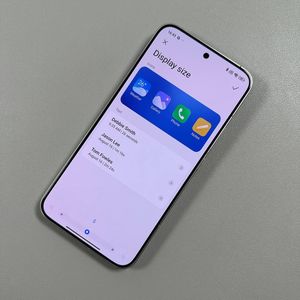
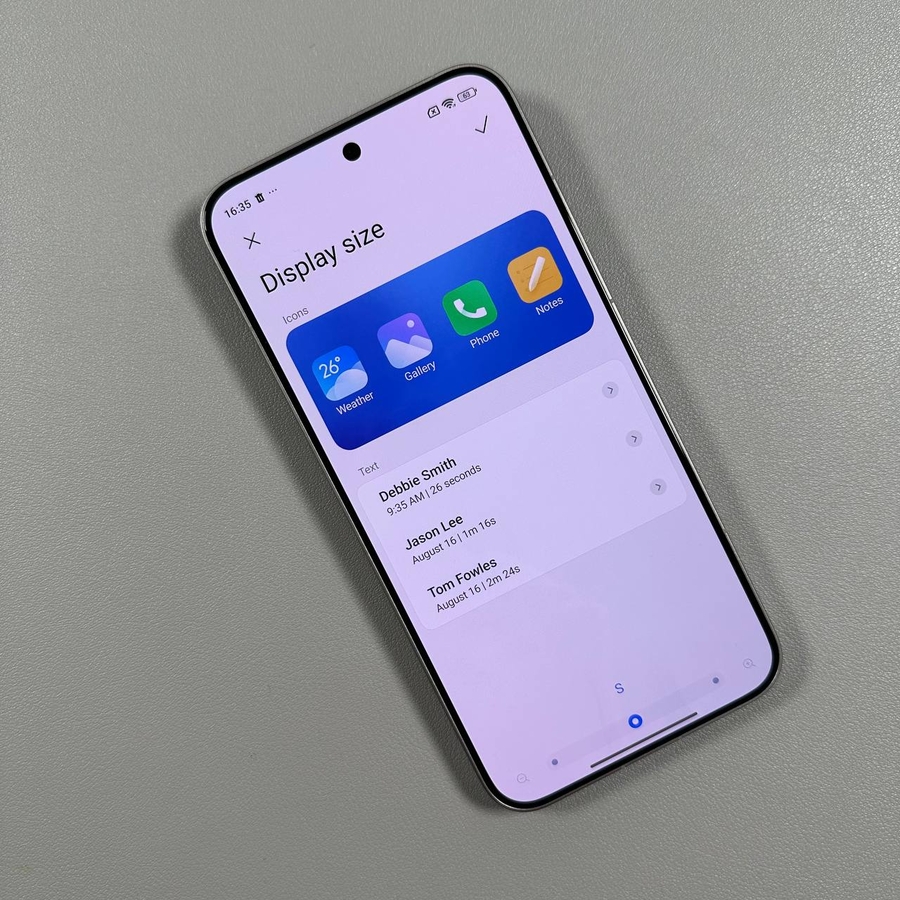
Locate and tap on 'Display Size'. You will see a slider at the bottom of the screen allowing you to adjust the display size. Slide it towards the right for a larger display or move it left for a smaller one. For this demonstration, we'll enlarge the display size by moving the slider to the right.


Step 6: Confirm Your Selection
Once you have your preferred display size set, look for the check mark located in the top right corner of the screen. Tap it to confirm your selection. A pop-up may appear, prompting you to tap 'OK' (OK) to finalise the changes. Upon completion, you'll notice the updated display size taking effect instantly.