How to Take RAW Photos on Xiaomi 15T Pro
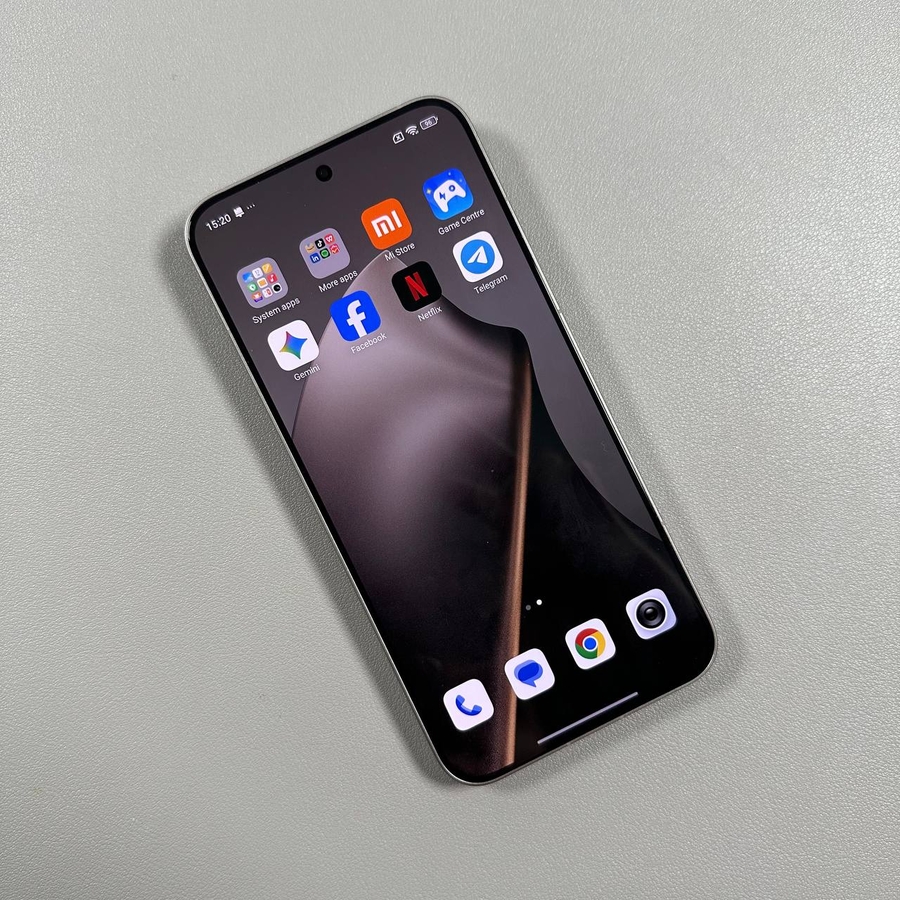
Capturing images in RAW format with your smartphone can significantly enhance your post-processing flexibility and image quality. This guide will walk you through the steps to configure and use the Pro Camera mode on your Xiaomi 15T Pro to take stunning RAW photos.
Step 1: Open the Camera App
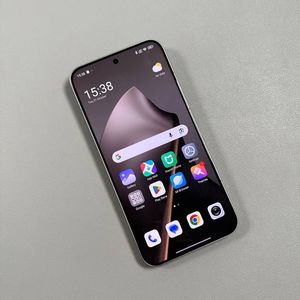
To begin, locate the Camera app. This app is typically accessible straight from your home screen or within the app drawer. Give it a tap to launch the camera interface.

Step 2: Access the Pro Mode
Once you've opened the Camera app, you'll need to switch to the Pro section. Look towards the bottom of your screen; you should see various camera modes. Swipe or tap to navigate until you find the 'Pro' mode. This mode gives you more manual control over your photography settings.

Step 3: Change the Photo Format to RAW
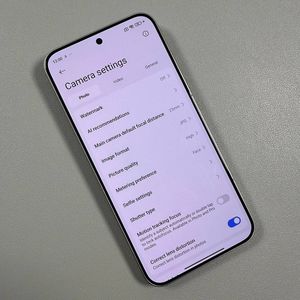
Within the Pro mode, pay attention to the settings options available on your screen. Search for the format setting, which is usually labelled with 'JPG.' Tap on this option, and a small menu should appear allowing you to switch from 'JPG' to 'RAW.' By selecting 'RAW,' you are enabling the ability to capture more detailed images, ideal for further editing.


Step 4: Capture Your RAW Photos
With the photo format set to RAW, you're now ready to start shooting. Frame your subject as desired and press the shutter button to take your picture. The resulting image will be saved in RAW format, which allows for higher-quality edits later on.

By following these steps, you can enhance your photography skills using the sophisticated Pro mode on your Xiaomi 15T Pro. Enjoy experimenting with the flexibility and creative possibilities that RAW format offers.