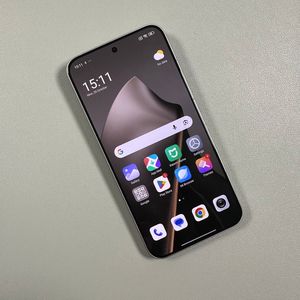
How to Take a Screenshot on Xiaomi 15T Pro
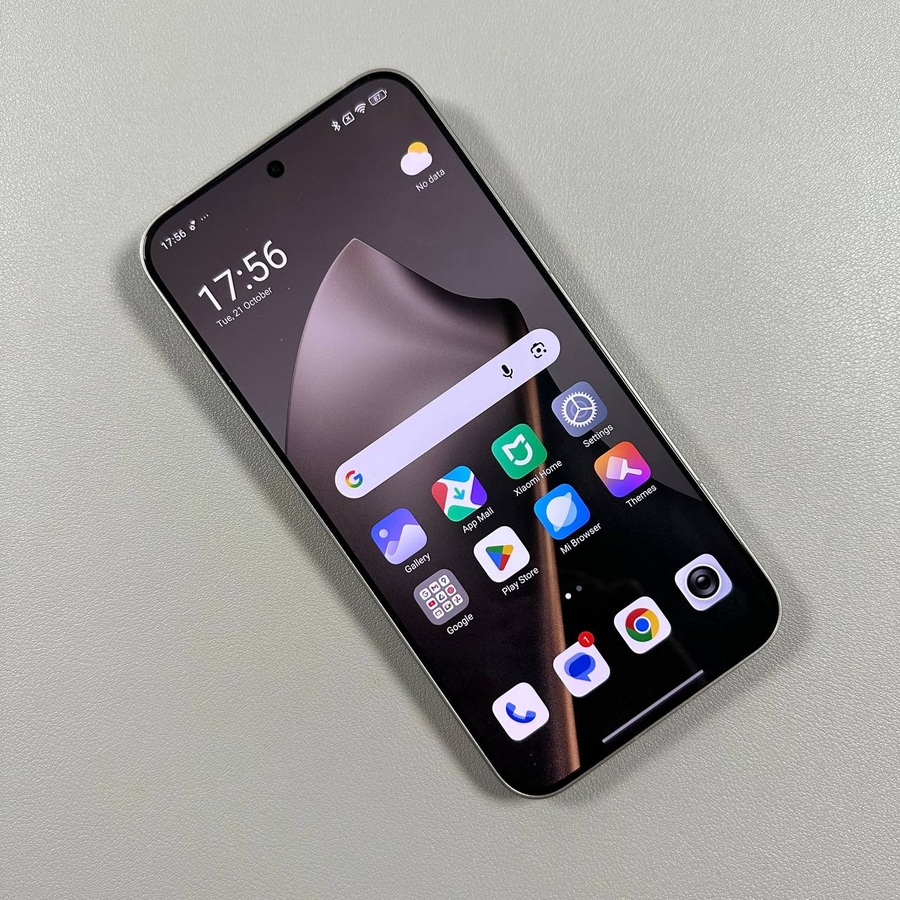
Capturing what's on your screen can be incredibly useful, whether you're saving an important detail or sharing something interesting with a friend. If you own the Xiaomi 15T Pro, you have several ways to take a screenshot, and we're here to guide you through each method step by step.
Method 1: Using the Physical Buttons
To take a screenshot using the physical buttons on your device, simply press and hold the volume down button along with the power button simultaneously. This combination will capture the current screen and you should see a notification confirming the screenshot has been taken.

Method 2: Three-Finger Gesture
If you'd prefer a more tactile approach, you can use the three-finger swipe gesture. Ensure this option is enabled in your settings under 'Additional Settings' > 'Gesture Shortcuts.' With this method activated, simply place three fingers on the screen and swipe down. The screenshot will be captured instantly.

Method 3: Partial Screenshot Gestures
For capturing only a part of your screen, the partial screenshot gesture is your best option. First, ensure this feature is enabled in your Gesture Shortcuts settings. Then, use three fingers to press and hold on the screen. Once the partial screenshot mode is activated, select the portion you want to capture. You can even edit the selection before saving it.


Method 4: Quick Settings Menu
The final method involves using the Quick Settings menu. Swipe down to open it, and look for the scissors icon to take a screenshot. If you do not see the scissors icon, tap on 'Edit' (edit) to find and add it to your Quick Settings. Once located, tap on the icon to capture your screen.


Now that you've mastered screenshotting on your Xiaomi 15T Pro, finding your images is simple. Head over to your gallery, where you will discover all your screenshots neatly stored, including any partial screenshots you've saved. Happy screenshotting!