How to Enable or Disable Wi-Fi Calling on Xiaomi 15T Pro
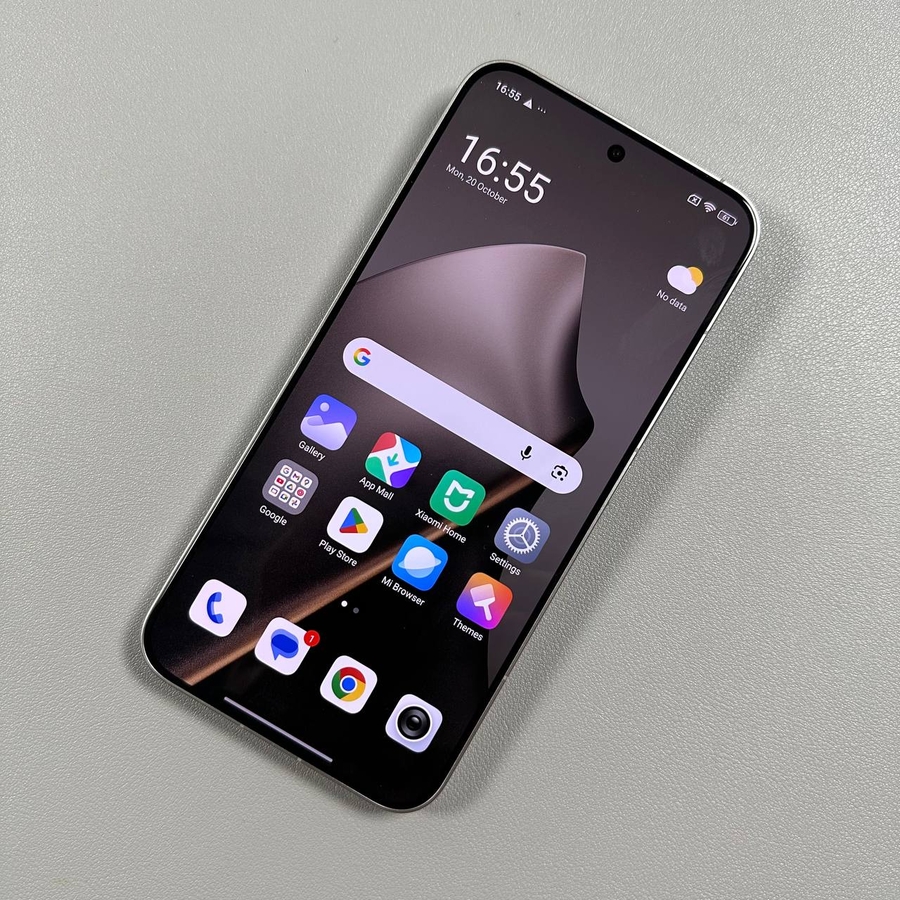
Welcome to our step-by-step guide on managing Wi-Fi Calling on your Xiaomi 15T Pro. This feature allows you to make calls using a Wi-Fi connection, which can be particularly useful if you are in an area with poor cellular service. Let's walk through the process of turning this feature on or off, as well as how to set your preferred network type.
Step 1: Open the Settings App
To begin, unlock your Xiaomi 15T Pro and locate the Settings app. This app can typically be found on your home screen or within your app drawer and is represented by a gear-shaped icon.

Step 2: Navigate to Mobile Networks
Once you are in the Settings menu, scroll down to find the option labelled Mobile Networks. Tap on it to proceed to the next step in configuring your Wi-Fi calling settings.

Step 3: Access Your SIM Card Settings
Within the Mobile Networks section, you will see your active SIM card(s) listed. Select the SIM card for which you wish to adjust Wi-Fi Calling settings.

Step 4: Toggle WiFi Calling
Scroll to the bottom of the SIM card settings menu, where you will find the Wi-Fi Calls option. There you will see a switch that allows you to turn Wi-Fi Calling on or off. Tap the switch to the desired position depending on whether you want to enable or disable this feature.

Step 5: Adjust Network Preferences
When WiFi Calling is enabled, you have the option to set your network preferences. You can choose to prioritise either Wi-Fi or Mobile Networks for making calls. This setting can be adjusted by tapping on Network Preferences within the same menu.

That's all there is to it! You have now successfully managed your Wi-Fi Calling settings on your Xiaomi 15T Pro.