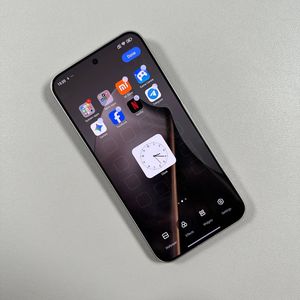
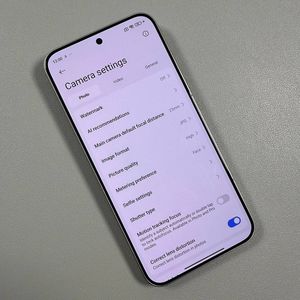
Xiaomi 15T Pro: How to Rotate Your Screen
Whether you want your phone's screen to switch orientations automatically or you prefer it to stay locked in one direction, this guide will walk you through the entire process in simple steps.
Step 1: Access Quick Settings
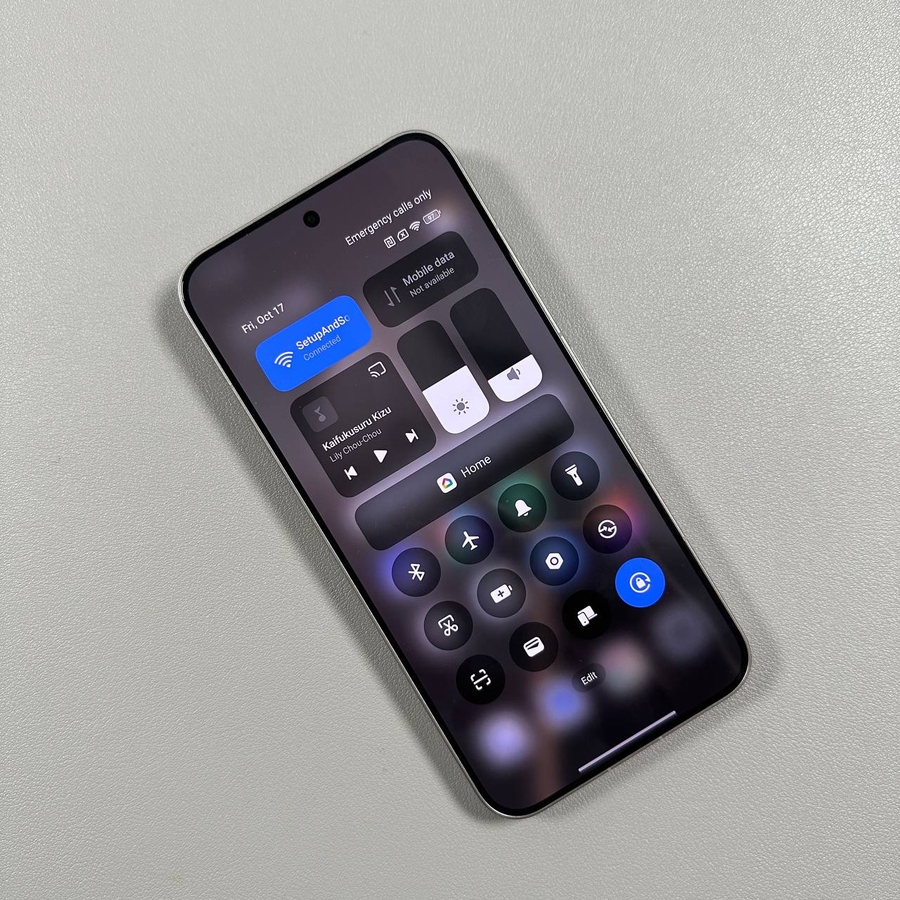
To begin, navigate to the Quick Settings menu. You can do this by swiping down from the top of your screen. This menu gives you fast access to frequently used settings, like Wi-Fi and Bluetooth. Among these, you should see an icon representing screen orientation.

Step 2: Find the Screen Orientation Icon
In the Quick Settings menu, look for the Screen Orientation icon. If you cannot see it immediately, don't worry—this icon may sometimes not be visible by default. To locate it, you may need to proceed to the editor by clicking the "edit" (edit) button. This allows you to customise which settings appear in your Quick Settings menu.

Step 3: Add the Screen Orientation Toggle
If the Screen Orientation icon is missing, you can add it for easier access. In edit mode, locate the "Lock Orientation" option. Once you find it, click on the plus sign (+) to add it to your Quick Settings. Confirm your selection by clicking the tick (check mark) at the top right corner of the screen.

Step 4: Toggle Screen Orientation
With the Screen Orientation icon added to your Quick Settings, you can now easily manage your screen's orientation. Tapping this icon adjusts your screen's lock feature. A blue icon means the rotation is locked; your screen will remain in its current orientation. If it's grey, the screen will adjust automatically to your device's position.

By following these steps, you can have full control over your screen's behaviour on your Xiaomi 15T Pro.