How to Set Up Voice Assistant on Marshall Major V Headphones
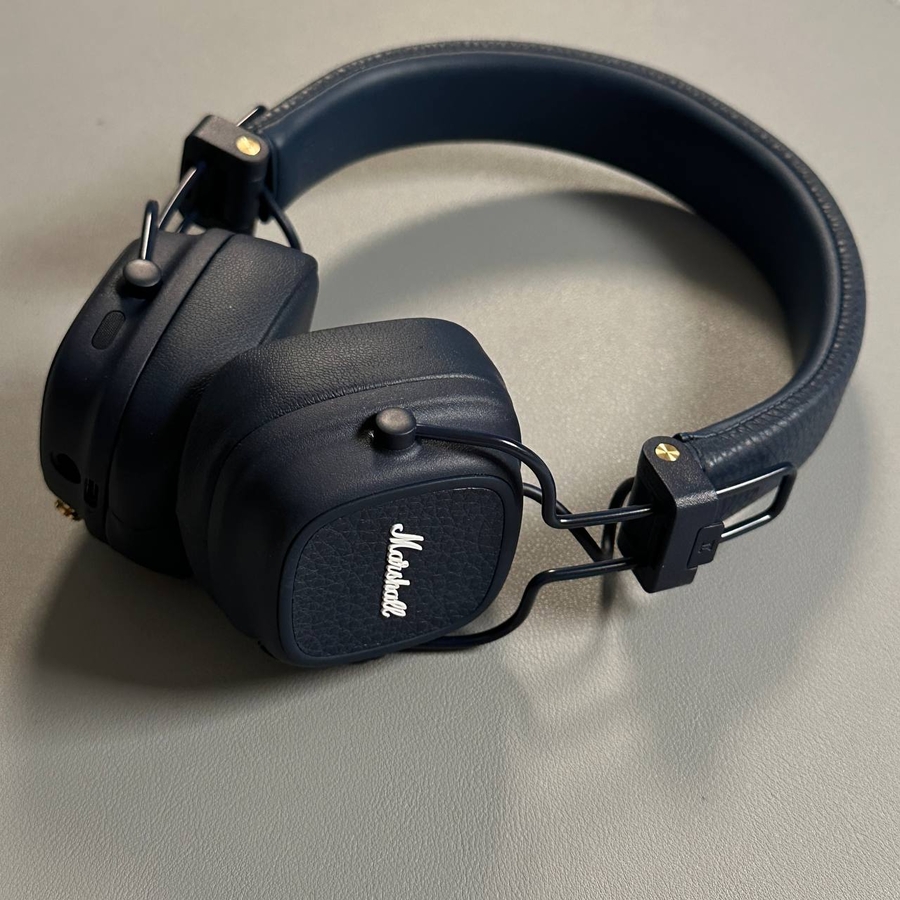
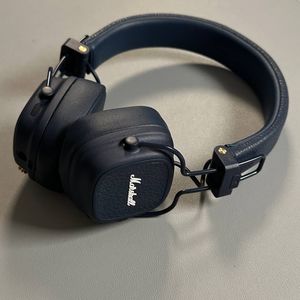
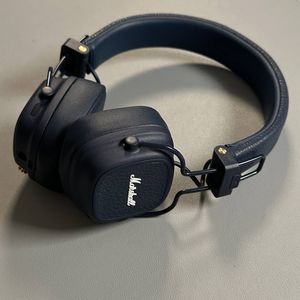
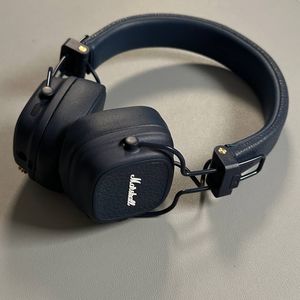
Marshall Major V headphones offer a convenient way to interact with your favorite voice assistants, including Siri, Google Assistant, or even Gemini. Setting up your voice assistant is simple and can enhance your hands-free experience. Below, we'll guide you through this process step-by-step so you can effortlessly tap into your virtual assistant's capabilities.
Step 1: Open the Marshall Bluetooth Application
To get started, locate and open the Marshall Bluetooth application on your smartphone. You can download this app from the App Store for iPhone users or the Google Play Store if you're using an Android device. The app allows you to manage your headphones' settings and features, including the voice assistant configuration.

Step 2: Add Your Marshall Major V Headphones
If not already done, pair your Marshall Major V headphones with the app. Follow the on-screen instructions to ensure your headphones are properly connected. Once paired, you will see a menu specifically for your headphones.

Step 3: Navigate to the M Button Settings
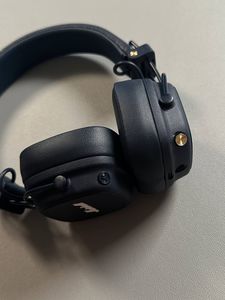
In the app, scroll down until you find the section labeled 'M Button.' This button, located on the left ear cup of your headphones, is key to activating your voice assistant. Tap on the M Button line to access its settings.

Step 4: Choose Your Voice Assistant
Within the M Button menu, select the voice assistant you wish to use. You can choose between popular options like Google Assistant and Siri, or select another available option such as Gemini. Ensure that you choose your preferred assistant, as this will determine which one is activated when you press the M Button on your headphones.

Step 5: Activate Your Voice Assistant
Once you have set your preference, use the M Button located at the left ear cup to call your voice assistant. Simply press the button, and your chosen assistant, like Siri, will be at your command, ready to help with any tasks or queries.

With these steps completed, you can enjoy the convenience of hands-free control wherever you go, using Siri or other assistants.