Guide to Connecting Your Marshall Major V Headphones to a Smartphone App
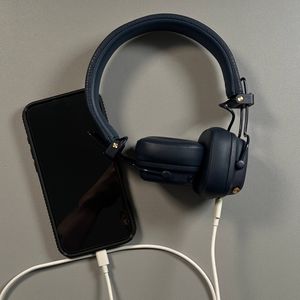
Welcome to this step-by-step guide where I'll show you how to connect your Marshall Major V headphones to your smartphone app. If you missed our previous session where we installed and set up the app, make sure to check that for detailed instruction. Now, let's proceed to add these headphones to the app. Our first step involves pairing the headphones with your smartphone.
Step 1: Access Bluetooth Settings
To begin, unlock your smartphone and navigate to the Settings app, which is typically represented by a gear icon. From there, locate and select either "Bluetooth" or "Connected Devices" depending on your device type. If you are using an Android smartphone, you should see an option at the top that says "Add Device." Tap on this option to prepare your device for pairing.

Step 2: Enable Pairing Mode on Your Headphones
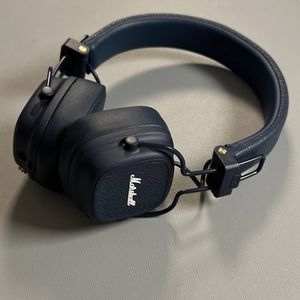
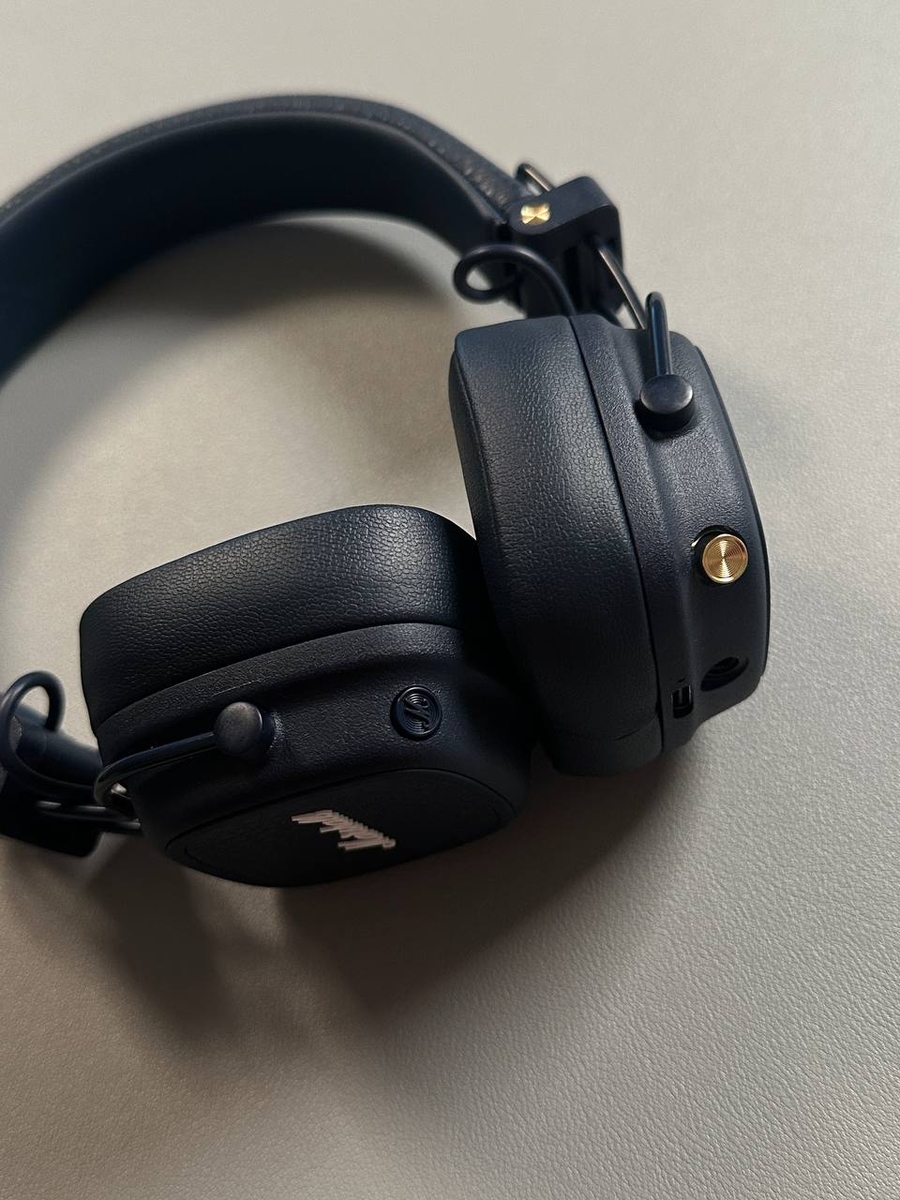
Next, you need to put your Marshall Major V headphones in pairing mode. On the headphones, locate the multifunctional button on the right ear cup. Press and hold this button until the LED light next to the USB-C port starts blinking blue. This indicates the headphones are now discoverable to your smartphone and should appear in the device list.

Step 3: Pair the Headphones
Once the headphones are in pairing mode and appear in the device list on your smartphone, select them by tapping on their name. For Android devices, a pop-up window will appear asking you to confirm the pairing. Go ahead and tap "Pair." After completing this step, you should see a confirmation and your headphones will be successfully paired with your smartphone.

Step 4: Add Headphones to the Marshall Bluetooth App
Now that your headphones are paired, you can close the settings menu and open your Marshall Bluetooth application. Inside the app, find and tap on the "Add Device" option. The app will search for nearby devices and should quickly identify your Marshall Major V headphones. Select your headphones to add them to the app, then proceed by clicking "Add," followed by "Pair," and finally "Continue." With these steps completed, you're ready to get started using your headphones with the app. Enjoy the rich and powerful audio experience that Marshall Major V offers!