How to Use Dual Connection on Marshall Major V Headphones
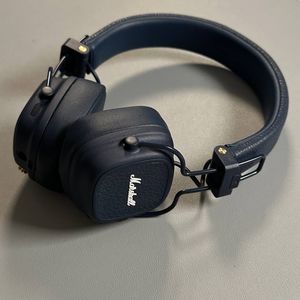
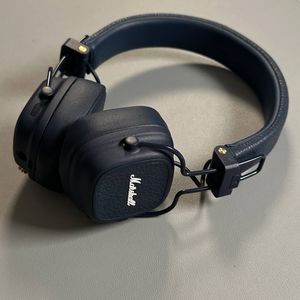
For those looking to maximize their Marshall Major V experience, the dual connection feature offers the convenience of connecting two devices simultaneously. This guide will take you step-by-step through the process of setting up this feature so you can enjoy seamless audio from multiple sources at once.
Step 1: Verify First Device Connection
Begin by ensuring that your Marshall Major V headphones are already connected to your primary device. This device will serve as the initial connection point for your headphones. If they are not connected, follow the usual Bluetooth pairing process to do so.

Step 2: Prepare Headphones for Second Device Pairing
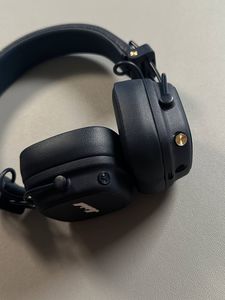
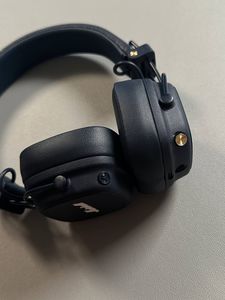
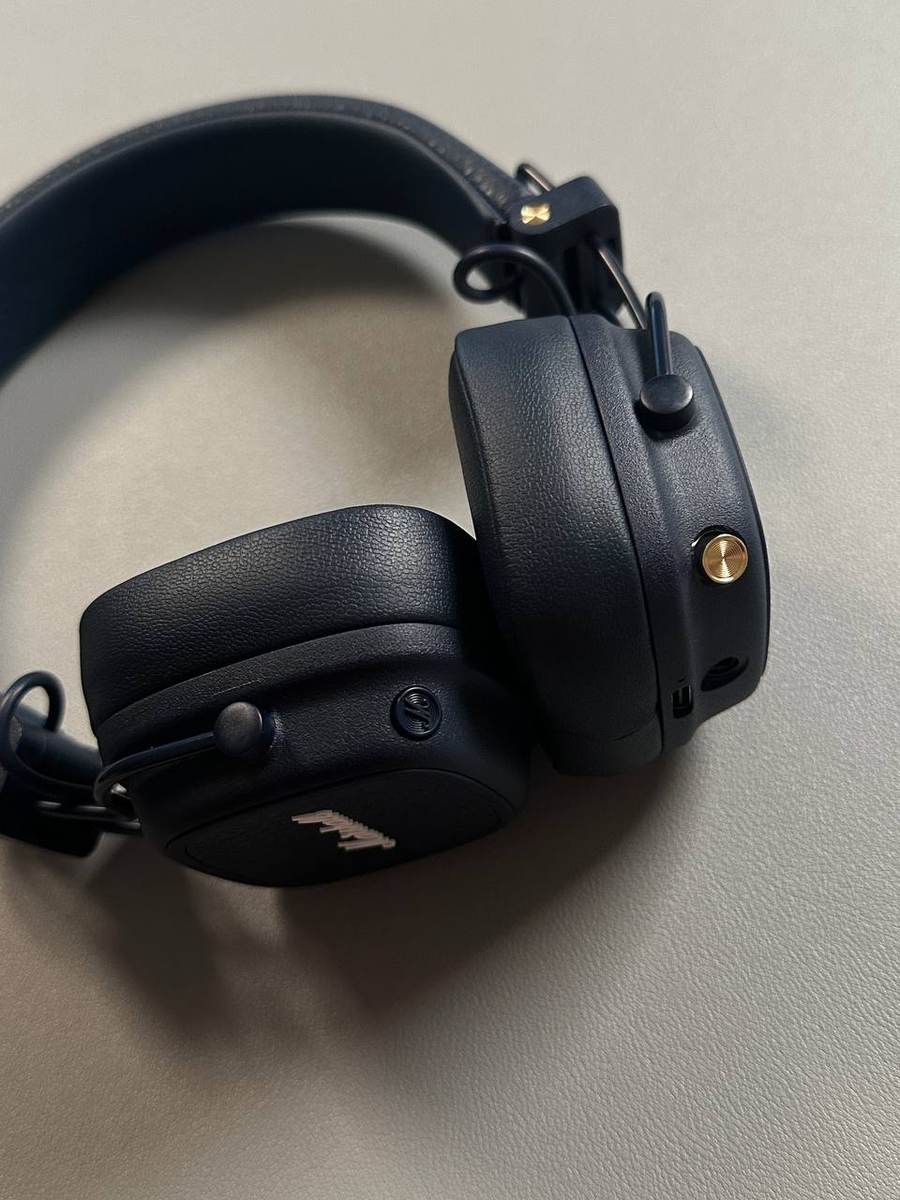
Once your first device is connected, it's time to prepare your headphones for pairing with the second device. To do this, locate the multifunctional button on the right ear cup of your Marshall Major V headphones. Press this button twice in quick succession. You should see a blue LED light start to blink near the USB-C port, indicating your headphones are ready for a new connection.

Step 3: Connect the Second Device
Now, on your second device, navigate to the Bluetooth settings menu. Scan for new devices until you see your Marshall Major V headphones listed. Tap on the headphone name to establish a connection with this second device. You'll know the connection is successful when your device confirms it, and both devices are now paired with your headphones.

Step 4: Enjoy Dual Connection
With both devices now connected, you can seamlessly switch between them. Whether you're taking calls from your phone or listening to music from your tablet, the Marshall Major V headphones make it simple to enjoy audio from both sources.