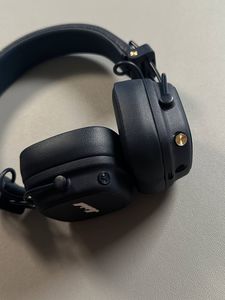
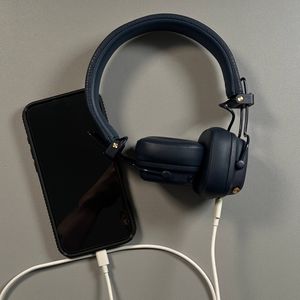
How to Fix No Sound Issues with Marshall Major V Headphones When Connected to Your Phone
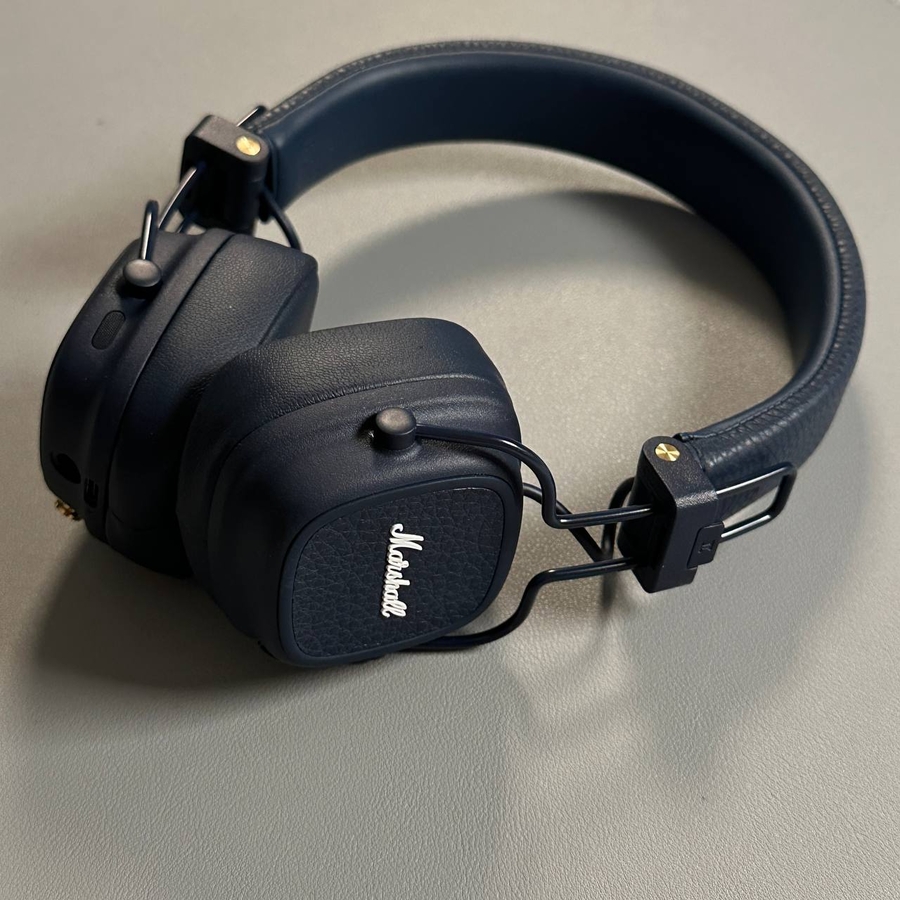
If you've connected your Marshall Major V headphones to your phone and you're unable to hear any sound, don't worry! Here is a clear and easy-to-follow guide to help you resolve this issue in no time.
Step 1: Restart Your Audio Player
To begin, unlock your phone and ensure that the audio player you are using is completely closed. This can be Apple Music, Spotify, or any other music app you prefer. Remove the application from the background or cache by swiping it away from the recent apps list. After this, open the app again to see if the sound issue is resolved. Additionally, verify that your app is up to date by visiting the App Store on an iPhone or Google Play Store on an Android device and checking for any available updates.


Step 2: Update Software Version
Open the Marshall Bluetooth application on your phone. If your headphones are paired with the app, you'll find an option to review your current software version. Scroll down to the 'About' section at the bottom. If an update is available, you will see an 'Install Firmware' button. Click this button to start the update process and wait for it to finish completely.

Step 3: Restart Your Device
Sometimes, rebooting your phone or tablet can help resolve connectivity issues. To restart your device, press and hold the power button until you see the power menu. Select 'Restart' and wait for your device to reboot completely. This can often clear up minor bugs or glitches that may be affecting the audio.
Step 4: Restart Your Headphones
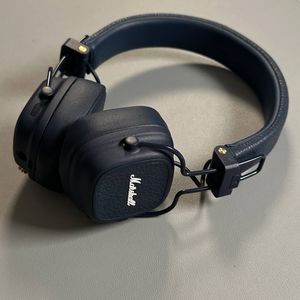
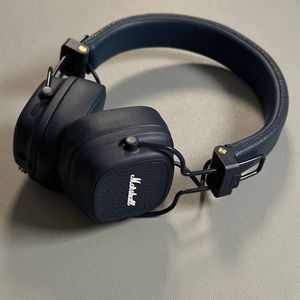
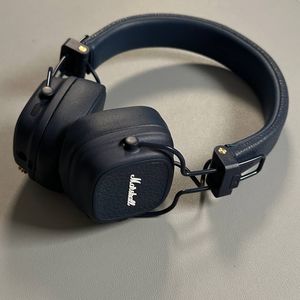
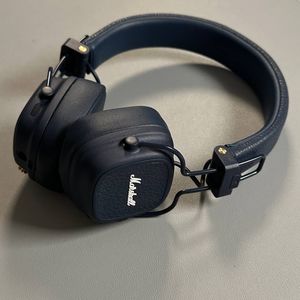
You may need to restart your Marshall Major V headphones. Locate the multifunctional button on the right ear cup. Press and hold this button for at least 10 seconds until you see the indicator light flash, indicating the headphones are rebooting. This simple step often helps resolve connectivity issues.


Step 5: Perform a Factory Reset
If none of the previous steps have resolved the issue, you can try performing a factory reset on your headphones. To do this, press and hold both the multifunctional button on the right ear cup and the 'M' button on the left ear cup simultaneously for at least 10 seconds. Reconnect your headphones to your phone and check if the sound issue is resolved.