Motorola C1L - Digital Cordless Telephone Manual
- 1 Technical Information
- 2 Connecting to a switchboard
- 3 Recall
- 4 Welcome...
- 5 Getting started
- 6 Getting to know your phone
- 7 Using the phone
- 8 Phonebook
- 9 Handset settings
- 10 Base settings
- 11 Clock & alarm
- 12 Caller ID and the Calls list
- 13 Using additional handsets
- 14 Help
- 15 General information
- 16 Consumer Products and Accessories Warranty
- 17 Download manual
- 18 In Other Languages
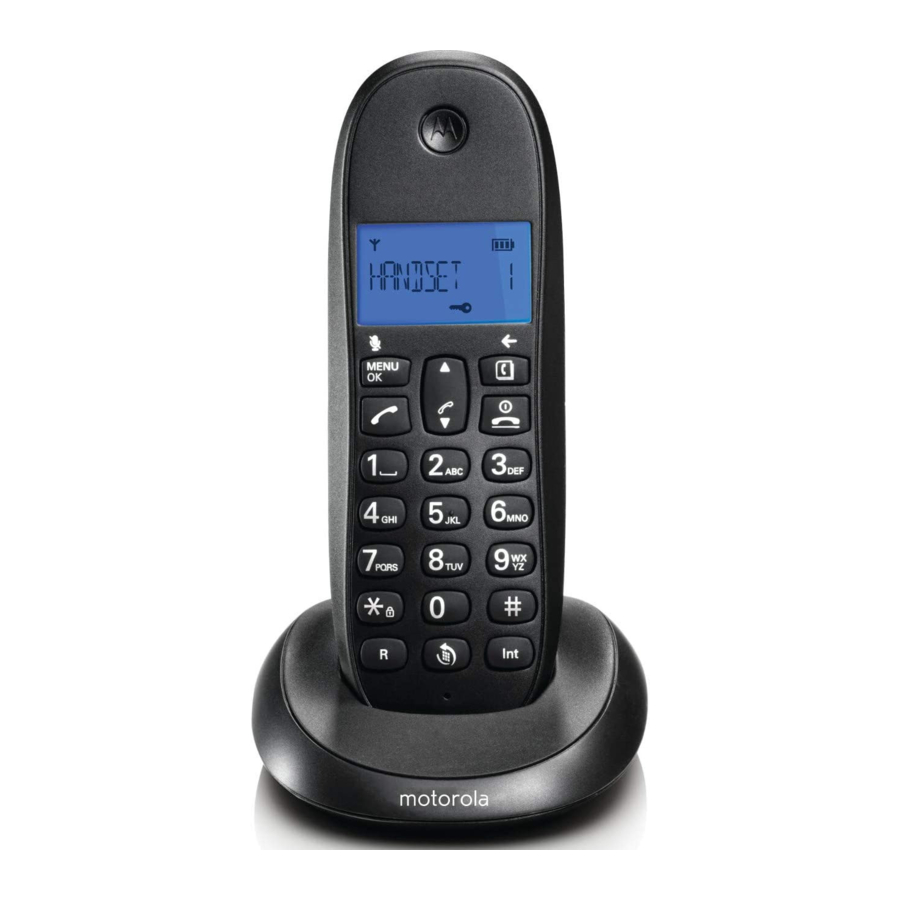

Charge the handset for 24 hours before use.
Technical Information
How many telephones can I have?
All items of telephone equipment have a Ringer Equivalence Number (REN), which is used to calculate the number of items which may be connected to any one telephone line. Your C1L has a REN of 1. A total REN of 4 is allowed. If the total REN of 4 is exceeded, the telephones may not ring. With different telephone types, there is no guarantee of ringing, even when the REN is less than 4.
Any additional handsets and chargers that you register have a REN of 0.
Connecting to a switchboard
This product is intended for use within Europe for connection to the public telephone network.
Recall
You may need to use the recall function if you are connected to a switch. Contact your PABX supplier for further information.
Welcome...
to your new Motorola C1L Digital Cordless Telephone!
- All handsets are fully cordless for locating anywhere within range.
- 50 Name and Number phonebook.
- Caller ID shows you who's calling and see details of the last 40 callers in a Calls list.1
- Redial up to 10 of the last numbers called.
- Register up to 5 handsets to a single base and register each handset with up to 4 different bases.
- Make internal calls and transfer external calls between handsets.
- Choose from 5 different ringtones for internal and external calls as well as numbers stored in the phonebook.
Please note that this equipment is not designed for making emergency telephone calls when the power fails. Alternative arrangements should be made for access to emergency services.
Need help?
If you have any problems setting up or using your C1L, please contact Customer Services on XXXX XXXXXXX.
Alternatively, you may find the answer in the 'Help' section at the back of this guide.
1You must subscribe to your network provider's Caller ID or Call Waiting service for these features to work. A subscription fee may be payable.
This user guide provides you with all the information you need to get the most from your phone.
To set up your phone, follow the simple instructions in 'Getting Started', on the next few pages.

Only use the telephone line cord supplied.
Got everything?
- C1L base & cordless handset
- 2 x rechargeable Ni-MH battery cells
- Power adaptor for the base
- Telephone line cord
If you have purchased a C1L multiple pack you will also have the following additional items:
- Cordless handset & charger
- 2 x rechargeable Ni-MH battery cells
- Power adaptor for the charger

ECOMOTO: a convergence of efforts by marketing, design, research, engineering and supply chain management that leads to better products for everyone. A holistic view that focuses on both social and environmental responsibility. A passion and a shared point of view. The right thing to do.
- Meets and / or exceeds EMEA environmental regulatory requirements.
- Eco friendly packaging with a minimum 20% post consumer recycled content.
- Phone housing is built with a minimum of 25% post consumer recycled content plastic.
- Energy efficient charger that meets EU Code of Conduct requirements.
- ECO mode function which reduces the transmitted power and energy consumption.
Getting started
Do not place your C1L in the bathroom or other humid areas.
Location
You need to place your C1L base within 1.5 metres of the mains power and telephone wall socket so that the cables will reach. The socket-outlet should be installed near the equipment and should be easily accessible.
Make sure that it is at least 1 metre away from other electrical appliances to avoid interference. Your C1L works by sending radio signals between the handset and base. The strength of the signal depends on where you place the base. Placing it as high as possible ensures the best signal.
HANDSET RANGE
The unit has a range of up to 300 metres outdoors when there is a clear line of sight between the base and handset. Any obstruction between the base and handset will reduce the range significantly. With the base indoors and the handset either indoors or outdoors, the range will normally be up to 50 metres. Thick concrete and stone walls can severely affect the range.
SIGNAL STRENGTH
The  icon on your handset indicates that you are within range of the base. When out of range of the base, the
  icon flashes. If you are on a call, you will hear a warning beep.
The line will hang up if the handset moves out of range of the base. Move closer to the base. The handset will automatically reconnect to the base.
Setting up
The base station must be plugged into the mains power at all times. Do not connect the telephone line cord into the wall socket until the handset is fully charged. Use only the power adaptor and telephone line cord supplied with the product.
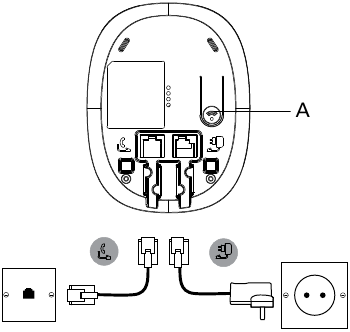
Connecting the base
- Plug the telephone line cord into the socket marked
![]() on the underside of the base.
on the underside of the base. - Plug the power adaptor into the socket marked
![]() on the underside of the base and plug the other end into the mains power wall socket.
on the underside of the base and plug the other end into the mains power wall socket.
Switch on the mains power.
 on the underside of the base.
 on the underside of the base and plug the other end into the mains power wall socket.
Installing and charging the handset
- Remove the battery cover from the back of the handset and insert the rechargeable Ni-MH battery cells supplied. Please note the '+' and '-' markings inside the battery compartment and insert in the correct direction.
- Slide the battery cover back into place.
- If you are charging the batteries for the first time, place the handset on the base to charge for at least 24 hours continuously.
- When the handset is fully charged,
![]() icon will appear steady on the display. Plug the other end of the telephone line cord (make sure that one end is already plugged into the base) into the telephone wall socket.
icon will appear steady on the display. Plug the other end of the telephone line cord (make sure that one end is already plugged into the base) into the telephone wall socket.
Connecting the handset and charger (for multi-pack only)
If you have purchased a multiple pack, you will need to carry out this process for all the handsets and chargers.
- Plug the power adaptor into the socket marked
![]() on the underside of the charger and plug the other end into the mains power wall socket.
on the underside of the charger and plug the other end into the mains power wall socket. - Remove the battery cover from the back of the handset and insert the 2 x AAA NiMH rechargeable batteries supplied. Please note the '+' and '-' markings inside the battery compartment and insert in the correct direction.
- Slide the battery cover back into place.
- If you are charging the batteries for the first time, place the handset on the charger to charge for at least 24 hours continuously.
- When the handset is fully charged,
![]() icon will appear steady on the display. The display will show HANDSET and handset number (e.g. 2) to indicate that it is registered to the base.
icon will appear steady on the display. The display will show HANDSET and handset number (e.g. 2) to indicate that it is registered to the base.
 on the underside of the charger and plug the other end into the mains power wall socket.
Use only the approved rechargeable Ni-MH battery cells (2 x AAA Ni-MH 300mA rechargeable batteries) supplied with your C1L.
BATTERY LOW WARNING
If  icon flashes on the display and you hear a warning beep every minute during a call, you will need to recharge the handset before you can use it again.
When charging,  icon will scroll on the display.
BATTERY PERFORMANCE
In ideal conditions, fully charged batteries should give up to 6.5 hours talk time or up to 135 hours standby time on a single charge.1
Note that new batteries do not reach their full capacity until they have been put to normal use for several days.
To keep your batteries in the best condition, leave the handset off the base for a few hours at a time.
Running the batteries right down at least once a week will help them last as long as possible.
The charge capacity of rechargeable batteries will reduce with time as they wear out, giving the handset less talk / standby time. Eventually they will need to be replaced.
After charging your handset for the first time, subsequent charging time is about 6–8 hours a day. Batteries and handset may become warm during charging. This is normal.
1 All talk and standby times are approximate and depend on features selected and usage pattern.
Date and time
If you have subscribed to a Caller ID Service, the date and time is set automatically for all handsets when you receive your first call.
If you do not have a Caller ID service, you can set the date and time manually, see section "7. Clock & Alarm".
Your C1L is now ready for use.
Getting to know your phone
Overview of your handset
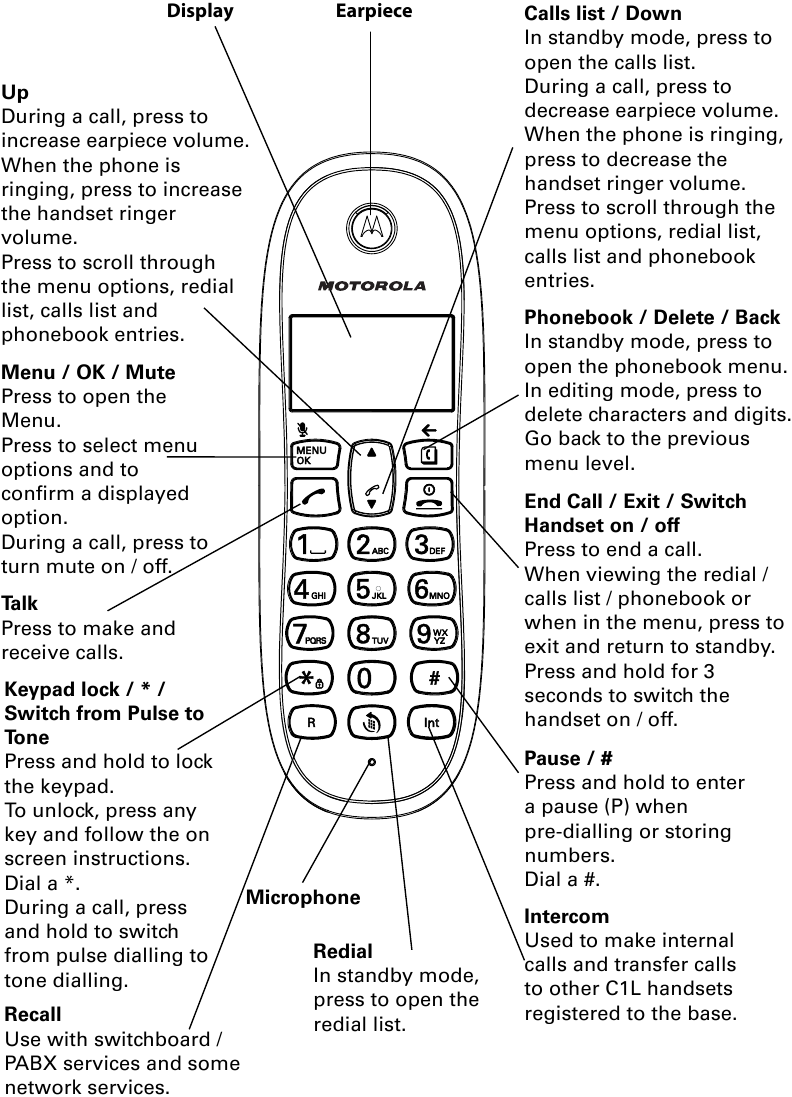
Up
During a call, press to increase earpiece volume.
When the phone is ringing, press to increase the handset ringer volume.
Press to scroll through the menu options, redial list, calls list and phonebook entries.
Menu / OK / Mute
Press to open the Menu (menu).
Press to select menu options and to confirm a displayed option.
During a call, press to turn mute on / off.
Talk
Press to make and receive calls.
Keypad lock / * / Switch from Pulse to Tone
Press and hold to lock the keypad.
To unlock, press any key and follow the on screen instructions.
Dial a *.
During a call, press and hold to switch from pulse dialling to tone dialling.
Recall
Use with switchboard / PABX services and some network services.
Redial
In standby mode, press to open the redial list.
Calls list / Down
In standby mode, press to open the calls list.
During a call, press to decrease earpiece volume.
When the phone is ringing, press to decrease the handset ringer volume.
Press to scroll through the menu options, redial list, calls list and phonebook entries.
Phonebook / Delete / Back
In standby mode, press to open the phonebook menu.
In editing mode, press to delete characters and digits.
Go back to the previous menu level.
End Call / Exit / Switch Handset on / off
Press to end a call.
When viewing the redial / calls list / phonebook or when in the menu, press to exit and return to standby.
Press and hold for 3 seconds to switch the handset on / off.
Pause / #
Press and hold to enter a pause (P) when pre-dialling or storing numbers.
Dial a #.
Intercom
Used to make internal calls and transfer calls to other C1L handsets registered to the base.
Handset LCD Display
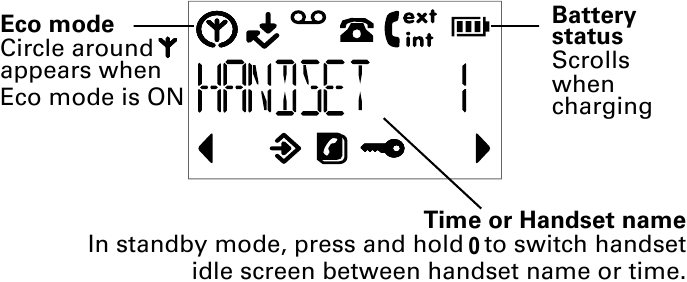
Eco mode
Circle around  appears when Eco mode is ON
Battery status
Scrolls when charging
Time or Handset name
In standby mode, press and hold 0 to switch handset idle screen between handset name or time.
 Flashes to indicate an incoming external call.
 External call in progress.
 Flashes to indicate an incoming internal call.
 Internal call in progress.
 3-way call in progress or transfer an external call to another C1L handset registered to the base.
 Eco mode is ON.
 Flashes to indicate new voicemail messages received. Off when you have no voicemail messages.1
Indicates signal strength.
Flashes when handset is not registered to the base or if you go out of range.
 Menu (menu) is opened.
 Phonebook is opened.
 Flashes to indicate new calls list entries received.2
 Answered call (when viewing the Calls list).2
 Unanswered call (when viewing the Calls list).2
 Keypad is locked.
 Displayed number is longer than 12 digits.
The approximate power levels of your battery are indicated as follows:
 Battery is fully charged.
 Battery is partially charged.
Battery is running low.
Flashes when battery is almost fully discharged.
1 This feature is dependent on your Network Service provider supporting the service. A subscription fee may be payable.
2 For this feature to work, you must subscribe to Caller ID Service from your network operator. A subscription fee may be payable.
Underside of the base
- Page
In standby mode, press to ring the handset(s).
Press and hold to enter registration mode when registering handsets.
Navigating the menus
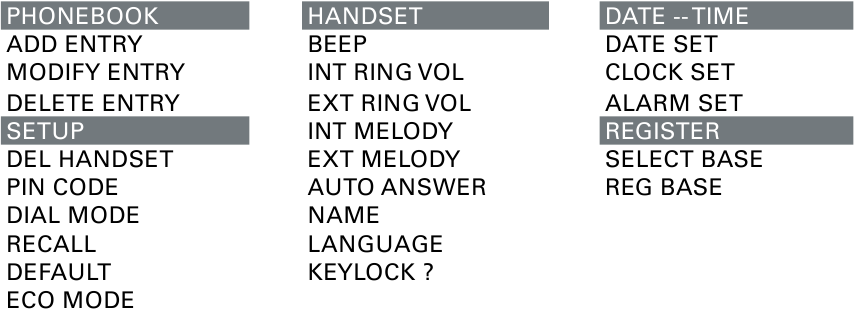
Your C1L has an easy to use menu system.
Each menu has a list of options, which you can see on the menu map on the following page.
When the handset is switched on and in standby:
- Press
![]() to open the main menu.
to open the main menu. - Then use
![]() or
or ![]() buttons to scroll through the available options.
buttons to scroll through the available options. - Press
![]() to select an option. To return to the previous menu level, press
to select an option. To return to the previous menu level, press ![]() . To exit the menu and return to standby, press
. To exit the menu and return to standby, press ![]() .
.
 buttons to scroll through the available options.
 .
.NOTE
If no buttons are pressed for 20 seconds, the handset returns to standby automatically.
Menu map
Using the phone
NOTE
Your handset will automatically time the duration of all external calls. The call timer will display after the first 15 seconds of your call. When the call ends, the total duration of your talk time is shown for 5 seconds.
Switch the handset on / off
Press and hold  to switch the handset on or off.
Calls
Make a call
- Press
![]() .
. - When you hear the dial tone, dial the number.
Preparatory dialling
- Dial the number first. If you make a mistake press
![]() to delete the last digit.
to delete the last digit. - Press
![]() to dial.
to dial.
 to delete the last digit.
 to dial.
End a call
Press  , or place the handset back on the base or charger.
Receive a call
When you receive an external call, the phone rings and  icon flashes on the display.
- If the handset is off the base then press
![]() to answer the call, or if the handset is on the base simply lift the handset to answer the call.
to answer the call, or if the handset is on the base simply lift the handset to answer the call.
 to answer the call, or if the handset is on the base simply lift the handset to answer the call.
NOTE
If you prefer to press  when you lift up the handset to answer a call, you will need to switch Auto answer off.
Adjust the earpiece volume
During a call, press  or
or  to increase or decrease the volume. There are 5 levels to choose from.
Mute
You can mute your handset so that you can talk to someone nearby without your caller hearing.
- During a call, press
![]() . The display shows MUTE and your caller cannot hear you.
. The display shows MUTE and your caller cannot hear you. - Press
![]() again to resume your call.
again to resume your call.
Intercom
Make an internal call
If you have more than one handset registered to the base, you can make internal calls between two handsets.
 icon is displayed to indicate an internal call.
- Press
![]() followed by the number (1-5) of the handset you want to call.
followed by the number (1-5) of the handset you want to call.
 followed by the number (1-5) of the handset you want to call.
Receive an internal call
When you receive an internal call,  icon flashes and the handset number that is calling you is displayed.
1. Press  to answer the call.
Transfer a call
You can transfer an external call to another handset registered to the base.
During an external call:
- Press
![]() followed by the handset number (1-5) that you want to transfer to.
followed by the handset number (1-5) that you want to transfer to. - When the other handset answers, press
![]() to complete the transfer.
to complete the transfer.
 followed by the handset number (1-5) that you want to transfer to.
 to complete the transfer.
NOTE
If there is no answer from the other handset and you wish to return to your external caller, press  .
.
Your external call resumes automatically after 30 seconds if there is no answer.
3-way conference call
You can hold a 3-way conference call between 2 internal callers and 1 external caller.
During a call with an external caller:
- Press
![]() followed by the handset number (1-5) that you want to establish a conference call.
followed by the handset number (1-5) that you want to establish a conference call. - When the other handset answers, press
![]() to connect all three callers to begin the conference call.
to connect all three callers to begin the conference call. ![]() icon is displayed.
icon is displayed. - If there is no answer from the other handset, press
![]() to return to your external caller.
to return to your external caller. - Press
![]() to end the call.
to end the call.
 followed by the handset number (1-5) that you want to establish a conference call.
 to return to your external caller.
 to end the call.
Redial
The last 10 entries dialled are stored in the redial list.
View or dial an entry
- Press
![]() to open the Redial list.
to open the Redial list. - Scroll
![]() or
or ![]() to the entry you want.
to the entry you want. - Press
![]() to dial the displayed entry or press
to dial the displayed entry or press ![]() to return to standby.
to return to standby.
 to open the Redial list.
 or
or  to the entry you want.
 to return to standby.
NOTE
If the caller's number exactly matches an entry stored in the phonebook, the name is displayed. Press  to see the caller's number.
Copy a Redial list number to the phonebook
- Press
![]() to open the Redial list.
to open the Redial list. - Scroll
![]() or
or ![]() to the entry you want.
to the entry you want. - Press
![]() . The display shows ADD?.
. The display shows ADD?. - Press
![]() again. The display shows NAME?.
again. The display shows NAME?. - Enter the name and press
![]() . The number is displayed.
. The number is displayed. - Edit the number if necessary, then press
![]() .
. - Press
![]() or
or ![]() to select the ringer melody you want and press
to select the ringer melody you want and press ![]() . The number is stored.
. The number is stored.
 to the entry you want.
 to select the ringer melody you want and press
 Delete an entry
- Press
![]() to open the Redial list.
to open the Redial list. - Scroll
![]() or
or ![]() to the entry you want and press
to the entry you want and press ![]() . The display shows DELETE?.
. The display shows DELETE?. - Press
![]() to confirm or
to confirm or ![]() to cancel.
to cancel.
 . The display shows DELETE?.
 to confirm or
  to cancel.
Delete the entire Redial list
- Press
![]() to open the Redial list.
to open the Redial list. - Press and hold
![]() . The display shows DELETE ALL?.
. The display shows DELETE ALL?. - Press
![]() to confirm or
to confirm or ![]() to cancel.
to cancel.
 to open the Redial list.
 . The display shows DELETE ALL?.
 to cancel.
Lock / unlock the keypad
You can lock the keypad so that it cannot be operated accidentally while carrying it around.
NOTE
When the keypad is locked, you can still answer incoming calls and operate the handset as normal during the call. When the call ends, the keypad lock comes on again.
- Press and hold
![]() .
.
![]() icon is displayed.
icon is displayed. - To unlock the keypad, press any key on your handset. The display shows PRESS *.
- Press
![]() within 5 seconds.
within 5 seconds.
 .
. icon is displayed.
 within 5 seconds.
Paging / Find handset
You can alert a handset user that they are wanted or locate a missing handset.
Paging calls cannot be answered by a handset.
- Press
![]() on the base. All handsets registered to the base will ring.
on the base. All handsets registered to the base will ring. - To stop the ringing, press
![]() on the base again or press any button on the handset.
on the base again or press any button on the handset.
 on the base. All handsets registered to the base will ring.
 on the base again or press any button on the handset.
Phonebook
You can store up to 50 names and numbers in the phonebook. Names can be up to 12 characters long and numbers up to 24 digits. You can also select different ringer melodies for the phonebook entries.
Store a name and number
If the C1L is connected to a switchboard, you may need to enter a pause in a stored number. This gives the switchboard time to find an outside line. A pause is normally stored after the switchboard access code (e.g. 9).
When storing a number, press and hold  until the display shows P. You can then continue storing the phone number.
If you have subscribed to Caller ID Service and wish to display the name of your caller instead of the number, save the full telephone number including the area code to your phonebook.
You can store multiple entries with the same number. However, to prevent unnecessary duplicated entries, you can only store the same name once.
- Press
![]() . The display shows PHONEBOOK.
. The display shows PHONEBOOK. - Press
![]() . The display shows ADD ENTRY.
. The display shows ADD ENTRY. - Press
![]() . The display shows NAME?.
. The display shows NAME?. - Enter the name and press
![]() . The display shows NUMBER?.
. The display shows NUMBER?. - Enter the number and press
![]() . The display shows MELODY 1.
. The display shows MELODY 1. - Press
![]() or
or ![]() to select the ringer melody you want and press
to select the ringer melody you want and press ![]() . The display shows ADD ENTRY.
. The display shows ADD ENTRY. - Enter the next name and number entry that you wish to store in your phonebook or press
![]() twice to return to standby.
twice to return to standby.
 or
or  to select the ringer melody you want and press
 ENTERING NAMES
Use the keypad letters to enter names, e.g. to store TOM:
Press  once to enter T.
Press  three times to enter O.
Press once to enter M.
WRITING TIPS
Press  to delete the last character or digit.
Press  or
or  to move between characters.
Press  to insert a space.
Use twice to insert a dash.
View or dial an entry
- Press
![]() .
.
![]() icon is displayed.
icon is displayed. - Scroll
![]() or
or ![]() to the entry you want.
to the entry you want.
OR
Enter the first letter of the name to search alphabetically.
The first name that starts with this letter or the nearest letter in the alphabet will be displayed. Scroll![]() or
or ![]() to the entry you want.
to the entry you want. - Press
![]() to dial or
to dial or ![]() to return to standby.
to return to standby.
 .
. or
or  to the entry you want.
 or
or  to dial or
  to return to standby.
NOTE
When the name is displayed, you can switch between the name and number by pressing  .
.
Edit a name and number
- Press
![]() . The display shows PHONEBOOK.
. The display shows PHONEBOOK. - Press
![]() . The display shows ADD ENTRY.
. The display shows ADD ENTRY. - Scroll
![]() to MODIFY ENTRY and press
to MODIFY ENTRY and press ![]() .
. - Scroll
![]() or
or ![]() to the entry you want to edit, or search alphabetically and press
to the entry you want to edit, or search alphabetically and press ![]() . The existing name is displayed.
. The existing name is displayed. - Press
![]() to delete the name if required, then enter the new name and press
to delete the name if required, then enter the new name and press ![]() . The existing number is displayed.
. The existing number is displayed. - Press
![]() to delete the number if required, then enter the new number and press
to delete the number if required, then enter the new number and press ![]() .
. - Scroll
![]() or
or ![]() to select a new ringer melody and press
to select a new ringer melody and press ![]() . The display shows ADD ENTRY.
. The display shows ADD ENTRY. - Enter the next name and number entry you wish to store in your phonebook or press
![]() twice to return to standby.
twice to return to standby.
 twice to return to standby.
Delete an entry
- Press
![]() . The display shows PHONEBOOK.
. The display shows PHONEBOOK. - Press
![]() . The display shows ADD ENTRY.
. The display shows ADD ENTRY. - Scroll
![]() to DELETE ENTRY and press
to DELETE ENTRY and press ![]() .
. - Scroll
![]() or
or ![]() to the entry you want to delete, or search alphabetically and press
to the entry you want to delete, or search alphabetically and press ![]() . The display shows CONFIRM?.
. The display shows CONFIRM?. - Press
![]() to confirm or
to confirm or ![]() to cancel.
to cancel.
 to the entry you want to delete, or search alphabetically and press
  to cancel.
Handset settings
Handset ringer volume
You can adjust the ringer volume and set different volume levels for your internal and external calls. Choose from 5 volume levels or Off.
- Press
![]() , scroll
, scroll ![]() to HANDSET and press
to HANDSET and press ![]() .
. - Press
![]() or
or ![]() to select INT RING VOL or EXT RING VOL and press
to select INT RING VOL or EXT RING VOL and press ![]() .
. - Press
![]() or
or ![]() to select the volume (1 -5 or OFF).
to select the volume (1 -5 or OFF). - Press
![]() to confirm or
to confirm or ![]() to return to the previous menu.
to return to the previous menu.
 to return to the previous menu.
NOTE
When the phone is ringing, you can adjust the ringer volume by pressing  or
or  .
.
Handset ringer melody
You can set different ringer melodies for your internal and external calls. Choose from 5 different ringer melodies.
You will hear a sample ring as you scroll to each ring melody.
- Press
![]() , scroll
, scroll ![]() to HANDSET and press
to HANDSET and press ![]() .
. - Press
![]() or
or ![]() to select INT MELODY or EXT MELODY and press
to select INT MELODY or EXT MELODY and press ![]() .
. - Press
![]() or
or ![]() to select the ringer melody (1 - 5).
to select the ringer melody (1 - 5). - Press
![]() to confirm or
to confirm or ![]() to return to the previous menu.
to return to the previous menu.
 to HANDSET and press
 NOTE
If you subscribe to your network providers caller ID service, calls from the numbers that you have stored in the phonebook will ring using the ringer melody you have set when you store the entry.
Auto answer
Your phone is set to answer calls by lifting the handset off the base or charger. You can switch this feature off so that calls can only be answered by pressing  .
.
- Press
![]() , scroll
, scroll ![]() to HANDSET and press
to HANDSET and press ![]() .
. - Scroll
![]() to AUTO ANSWER and press
to AUTO ANSWER and press ![]() .
. - Press
![]() or
or ![]() to select ON or OFF and press
to select ON or OFF and press ![]() to confirm.
to confirm.
Handset name
If you are using more than one handset with your C1L base, you can set a personalised name for each handset to easily distinguish between them. A name can be up to 10 characters long.
- Press
![]() , scroll
, scroll ![]() to HANDSET and press
to HANDSET and press ![]() .
. - Scroll
![]() to NAME and press
to NAME and press ![]() .
. - Enter the new handset name and press
![]() to confirm. Delete the current name by pressing
to confirm. Delete the current name by pressing ![]() .
.
 to HANDSET and press
 NOTE
The handset name will only be displayed for approximately 20 seconds when no button is pressed. If you make a mistake, press to delete the last character or digit.
Language
- Press
![]() , scroll
, scroll ![]() to HANDSET and press
to HANDSET and press ![]() .
. - Scroll
![]() to LANGUAGE and press
to LANGUAGE and press ![]() .
. - Press
![]() or
or ![]() to select your preferred language and press
to select your preferred language and press ![]() to confirm.
to confirm.
 to HANDSET and press
  to select your preferred language and press
 Key beep
When you press a button on the handset keypad, you will hear a beep. You can switch these beeps on or off.
- Press
![]() , scroll
, scroll ![]() to HANDSET and press
to HANDSET and press ![]() . The display shows BEEP.
. The display shows BEEP. - Press
![]() to select. The display shows KEYTONE.
to select. The display shows KEYTONE. - Press
![]() to select.
to select. - Press
![]() or
or ![]() to select ON or OFF and press
to select ON or OFF and press ![]() to confirm.
to confirm.
 to HANDSET and press
 Battery low warning beep
When the battery is almost fully discharged, you will hear a warning beep every minute during a call. You can switch these beeps on or off.
- Press
![]() , scroll
, scroll ![]() to HANDSET and press
to HANDSET and press ![]() . The display shows BEEP.
. The display shows BEEP. - Press
![]() to select.
to select. - Scroll
![]() to LOW BATTERY and press
to LOW BATTERY and press ![]() .
. - Press
![]() or
or ![]() to select ON or OFF and press
to select ON or OFF and press ![]() to confirm.
to confirm.
 to HANDSET and press
  to LOW BATTERY and press
 Out of range warning beep
If the handset goes out of range, you will hear warning beeps during a call. You can switch these beeps on or off.
- Press
![]() , scroll
, scroll ![]() to HANDSET and press
to HANDSET and press ![]() . The display shows BEEP.
. The display shows BEEP. - Press
![]() to select.
to select. - Scroll
![]() to OUT RANGE and press
to OUT RANGE and press ![]() .
. - Press
![]() or
or ![]() to select ON or OFF and press
to select ON or OFF and press ![]() to confirm.
to confirm.
 to HANDSET and press
  to select ON or OFF and press
 Keypad lock using the menu
You can use the menu to lock the keypad.
- Press
![]() , scroll
, scroll ![]() to HANDSET and press
to HANDSET and press ![]() .
. - Scroll
![]() to KEYLOCK? and press
to KEYLOCK? and press ![]() to confirm.
to confirm. ![]() icon is displayed.
icon is displayed.
 to HANDSET and press
 NOTE
To unlock the keypad, press any button on the keypad, then press  within 5 seconds.
Base settings
Change base PIN code
Some functions are protected by a 4 digit PIN code which must be entered if you want to change the settings. The default PIN is 0000. You can change this to your own preferred number.
When you enter a PIN, the digits are shown as ****.
- Press
![]() , scroll
, scroll ![]() to SETUP and press
to SETUP and press ![]() .
. - Scroll
![]() to PIN CODE and press
to PIN CODE and press ![]() .
. - Enter the 4 digit PIN code (default = 0000) and press
![]() .
. - Enter the new PIN and press
![]() to confirm.
to confirm. - The display shows RETYPE. Re-enter the new PIN and press
![]() to confirm.
to confirm.
 to SETUP and press
  .
. .
. .
. to confirm.
 to confirm.
If you change the PIN code, please keep a record of the new number.
Dial mode
Your C1L is set to tone dialling. You should only need to change this if connected to an older type of switchboard / PBX which requires pulse dialling.
- Press
![]() , scroll
, scroll ![]() to SETUP and press
to SETUP and press ![]() .
. - Scroll
![]() to DIAL MODE and press
to DIAL MODE and press ![]() .
. - Press
![]() or
or ![]() to select TONE DIAL or PULSE DIAL and press
to select TONE DIAL or PULSE DIAL and press ![]() to confirm.
to confirm.
 to SETUP and press
  .
. .
.Recall mode
Depending on your country and network operator, your C1L has the recall time set as 100 ms (TIMED BR,1). It is unlikely that you need to change this setting unless advised to do so.
- Press
![]() , scroll
, scroll ![]() to SETUP and press
to SETUP and press ![]() .
. - Scroll
![]() to RECALL and press
to RECALL and press ![]() .
. - Press
![]() or
or ![]() to select TIMED BR,1 (short flash time) or TIMED BR,2 (long flash time) and press
to select TIMED BR,1 (short flash time) or TIMED BR,2 (long flash time) and press ![]() to confirm.
to confirm.
 to SETUP and press
  .
. .
. to select TIMED BR,1 (short flash time) or TIMED BR,2 (long flash time) and press
  to confirm.
Restore default settings
You can restore your C1L to its default (original) settings.
All the handsets that are registered to the base will be retained.
Resetting your phone to its default settings will delete all entries in the Phonebook and Calls list. All handset and base settings will also be reset.
- Press
![]() , scroll
, scroll ![]() to SETUP and press
to SETUP and press ![]() .
. - Scroll
![]() to DEFAULT and press
to DEFAULT and press ![]() .
. - Enter the 4 digit PIN code (default = 0000) and press
![]() . The display shows CONFIRM?.
. The display shows CONFIRM?. - Press
![]() to confirm or
to confirm or ![]() to return to the previous menu. Your C1L will restart automatically.
to return to the previous menu. Your C1L will restart automatically.
 to SETUP and press
  .
. .
. . The display shows CONFIRM?.
 to confirm or
  to return to the previous menu. Your C1L will restart automatically.
Emergency default
If you have lost your PIN code, you can still restore your C1L to its default settings.
- Remove the batteries from the handset.
- Press and hold
![]() while replacing the batteries. The display shows DEFAULT.
while replacing the batteries. The display shows DEFAULT. - Press
![]() to confirm. Your C1L will restart automatically.
to confirm. Your C1L will restart automatically.
 while replacing the batteries. The display shows DEFAULT.
 to confirm. Your C1L will restart automatically.
Eco mode
Your C1L offers ECO mode function which reduces the transmitted power and energy consumption when switched on.
To switch Eco mode on:
- Press
![]() , scroll
, scroll ![]() to SETUP and press
to SETUP and press ![]() .
. - Scroll
![]() to ECO MODE and press
to ECO MODE and press ![]() .
. - Press
![]() or
or ![]() to select ON or OFF and press
to select ON or OFF and press ![]() to confirm.
to confirm.
 to SETUP and press
  .
. .
. to confirm.
NOTE
When ECO mode is set to ON, the handset range will be reduced.
On the handset display when ECO mode is switch off the circle around the  disappears.
Default settings
| Low battery beeps | ON | Calls list | Empty |
| Out of range warning beeps | ON | Redial list | Empty |
| Key beep | ON | PIN code | 0000 |
| Auto answer | ON | Dial mode | Tone |
| Internal melody | 1 | Recall mode |
TIMED BR, 1 (100 ms) |
| Internal volume | 3 | Eco mode | OFF |
| External melody | 3 | Keypad lock | OFF |
| External volume | 3 | Answering machine | ON |
| Ear volume | 2 | Answer delay | 6 rings |
| Phonebook | Empty |
Clock & alarm
If you have subscribed to Caller ID Service, the date and time will be set on all your handsets whenever a call is received. You can also manually set the date and time on the individual handsets.
Set the date
- Press
![]() , scroll
, scroll ![]() to DATE -- TIME and press
to DATE -- TIME and press ![]() . The display shows DATE SET.
. The display shows DATE SET. - Press
![]() to select.
to select. - Enter the date (e.g. 12--08 for 12th of August) and press
![]() to confirm.
to confirm.
 , scroll
  to DATE -- TIME and press
  . The display shows DATE SET.
 to select.
 to confirm.
Set the time
- Press
![]() , scroll
, scroll ![]() to DATE -- TIME and press
to DATE -- TIME and press ![]() .
. - Scroll
![]() to CLOCK SET and press
to CLOCK SET and press ![]() .
. - Enter the time in 24 hour format (e.g. 18--30 for 6:30pm) and press
![]() to confirm.
to confirm.
 to DATE -- TIME and press
  .
. .
. to confirm.
Set alarm
Each handset can have a different alarm setting.
- Press
![]() , scroll
, scroll ![]() to DATE -- TIME and press
to DATE -- TIME and press ![]() .
. - Scroll
![]() to ALARM SET and press
to ALARM SET and press ![]() .
. - Press
![]() or
or ![]() to select ON or OFF and press
to select ON or OFF and press ![]() to confirm.
to confirm. - If you select ON, enter the time in 24 hour format (e.g. 07--30 for 7:30am) and press
![]() to confirm.
to confirm.
 to DATE -- TIME and press
  .
. .
. to select ON or OFF and press
  to confirm.
 to confirm.
Switch off alarm ring
When the alarm sounds, press any button to switch it off.
NOTE
If you are using the handset to make a call when the alarm ring is due, you will hear a beep in the earpiece.
Caller ID and the Calls list
To use Caller ID, you must first subscribe to the service from your network provider. A subscription fee may be payable.
To ensure that the caller's name is displayed, make sure you have stored the full telephone number, including the area code in the phonebook.
If the call is a withheld call, WITHHELD will be displayed.
If the number is unavailable, UNAVAILABLE will be displayed.
If the call is from an international number, INT'L will be displayed.
If the call is from the operator, OPERATOR will be displayed.
If the call is from a payphone, PAYPHONE will be displayed.
If the call is from a ringback request, RINGBACK will be displayed.
Caller ID
If you have subscribed to a Caller ID Service, you will be able to see your caller's number on your handset (provided it is not withheld) prior to answering the call. The display can show the first 12 digits or characters of the phone numbers and names.
If your caller's name and number are stored in the phonebook and a number match is found, you will see the caller's name on the display instead.
Calls list
The Calls list stores details of your last 40 received calls, including the phone number and date and time of the call.
The Calls list also alerts you when you have unanswered calls.
The caller's details are stored in the Calls list whether or not you have answered the call. The list is shared by all handsets registered to the base. When the list is full, and a new call is received, the oldest entry will be deleted automatically.
When a new call is received in the Calls list,  icon will flash on the display in standby mode to alert you. When you have viewed the new call, icon disappears but
  icon will remain.
View the Calls list
- Press
![]() to open the Calls list. If there are no calls in the list, the display shows EMPTY.
to open the Calls list. If there are no calls in the list, the display shows EMPTY. - Press
![]() or
or ![]() to scroll through the list.
to scroll through the list. - If the call was answered,
![]() icon is displayed as you scroll to the entry. If the call was unanswered,
icon is displayed as you scroll to the entry. If the call was unanswered,![]() icon is displayed as you scroll to the entry. When you reach the end of the list, the handset will beep.
icon is displayed as you scroll to the entry. When you reach the end of the list, the handset will beep. - If the caller's number exactly matches an entry stored in the phonebook, the display will alternate between the name and the number. Press
![]() to see the caller's number.
to see the caller's number. - If the telephone number is longer than 12 digits,
![]() icon is displayed. Press
icon is displayed. Press ![]() to see the remaining digits.
to see the remaining digits. - Press
![]() again to see the time and date of the call.
again to see the time and date of the call. - Press
![]() again to access the option to store the entry in your phonebook.
again to access the option to store the entry in your phonebook.
- If the call was answered,
 to open the Calls list. If there are no calls in the list, the display shows EMPTY.
 to scroll through the list.
  to see the caller's number.
 to see the remaining digits.
Dial a number in the Calls list
- Press
![]() to open the Calls list.
to open the Calls list. - Scroll
![]() or
or ![]() to the entry you want.
to the entry you want. - Press
![]() to dial the displayed entry.
to dial the displayed entry.
Copy a Calls list number to the phonebook
- Press
![]() to open the Calls list.
to open the Calls list. - Scroll
![]() or
or ![]() to the entry you want.
to the entry you want. - Press
![]() repeatedly until the display shows ADD?.
repeatedly until the display shows ADD?. - Press
![]() again. The display shows NAME?.
again. The display shows NAME?. - Enter the name and press
![]() . The number is displayed.
. The number is displayed. - Edit the number if necessary, then press
![]() .
. - Press
![]() or
or ![]() to select the ringer melody you want and press
to select the ringer melody you want and press ![]() . The number is stored.
. The number is stored.
 to open the Calls list.
 . The number is displayed.
 .
. or
or  . The number is stored.
Delete an entry
- Press
![]() to open the Calls list.
to open the Calls list. - Scroll
![]() or
or ![]() to the entry you want and press
to the entry you want and press ![]() . The display shows DELETE?.
. The display shows DELETE?. - Press
![]() to confirm or
to confirm or ![]() to cancel.
to cancel.
 to the entry you want and press
  . The display shows DELETE?.
 to confirm or
  to cancel.
Delete the entire Calls list
- Press
![]() to open the Calls list.
to open the Calls list. - Press and hold
![]() . The display shows DELETE ALL?.
. The display shows DELETE ALL?. - Press
![]() to confirm or
to confirm or ![]() to cancel.
to cancel.
 to open the Calls list.
 . The display shows DELETE ALL?.
 to confirm or
  to cancel.
Using additional handsets
You can register up to five handsets to your C1L base to extend your phone system without having to install extension sockets for each new phone.
Each C1L handset can be registered with up to four bases. You can then select the base you prefer to use. If you have purchased a C1L multiple pack, all additional handsets come pre-registered to the base.
If you have purchased an additional handset separately, you must register it to your C1L base before it can be used.
Registering an additional handset
NOTE
Handset batteries must be fully charged before you start to register. Hold your handset close to the base during the registration process. Handsets that were supplied with your C1L base are already pre-registered.
On the base:
- Press and hold
![]() for 3 seconds until you hear two beeps. The base will remain in registration mode for 90 seconds.
for 3 seconds until you hear two beeps. The base will remain in registration mode for 90 seconds.
 for 3 seconds until you hear two beeps. The base will remain in registration mode for 90 seconds.
On the handset:
- Press
![]() , scroll
, scroll ![]() to REGISTER and press
to REGISTER and press ![]() .
. - Scroll
![]() to REG BASE and press
to REG BASE and press ![]() .
. - Enter the base number (1 - 4).
The base numbers that are already in use flash. - The display shows SEARCHING...X, where X indicates the base identification number.
- The display will ask for the PIN to be entered. Enter the 4 digit PIN code (default = 0000) and press
![]() . You will hear a beep if the registration is successful. The handset is automatically assigned an available handset number. Use this number when making internal calls.
. You will hear a beep if the registration is successful. The handset is automatically assigned an available handset number. Use this number when making internal calls.
 to REGISTER and press
  .
. .
. . You will hear a beep if the registration is successful. The handset is automatically assigned an available handset number. Use this number when making internal calls.
NOTE
If registration is not successful the first time, please repeat the process again in case the base registration period ran out of time. If the base is not found after a few seconds, the handset returns to standby. Try registering again.
If there are already 5 handsets registered to the base, the registration will fail. You must de-register another handset before you can register a new one.
Register a different make of handset to your C1L base
DECT GAP Profile only guarantees that basic calling functions will work correctly between different makes / types of handset and base. There is a possibility that certain features such as Caller ID will not work correctly.
On the base:
- Press and hold
![]() for 3 seconds until you hear two beeps. The base will remain in registration mode for 90 seconds.
for 3 seconds until you hear two beeps. The base will remain in registration mode for 90 seconds.
 for 3 seconds until you hear two beeps. The base will remain in registration mode for 90 seconds.
On the handset:
Follow the registration instructions given in your handset's user guide.
Select a base
If your C1L handset is registered to more than one base (e.g. one at work and one at home), you can select which base to use.
Each handset can be registered with up to four bases.
- Press
![]() , scroll
, scroll ![]() to REGISTER and press
to REGISTER and press ![]() . The display shows SELECT BASE.
. The display shows SELECT BASE. - Press
![]() . All the bases that your handset has been registered to will be displayed, e.g. BASE 1 2 3 4. The currently selected base number flashes.
. All the bases that your handset has been registered to will be displayed, e.g. BASE 1 2 3 4. The currently selected base number flashes. - Enter the base number that you want to use. Alternatively, press
![]() or
or ![]() to scroll to AUTO.
to scroll to AUTO. - Press
![]() to confirm. You will hear a confirmation beep and the display will return to standby.
to confirm. You will hear a confirmation beep and the display will return to standby.
 , scroll
  to REGISTER and press
  . The display shows SELECT BASE.
 . All the bases that your handset has been registered to will be displayed, e.g. BASE 1 2 3 4. The currently selected base number flashes.
NOTE
If you select AUTO, your handset will automatically search for and connect to the base with the strongest signal.
De-register a handset
Use one handset to de-register another. You cannot de-register the handset that you are using.
- Press
![]() , scroll
, scroll ![]() to SETUP and press
to SETUP and press ![]() .
. - Scroll
![]() to DEL HANDSET and press
to DEL HANDSET and press ![]() .
. - Enter the 4 digit PIN code (default = 0000) and press
![]() .
. - Enter the handset number that you want to de-register. You will hear a confirmation beep and the display will return to the previous menu.
 , scroll
  .
. to DEL HANDSET and press
  .
. .
.Help
No dial tone
- Use only the telephone line cord supplied.
- Check that the telephone line cord is connected properly.
- Check that the mains power is connected properly and switched on.
No display
- Check that the batteries are inserted correctly and fully charged. Use only approved rechargeable batteries supplied.
- Check that the handset is switched on. Press and hold
![]() .
. - Reset the base by removing the batteries and disconnecting the mains power. Wait for around 15 seconds before connecting it again. Allow up to one minute for the handset and base to synchronise.
 .
. icon flashes
- Handset is out of range. Move closer to the base.
- Make sure that the handset is registered to the base.
- Check that the mains power is connected properly and switched on.
Keypad does not seem to work
- Check that the keypad lock is not on.
icon is not scrolling during charge
- Adjust the handset slightly on the base.
- Clean the charging contacts with a cloth moistened with alcohol.
- Check that the mains power is connected properly and switched on.
- The battery is full. When the handset is fully charged,
![]() icon will appear steady on the display.
icon will appear steady on the display.
 icon will appear steady on the display.
No Caller ID
- Check your subscription with your network operator.
- The caller may have withheld their number.
- The record cannot be found in your phonebook. Check that you have the correct name / number stored in your phonebook, with the full area code.
I have forgotten my PIN!
- Restore your C1L to its default settings, see "Emergency default" (emergency default).
Cannot register a handset to the base
- You can register up to a maximum of 5 handsets to a C1L base. You must de-register a handset in order to register a new one.
- Check that you have entered the correct PIN code (default = 0000).
- Check that you are at least one metre away from other electrical equipment to avoid interference when registering.
Handset does not ring
- The handset ringer volume may be set to Off.
Noise interference on my phone or on other electrical equipment nearby
- Place your C1L at least one metre away from electrical appliances or any metal obstructions to avoid any risk of interference.
Answering machine will not record new messages
- Is the recording memory full? Play and delete messages.
- Is the OGM set to Answer Only? Change the OGM to Answer & Record.
General information
This equipment is not designed to make emergency telephone calls when the power fails. Alternative arrangements should be made for access to emergency services.
This product is intended for connection to analogue public switched telephone networks and private switchboards in Europe.
Important safety instructions
Follow these safety precautions when using your phone to reduce the risk of fire, electric shock, and injury to persons or property:
- Keep all slits and openings of the phone unblocked. Do not set the phone on a heating register or over a radiator. Ensure that proper ventilation is provided at the installation site.
- Do not use while wet or while standing in water.
- Do not use this product near water (for example, near a bath tub, kitchen sink, or swimming pool).
- Do not allow anything to rest on the power cord. Place the power cord so that it will not be walked on.
- Never insert objects of any kind into the product vents as that may result in fire or electric shock.
- Unplug this product from the wall outlet before cleaning. Do not use liquid cleaners or aerosol cleaners. Use a damp cloth for cleaning.
- Do not disassemble this product. If service or repair work is required, contact the customer service helpline found in this user's Guide.
- Do not overload wall outlets and extension cords.
- Avoid using during an electrical storm. Use a surge protector to protect the equipment.
- Do not use this phone to report a gas leak, especially if you are in the vicinity of the gas line.
To reduce the risk of fire, use only the supplied power adaptor.
Unplug this cordless phone immediately from an outlet if:
- The power cord or plug is damaged or frayed.
- Liquid has been spilled on the product.
- The product has been exposed to rain or water. Do not retrieve the handset or base until after you have unplugged the power and phone from the wall. Then retrieve the unit by the unplugged cords.
- The product has been dropped or the cabinet has been damaged.
- The product exhibits a distinct change in performance.
Installation Guidelines
- Read and understand all instructions and save them for future reference.
- Follow all warnings and instructions marked on the product.
- Do not install this product near a bath tub, sink, or shower.
- Operate this phone using only the power source that is indicated on the marking label. If you are unsure of the power supply to your home, consult with your dealer or local power company.
- Do not place this product on an unstable cart, stand, or table. This product may fall, causing serious damage to the product.
- Adjust only those controls that are covered by the operating instructions. Improper adjustment of other controls may result in damage and will often require extensive work to restore the product to normal operation.
- Clean this product with a soft, damp cloth. Do not use chemicals or cleaning agents to clean this phone.
- Use only the power supply that came with this unit. Using other power supplies may damage the unit.
- Because this phone operates on electricity, you should have at least one phone in your home that could operate without electricity in the case the power in your home goes out.
- To avoid interference to nearby appliances, do not place the base of the phone on or near a TV, microwave oven, or VCR.
Battery Safety Instructions
- Do not burn, disassemble, mutilate, or puncture the battery. The battery contains toxic materials that could be released, resulting in injury.
There is a risk of explosion if you replace the battery with an incorrect battery type. Use only the batteries that came with your phone or an authorized replacement recommended by the manufacturer.
- Keep batteries out of the reach of children.
- Remove batteries if storing over 30 days.
- Do not dispose of batteries in fire, which could result in explosion.
- The rechargeable batteries that power this product must be disposed of properly and may need to be recycled. Refer to your battery's label for battery type. Contact your local recycling centre for proper disposal methods.
SAVE THESE INSTRUCTIONS
Cleaning
- Clean the handset and base (or charger) with a damp (not wet) cloth, or an anti-static wipe.
- Never use household polish as this will damage the product. Never use a dry cloth as this may cause static shock.
Environmental
- Do not expose to direct sunlight.
- The handset may become warm when the batteries are being charged or during prolonged periods of use. This is normal. However, we recommend that to avoid damage, do not place the product on antique / veneered wood.
- Do not place your product on carpets or other surfaces which generate fibres, or place it in locations preventing the free flow of air over its surfaces.
- Do not submerge any part of your product in water and do not use it in damp or humid conditions, such as bathrooms.
- Do not expose your product to fire, explosives or other hazardous conditions.
- There is a slight chance that your phone could be damaged by an electrical storm. We recommend that you unplug the power and telephone line cord during an electrical storm.
Product disposal instructions
Product disposal instructions for residential users
When you have no further use for it, please remove any batteries and dispose of them and the product according to your local authority's recycling processes. For more information, please contact your local authority or the retailer where the product was purchased.
Product disposal instructions for business users
Business users should contact their suppliers and check the terms and conditions of the purchase contract and ensure that this product is not mixed with other commercial waste for disposal.
Consumer Products and Accessories Warranty
| Products Covered | Length of Coverage |
| Consumer Products | One (1) year from the date of the products original purchase by the first consumer purchaser of the product. |
| Consumer Accessories (battery, power supply(s) and line cords) | Ninety (90) days from the date of the accessories original purchase by the first consumer purchaser of the product. |
| Consumer Products and Accessories that are Repaired or Replaced | The balance of the original warranty or for ninety (90) days from the date returned to the consumer, whichever is longer. |
How to Obtain Warranty Service or Other Information?
To obtain service or information, please call: XXXX XXXXXX.
You will receive instructions on how to ship the Products or Accessories at your expense and risk, to a SUNCORP Authorized Repair Center.
Manufactured, distributed or sold by Suncorp Technologies Ltd., official licensee for this product. MOTOROLA and the Stylized M Logo are trademarks or registered trademarks of Motorola Trademark Holdings, LLC. and are used under license. All other trademarks are the property of their respective owners.
© 2012 Motorola Mobility LLC. All rights reserved.
Version 3 (EU)


Download manual
Here you can download full pdf version of manual, it may contain additional safety instructions, warranty information, FCC rules, etc.
Download Motorola C1L - Digital Cordless Telephone Manual

