GIGABYTE S55U - Gaming Monitor 54.6" UHD with QD Display Manual
- 1 Connection
- 2 Game
- 3 Smart Functions
-
4
Picture and Sound
-
4.1
Adjusting the Picture Quality
- 4.1.1 Using the backlight function
- 4.1.2 Choosing a picture mode
- 4.1.3 Adjusting the picture quality for each picture mode
- 4.1.4 Changing the display mode
- 4.1.5 Applying the current picture settings to other input sources
- 4.1.6 Enabling smart scene function
- 4.1.7 Configuring advanced picture settings
- 4.1.8 Configuring calibration settings
- 4.1.9 Resetting the picture settings
- 4.2 Adjusting the Sound Quality
-
4.1
Adjusting the Picture Quality
- 5 Multi-screen
-
6
Accessibility and System
- 6.1 Accessibility
- 6.2 Configuring Device Preferences Settings
-
6.3
Configuring Advanced System Settings
- 6.3.1 Timer
- 6.3.2 Setup Assistant
- 6.3.3 Store Mode
- 6.3.4 Screenless Mode (only for models with Hands-free Voice Control)
- 6.3.5 Send Diagnostics and Usage
- 6.3.6 Serial/IP Control Port
- 6.3.7 Power LED
- 6.3.8 Power On Mode
- 6.3.9 FAV Button Customisation
- 6.3.10 E-Manual
- 6.3.11 Mobile Device Connection Tips
- 6.3.12 Clear Cache
- 6.3.13 Help
- 7 Troubleshooting
- 8 Using the E-Manual
- 9 Safety Precautions
- 10 Download manual
- 11 In Other Languages
Connection
Establishing a Wired Internet Connection
Connecting to a wired (Ethernet) network
Press  button to select
  icon to enter Network & Internet.
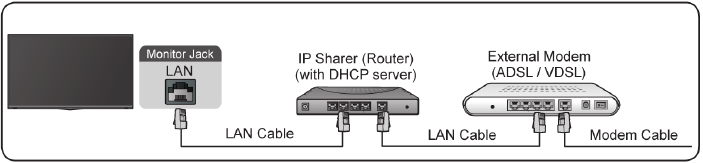
To get access to the Internet in a wired way, it is recommended to use a modem or router that supports Dynamic Host Configuration Protocol (DHCP). Modems and routers that support DHCP automatically provide the IP address, subnet mask, gateway, and DNS, so you don't have to enter them manually. Most home networks already have DHCP.
See the illustration below.
Establishing a Wireless Internet Connection
Connecting to a wireless network
Press  button to select
  icon, and select Network & Internet > Wi-Fi
To connect to an available wireless network, make sure that you have the wireless router's SSID and password before attempting to connect.
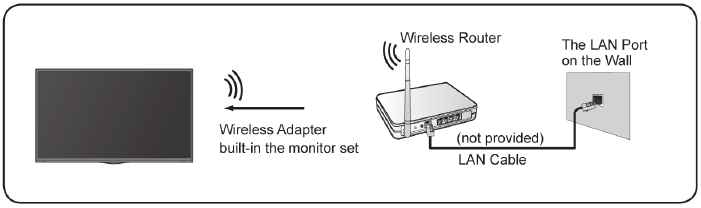
To get access to the Internet in a wireless way
- Turn on your Wi-Fi.
- The list of networks will display automatically.
- Select a wireless network from the list, input the password.
- If the network connection does not appear in the list, select See all to display all the list, or select Add new network to input a Wi-Fi name, select the type of security mode, and enter password.
Connecting Bluetooth Devices
To pair a Bluetooth device, such as Bluetooth headphones, speakers, keyboards, mouse or even moblie devices:
- Before pairing your Bluetooth devices, make sure they're in pairing mode and put devices within range of the monitor. To put your Bluetooth devices in pairing mode, refer to the user manual of devices.
- Press
![]() button to select
button to select ![]() icon, and select Remotes & Accessories > Add accessory to put the monitor in pairing mode. A list of available Bluetooth devices will be displayed.
icon, and select Remotes & Accessories > Add accessory to put the monitor in pairing mode. A list of available Bluetooth devices will be displayed. - Select the desired device from the list, then follow the onscreen instructions. If you are prompted to enter a passcode, refer to the user manual of the device. After pairing is completed, the device is connected and is stored to the monitor.
 button to select
  icon, and select Remotes & Accessories > Add accessory to put the monitor in pairing mode. A list of available Bluetooth devices will be displayed.
 Note:
Note:
- You need to unpair a paired device first if the maximum number of paired devices was reached.
Listening to the monitor through Bluetooth devices
- Pair the Bluetooth audio devices using the monitor's Bluetooth function. Refer to the user manual of your audio device such as Bluetooth speaker, sound bar and headphones for detailed connection steps and usage.
- Press
![]() button to select
button to select ![]() icon, select Sound > Audio Output, and then select the Bluetooth option to listen to the audio through bluetooth devices.
icon, select Sound > Audio Output, and then select the Bluetooth option to listen to the audio through bluetooth devices.
 button to select
  icon, select Sound > Audio Output, and then select the Bluetooth option to listen to the audio through bluetooth devices.
 Note:
- Compatibility issues may occur depending on the Bluetooth device.
- The monitor and Bluetooth device may disconnect depending on the distance between them.
Using HDMI&CEC
Use the monitor's remote to control external devices that are connected to the monitor by an HDMI cable. The external devices need to support HDMI&CEC function.
Connecting an external device through HDMI&CEC function
Press  button to select
  icon, and select Inputs > HDMI control.
- Set HDMI control to On.
- Connect an HDMI&CEC compliant device to the monitor.
- Turn on the connected external device. The device is automatically connected to the monitor. After connection is finished, you can access the menu of the connected device on your monitor screen using your monitor remote and control the device.
Enabling device auto power off
Press button to select  icon, and select Inputs > Device auto power off.
Set to On to turn off CEC compatible external devices when the monitor is turned off.
Enabling Display auto power on
Press  button to select
  icon, and select Inputs > Display Auto Power On.
Set to On to turn on the monitor when CEC compatible external devices is turned on.
Note:
- HDMI cables must be used to connect HDMI&CEC compatible devices to your monitor.
- The HDMI&CEC feature of the connected device must be turned on.
- If you connect an HDMI device that is not HDMI&CEC compatible, all the HDMI&CEC control features do not work.
- Depending on the connected HDMI device, the HDMI&CEC control feature may not work.
- The HDMI&CEC feature are supported One Touch Play, Routing Control, System Standby, Device OSD Name Transfer, Remote Control Pass Through, Give Device Power Status, System Audio Control.
Connecting a Digital Audio System to Use eARC/ ARC
If you'd like to use the Enhanced Audio Return Channel (eARC) / the Audio Return Channel (ARC) feature to have sound sent from the monitor back down an HDMI cable to a digital sound system, you can connect to the HDMI 3 (eARC) Port of your monitor.
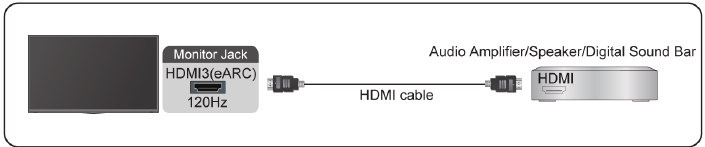
By using this feature, you will also be able to control the sound system with your monitor remote instead of using multiple remotes for each device.
After the connection:
- Power on the sound system.
- Press
![]() button to select
button to select ![]() icon, and select Sound > Audio Output > eARC/ARC. If the device supports eARC function, first select Sound > eARC to set it to On.
icon, and select Sound > Audio Output > eARC/ARC. If the device supports eARC function, first select Sound > eARC to set it to On.
 button to select
 Note:
- It works only when the monitor is connected to the audio receiver that supports the eARC/ARC function.
- If the device has an Input Selector feature then make sure to change it to monitor.
- When this port is used as the eARC/ARC function, it can be used as signal input when a DVD is connected to amplifier and the amplifier is connected to the monitor at the same time. (Some amplifiers may not support series connection.)
Connecting an AV device, a PC or a Game Console with an HDMI cable
You can connect an AV device, a PC or a Game Console with an HDMI cable.
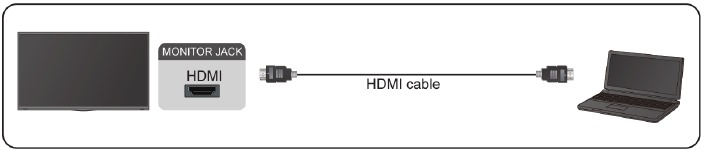
After the connection:
- Power on the device.
- Press
![]() button on your remote, select the corresponding HDMI as the input source.
button on your remote, select the corresponding HDMI as the input source.
 button on your remote, select the corresponding HDMI as the input source.
 Note:
- Only HDMI 3 / 4 Port supports HDMI 2.1, If you'd like to use UHD @120Hz Timing, first select Menu > HDMI Format > Enhanced format
- Refer to the "Multilingual Installation Guide" for more connection information.
- Some devices such as DVD player require HDMI signal to be set to output in the device's settings. Please consult your device user manual for instructions.
- If there is no sound from your monitor, change the device's audio settings.
Connecting USB Devices
Connect the USB devices such as hard drives, USB sticks and digital cameras for browsing photos, listening to music.
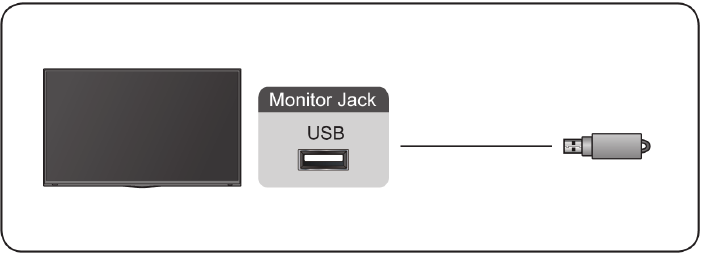
- Support the USB disk 4G, 8G, 16G, 32G, 64G, 128G and other common market size, and 8T hard drive is currently supported.
- Support format: NTFS, FAT32.
- Certain digital cameras may not be compatible with the monitor.
Game
Game Mode Settings
Enabling game mode
Press  button to select
  icon, and select Picture > Picture Mode.
You can select the Game mode to optimise the monitor's settings for you to enjoy a comfortable gaming experience with PC or game console connected to the monitor.
In the Game Mode:
- Reducing input lag to make sure every press or click matches what's happening on the screen;
- Improving responsiveness to produce very little motion blur;
- Processing YUV 4:4:4 format signals precisely to present accurate image colours.
Note:
- This function may not be applicable in some input sources.
Enabling Low Input Lag Mode
Press  button to select
  icon, and select Picture > Advanced Settings > Low Input Lag Mode.
You can enjoy a smooth viewing experience with external devices connected to the monitor when Low Input Lag Mode is turned on.
Note:
- When Game mode is selected, Low Input Lag will not be switched off automatically.
Enabling FreeSync
Press button to select  icon, and select Picture > Advanced Settings > FreeSync.
You can enjoy a smooth viewing experience with external devices connected to the monitor when FreeSync is turned on.
Note:
- Some functions above may not be applicable in some models/countries/ regions.
Game Assistant
Gaming Info
Under HDMI input, press  button on your remote to select Gaming, and select Gaming Info.
Configure the FPS (First Person Shooting) game related settings.
- Gaming Timer
Select countdown timer mode, including off, Count Up, Count Down. To disable this function, set the setting to off. - Refresh Rate
Enable or disable the real-time refresh rate setting. - Info Location
Specify the location of the information to be shown on the screen.
Crosshair
Press  button on your remote to select Gaming, and select Crosshair.
Select the desired crosshair type to suit your gaming environment. It makes aiming much easier.
Display Alignment
Press  button on your remote to select Gaming, and enable or disable Display Alignment.
When the function is enabled, it displays the alignment lines on the four sides of the screen, providing handy tool for you to line up multiple monitors perfectly.
Smart Functions
Getting Familiar with the Home Screen
The simple design of the Home screen menu makes it easy to navigate. And you can easily add or delete applications in the Home screen according to your needs.
To access the Home screen, press  button on your remote and use the Dpad to make your selection.
To exit the Home screen, press  button on your remote or use the D-pad to move the cursor to
  Inputs icon on the top of the screen, press
  button to enter, and select your desired input source.
Indicators and icons on the top of the Home screen
- Google Assistant
You can search movies, songs, and more by speaking. - Google Search
You can search movies, songs, and more by typing. - Notifications
Notifications can come from the system, an external device, an application, the media player, etc. - Inputs
Select the input source depending on the device you have connected to your monitor. - Network & Internet
You can set up the Network & Internet. - Settings
Settings lets you configure the monitor, set app options, add accounts, and change other preferences. - Time
You can always view the current time on the Home screen.
Names of sections that appear on the Home screen
The Home screen displays the following sections:
- Apps
This is the a location where you have the access to all apps on your monitor. You can enjoy a wide range of services including video streaming. - Play Next
You can select types of content for Play Next. You can also manually add a program to play next by long-pressing on a program in the Home screen. - Recommended content
Here will display the premium content on the screen, and you can quickly enter these contents that you want.
Managing apps on the apps row
On the apps row, select an app you want to open, remove or move, and long press button to manage.
If your favourite app is not on your Home screen, select your favourite app and long press button, and then select Add to favourites.
Using Voice Control
Voice Control may not be applicable in some models/countries/regions.
Google Assistant
Setup Google Assistant, and enjoy Google Assistant service. You can ask for information, search for your favourite movies, control your monitor and more, just by asking Google Assistant.
Before setting up Google Assistant, connect your monitor to the network.
Sign in Google Assistant on monitor
- Go to
![]() >
> ![]() Settings > Device Preferences > Google Assistant. Turn on Google Assistant.
Settings > Device Preferences > Google Assistant. Turn on Google Assistant. - Go to
![]() >
> ![]() Settings > Accounts & Sign In.
Settings > Accounts & Sign In. - Sign in to get new apps, recommendations, movies, and more from Google. You can use your phone or computer, or use your remote to sign in. Also you can select Google Assistnat in the Guide when you turn on the monitor for the first time.
How to start Google Assistant
You can choose one way to start Google Assistant.
- Press
![]() button to select
button to select ![]() Settings > Device Preferences > Google Assistant.
Settings > Device Preferences > Google Assistant. - Press
![]() button to select
button to select ![]() icon on the top of Home screen to Google Assistant.
icon on the top of Home screen to Google Assistant. - Press
![]() button on your remote.
button on your remote.
 button to select
  Settings > Device Preferences > Google Assistant.
 button to select
  icon on the top of Home screen to Google Assistant.
 button on your remote.
 Note:
- The Google Assistant function may not be applicable in some models/ countries/regions.
- The setup steps above may vary depending on actual products.
Hands-free Voice Control
Google Assistant can answer your questions or help you change monitor configuration.
Before using this function, connect the monitor to the Internet and sign in your Google account, by pressing  button, selecting
  icon and selecting Accounts & Sign In.
How to set up Hands-free Voice Control
- Switch the control button on the bottom of the monitor to
![]() to turn on Google Assistant.
to turn on Google Assistant. - Start a conversation by saying "Hey Google", and the dialog bar appears at the bottom of the monitor screen. At the same time, indicator lights illuminate.
- Continue speaking, such as "What's the weather" or "volume up".
 to turn on Google Assistant.
Screenless mode
 >
>  Settings > Advanced System > Screenless Mode
Talk to Google Assistant even when the screen is off.
In Screenless Mode, Google Assistant is always available to help even when the screen is not on. Just say "Hey Google".
This feature will affect standby power consumption. To turn it off, press  button to select
  icon, and select Advanced System > Screenless Mode.
Note:
- Google Assistant and some features are available on limited country/ region/language.
Media
Media is a central location for you to view or listen to different types of content, such as photos, music and movies. You can view media content through the following methods:
- A USB thumb drive or hard drive.
- Compatible mobile phone, tablet or other personal devices: you can stream movies, music and photos that are stored on compatible personal device and play or view the content on your monitor.
Browsing content
You have two ways to enter Media:
- Insert a USB device, a prompt message appears, choose whether to go to the media.
- When your USB device is connected to the monitor that doesn't show Media page, press
![]() button to select Apps > Media.
button to select Apps > Media.
 button to select Apps > Media.
To browse content based on the type that you wish to access:
- Navigate to the appropriate menu tab on the screen and select All Media, Videos, Photos, Music.
- Click on the name of the folder that contains your content.
- Make your selection to play or view the content.
If you want to close out of the Media centre, then press  button on your remote.
Media format list
Due to differences in programming tools and other factors, some of the file formats that are listed may not be supported.
Video Format
| Container | Video Codec | File Extension Name | Resolution and Frame Rate |
| MPG | MPEG1/2 | .mpg.mpeg | 1920 x 1080 @ 60fps |
| MPEG program stream | MPEG1/2 | .DAT, .VOB, .MPG, .MPEG | |
| MPEG4 | |||
| H.264 | 3840 x 2160 @ 120fps | ||
| MPEG transport stream | HEVC/H.265 | .ts, .trp, .tp | 3840 x 2160 @ 120fps |
| MPEG4 | 1920 x 1080 @ 60fps | ||
| H.264 | 3840 x 2160 @ 120fps | ||
| VC1 | 1920 x 1080 @ 60fps | ||
| MPEG1/2 | 1920 x 1080 @ 60fps | ||
| MP4 | VP8 | .mp4, .mov | 1920 x 1080 @ 60fps |
| AV1 | 3840 x 2160 @ 120fps | ||
| HEVC/H.265 | |||
| MPEG1/2 | 1920 x 1080 @ 60fps | ||
| MPEG4 | |||
| H.263 | |||
| H.264 | 3840 x 2160 @ 120fps | ||
| WMV3 | 1920 x 1080 @ 60fps | ||
| VC1 | |||
| Motion JPEG | 1920 x 1080 @ 30fps | ||
| MKV | VP9 | .mkv | 3840 x 2160 @ 120fps |
| HEVC/H.265 | |||
| MPEG1/2 | 1920 x 1080 @ 60fps | ||
| MPEG4 | |||
| H.264 | 3840 x 2160 @ 120fps | ||
| WMV3 | 1920 x 1080 @ 60fps | ||
| VC1 | |||
| Motion JPEG | 1920 x 1080 @ 30fps | ||
| VP8 | 1920 x 1080 @ 60fps | ||
| AV1 | 3840 x 2160 @ 120fps | ||
| AVI | HEVC/H.265 | .avi | 3840 x 2160 @ 120fps |
| MPEG1/2 | 1920 x 1080 @ 60fps | ||
| MPEG4 | |||
| Sorenson H.263 | |||
| H.263 | |||
| H.264 | 3840 x 2160 @ 120fps | ||
| WMV3 | 1920 x 1080 @ 60fps | ||
| VC1 | |||
| Motion JPEG | 1920 x 1080 @ 30fps | ||
| VP8 | 1920 x 1080 @ 60fps | ||
| FLV | HEVC/H.265 | .flv | 3840 x 2160 @ 120fps |
| MPEG4 | 1920 x 1080 @ 60fps | ||
| Sorenson H.263 | |||
| H.263 | |||
| H.264 | 3840 x 2160 @ 120fps | ||
| Motion JPEG | 1920 x 1080 @ 30fps | ||
| VP8 | 1920 x 1080 @ 60fps | ||
| WEBM | VP9 | .webm | 3840 x 2160 @ 120fps |
| VP8 | 1920 x 1080 @ 60fps | ||
| AV1 | 3840 x 2160 @ 120fps |
Audio Format
| Container | Audio Codec | File Extension Name |
| WAV | MPEG1/2 Layer1 | .wav |
| MPEG1/2 Layer2 | ||
| MPEG1/2/2.5 Layer3 | ||
| AAC-LC, HEAAC | ||
| DTS, DTS HD | ||
| LPCM | ||
| MP3 | MPEG1/2 Layer1 | .mp3 |
| MPEG1/2 Layer2 | ||
| MPEG1/2/2.5 Layer3 | ||
| AAC | AAC-LC, HEAAC | .aac |
| WMA | WMA7, WMA8, WMA9 | .wma, .wmv |
| WMA Pro | ||
| WMA9 Pro | ||
| FLAC | FLAC | .flac |
Photo Format
| Image | Photo | Resolution |
| JPEG | .jpg.jpeg | 15360 x 8640 |
| Progressive | 1024 x 768 | |
| PNG | 9600 x 6400 | |
| BMP | 9600 x 6400 | |
| GIF | 6400 x 4800 | |
| WebP | 3840 x 2160 | |
| HEIF | 4000 x 3000 |
Apps
 > Apps
Installing an app
To install an app:
![]() > Apps > Get more apps.
> Apps > Get more apps.- Use the D-pad on your remote to select the app that you want to install.
- Select the Install. The selected app is installed on the monitor.
Note:
- To use this function, your monitor must be connected to the Internet.
- Adding apps is free, but it might cost you money when using some apps.
Removing an app
You can only delete apps that you've installed to the monitor. Factoryinstalled apps can not be deleted.
To delete an app:
- From the Apps screen, use the D-pad on your remote to select the app that you want to remove. Long press
![]() button.
button. - Select Uninstall.
- A dialog message displays that asks "do you want to uninstall this app". Confirm and the app will be removed from the Apps screen.
 button.
 Note:
- If an app is deleted, the information related to that app is also removed.
Moving app icons around
To move an app:
- From the Apps screen, use the navigation buttons on your remote to select the app that you want to move. Long press
![]() button.
button. - Select Move.
- Use the navigation buttons on your remote to move the location of the app. Press
![]() button to confirm.
button to confirm.
 button.
 button to confirm.
Picture and Sound
Adjusting the Picture Quality
Using the backlight function
Press  button to select
  icon, and select Picture > Backlight.
You can change the overall brightness of the screen.
- Dynamic Backlight Control (or Local Dimming if support)
Enable the monitor to automatically adjust the backlight by sections according to the changes in the image and increase the contrast. - Backlight Level
- Adjust the bright you want images to appear, lower settings create darker images.
- Automatic Light Sensor
Enable the monitor to automatically adjust the picture settings according to the amount of ambient light in you room. - Light Sensor Shift
Adjust the lower point of the dynamic backlight adjustment scope. This is a money-saving feature because it reduces power consumption.
Note:
- Some functions above may not be applicable in some models/countries/ regions.
Choosing a picture mode
Press button to select  icon, and select Picture > Picture Mode.
You can select the picture mode that provides the best viewing experience.
Adjusting the picture quality for each picture mode
Press button select  icon, and select Picture > Contrast, Black Equalizer, Color, Tint or Sharpness.
Choose a picture mode and then adjust the settings.
- Contrast
Adjust the Contrast level to increase or decrease how bright images appear. - Black Equalizer
Adjust the black equaliser to generate lighter or darker images. - Color
Adjust the colour intensity of the picture for a more vibrant image. - Tint
Adjust the colours from a green to magenta tint to view the natural skin tones of people on the screen. - Sharpness
Adjust how sharp or soft edges of images appear.
Changing the display mode
Press button to select  icon, and select Picture > Display Mode
You can adjust the Aspect Ratio to stretch or zoom in on your picture. You can choose from the following settings: Auto, Normal, Zoom, Wide, Direct, 1:1, Panoramic, Cinema, 21:9or 32:9.
Applying the current picture settings to other input sources
Press  button to select
  icon, and select Picture > Apply Picture Settings.
Adjust current picture mode to apply to all sources (Including both external devices and OTT sources) or just current source.
Enabling smart scene function
Press button to select  icon, and select Picture > Smart Scene.
Set to On to enable your monitor to recognize the scene in the content watching and enhance the picture quality on all input sources.
Note:
- Some specific application has explicit constraints that the content recognition is not allowed.
Configuring advanced picture settings
Press button to select icon, and select Picture > Advanced Settings.
You can configure picture mode settings that provides the best viewing experience.
- Overscan
Change the video size settings to slightly crop the edges of the displayed image. - Color Temperature
Adjust how warm (red) or cool (blue) the white areas of an image appears. - Motion Enhancement
Reduce seeing afterimages that are left on the screen when viewing fastmoving objects.
If you select Custom, you can configure Blur Reduction and Judder Reduction manually. - Aim Stabilizer
Improve how clear the picture appears when viewing. - Noise Reduction
Improve how clear the picture appears by reducing noise. - Digital Noise Reduction
Improve picture clarity by reducing video noise. - HDMI Range
Adjust the HDMI signal range to be more suitable for the content. (HDMI mode only) - Active Contrast
Automatically darken dark areas and lighten light areas of images to see more details. - Color Space
Change the range of colours the monitor displays.
Note:
- Some functions above may not be applicable in some models/countries/ regions.
Configuring calibration settings
Press button to select  icon, and select Picture > Calibration settings.
Adjust the color space and Gamma to best suit the content you're viewing.
- Color Tuner
Adjust the Color, Hue, Saturation and Brightness of color settings. - White Balance
Adjust the intensity of red, green and blue lights to view the true colours of all images in the picture. - Gamma
Adjust the Gamma to alter how the monitor will respond to the grayscale content. In a dark room choose a Higher number like 2.2. In a brighter area select a Lower number like 2.0. In general, 2.4 is normally recommended. - Gamma Calibration
Adjust selected Gamma curve. - RGB Only
View images based on default settings or choose the color red, blue or green. - Low Blue Light
Enable or disable low blue light. This function is designed to reduce the level of blue light to protect your eyes.
To reduce the eye strain and protect eyes when you watch monitor for a period of time, you are suggested to:
- Take regular and frequent breaks to avoid watching monitor for a long period of time. Long time of watching may cause you eye fatigue. It is not recommended to watch monitor for more than one hour.
- Look away from the monitor screen and look at distance objects during the breaks for at least 10 minutes for eye care.
- Relax yourself during a break by doing eye exercises or outdoor activities.
- The best recommended viewing distance is 3 times the vertical height of the monitor screen.
Proper breaks and exercises are proved excellent help to relieve eye strain and fatigue.
Note:
- Some functions above may not be applicable in some models/countries/ regions.
- Low blue light certification may vary by model.
Resetting the picture settings
Press button to select  icon, and select Picture > Reset.
Reset current picture settings back to the factory setting.
Adjusting the Sound Quality
Enabling system sounds
Press button to select  icon, and select Sound > System Sounds.
Set to On to open the default system sound.
Choosing a sound mode
Press button to select  icon, and select Sound > Sound Mode.
You can select a preset sound mode suitable for the content type or the listening environment.
Selecting speakers
Press button to select  icon, and select Sound > Audio Output.
Select the speakers that you want to have audio output.
Configuring WiSA Speaker
Press button to select  icon, and select Sound > WiSA Speaker Settings.
Wireless audio transmission can be available with Dongle provided by WiSA Ready and sound system certified by WiSA Ready.
Enabling eARC
Press button to select icon, and select Sound > eARC.
Connect an audio device that supports eARC via HDMI-eARC, and set eARC to On to enjoy premium sound quality.
Enabling speaker
Press button to select  icon, and select Sound > Speaker.
Turn on or off the monitor speaker.
If ARC or Bluetooth is selected in Audio Output, configuration here is unavailable.
Enabling Dolby Atmos
Press button to select  icon, and select Sound > Dolby Atmos.
Set Dolby Atmos to On to enhance the richness of sound, and you can enjoy an immersive listening experience.
Enabling Wall Mount Mode
Press button to select  icon, and select Sound > Wall Mount Mode.
Automatically optimise the sound based on the position of the monitor.
Configuring advanced sound settings
Press  button to select
  icon, and select Sound > Advanced Settings.
Tune the audio settings and quality of the monitor.
- Balance
Adjust the left and right speaker strength to optimize audio for a specific location. - Volume Level
Balance the sound volume of each source. - Auto Volume
Control Activate to prevent the volume from changing when you switch monitor channels. - Digital Audio Out
Select the digital audio output format that best suits the audio device type.
Note:
- When using optical connection, PCM and Dolby Audio-Dolby Digital are suggested.
- If your external audio device does not support Dolby or DTS, PCM is suggested.
- Digital Audio Delay
Adjust the digital audio output delay time to sync sound from an external speaker with the images on the monitor.
Note:
- Digital Audio Out and Digital Audio Delay functions are only applicable when Audio Output is set to ARC or when external audio players are connected via DIGITAL AUDIO OUT jack.
- Lip Sync
Synchronise the displayed image with the audio output. - Equalizer
Boost the volume at different frequencies. - Preferred Audio Language
Set the default audio output language for the type of digital broadcast content that you're viewing. - Headphone Mode
Change the way audio is sent through the type of device that's connected to your monitor Audio Out port.
Note:
- This function may not be applicable in some models/countries/regions.
- Headphone Volume
Independently adjust the volume of audio out devices.
Note:
- This function may not be applicable in some models/countries/regions.
Resetting the sound settings
Press  button to select
  icon, and select Sound > Reset.
Reset current audio settings to factory mode.
Multi-screen
Screen Sharing
Mirror content from your mobile device to the monitor. View videos, photos and more from your device on your monitor screen.
Press  button to select icon, and select Advanced System > Mobile Device Connection Tips > Screen Sharing.
- Turn on the casting function of your Android/Windows10 device. The setting icon may vary depending on the device. The feature may be called "Wireless display", "Smart view", "Wireless projection", etc.
- Find the monitor name in the searching list of your device and select it. Your mobile device's screen will be mirrored once you select your monitor. If you are using WI-FI, the connecting may fail and the screen won't switch. You can close Screen sharing application with BACK or EXIT button.
Note:
- Some mobile devices may not support casting.


Content Sharing
Share videos, music or pictures from your Android/iOS/PC device to the monitor screen.
Press  button to select
  icon, and select Advanced System > Mobile Device Connection Tips > Content Sharing.
- Make sure your device and the monitor are connected to the same network.
- Turn on the contents sharing function of your Android/iOS/PC device.
- Find the monitor name in the searching list of your device and select it.
- Wait for the connection progress to complete, and select the content you want to share.
Note:
- The content may not be played depending on the file format.
- The content may not be played smoothly or the function may not work properly due to the network condition.


Accessibility and System
Accessibility
Press  button to select
  icon, and select Device Preferences > Accessibility.
Accessibility function provides menu options and audio description to aid the visually or hearing impaired.
- High contrast text
Improves contrast for visually impaired. - Text to speech
Let you specify text-to-speech engine details and speech rate. - Accessibility shortcut
When the shortcut is on, you can press both the back and down buttons for 3 seconds to start an accessibility feature. - Services
This menu function contains some service applications, you can choose to open if you need it.
Configuring Device Preferences Settings
Press  button to select
  icon, and select Device Preferences.
Date & time
- Automatic date & time
Set to On to use network-provided time.
You can also set the current time manually when Off is selected.
When Off is selected, the monitor Network may not be working properly. - Set date
Set the date. - Set time
Set the time. - Set time zone
Select your time zone. - Use 24-hour format
Set the time to display in a 12 or 24-hour format.
Language
Adjust the default Language settings for the monitor.
Keyboard
Adjust the default settings for the keyboard.
Storage
View the monitor storage.
Home screen
- Customise channel
Add or delete the app channel row from the Home screen. - Enable video previews
Enable or disable the video previews. - Enable audio previews
Enable or disable the audio previews. - Reorder apps/Reorder games
Rearrange the Apps screen. - Android TV Home/Android TV Core Services
See the information of open source software licences.
Google Assistant
View permissions about accounts and limit the search results.
Chromecast Android Shell (Chromecast built-in)
Enable your app to stream video and audio to the monitor.
Screen saver
Enable Screen saver when the monitor is idle.
Location
Use different modes to access location information. Each mode uses different sources to estimate the monitor's location.
Usage & Diagnostics
Help improve Android performance by automatically sending diagnostics information.
Security & restrictions
Supervise unknown sources for safety and check installed apps for harmful behaviour.
Reset
Reset to clear your personal setup and information.
About
View the version information, the status of network, and other information.
You can also update the software version or change the monitor's name.
- System update
Provide software updates to continuously enhance your monitor and correct any issues that may impact your user experience; therefore, recommend you to keep your monitor connected to the Internet to automatically receive updates when they are available. - Device name
Choose a name for your monitor. The name will be shown to devices that are available for sharing data.
Configuring Advanced System Settings
Press  button to select
  icon, and select Advanced System.
Timer
- Sleep Timer
Set the sleep timer to automatically turn the monitor off within a specified time: Off, 10 Minutes, 20 Minutes, 30 Minutes, 40 Minutes, 50 Minutes, 60 Minutes, 90 Minutes and 120 Minutes. - Power On Timer Type
Set the type Off, Daily, Once. - Power On Timer
Set the clock for the time you want the monitor to turn on automatically. - Power Off Timer Type
Set the type Off, Daily, Once. - Power Off Timer
Set the clock for the time you want the monitor to turn off automatically.
Setup Assistant
Use the Setup assistant for instructions to help you set up your monitor.
Store Mode
Home Mode uses less energy. Select Store Mode if the monitor will be on display in a retail setting. Store Mode effects E-Streamer and other demo functions.
Screenless Mode (only for models with Hands-free Voice Control)
Talk to the Google Assistant even when the screen is off.
In screenless Mode, the Google Assistant is always available to help even when the screen is not on. Just say "OK Google/Hey Google".
This feature will affect standby power consumption when it is set to On.
Note:
- The Google Assistant and some features are available on limited country/ region/language.
Send Diagnostics and Usage
Allow to send the diagnostics and usage of the report.
Serial/IP Control Port
Our monitor supports IP control feature within the local area network (LAN). monitor can accept the spec-compliant instructions issued by the device in the same local area network through the pre-defined network interface and command format, like shutdown, volume up/volume down, switch channels, etc.
Power LED
Set the Power indicator light to stay On or Off when standby mode.
Note:
- This function may not be applicable in some models/countries/regions.
Power On Mode
Monitor will be powered on based on the mode when it is reconnected with AC power.
FAV Button Customisation
You can personalize FAV remote button for quick access to customized input source.
Note:
This function may not be applicable in some models/countries/regions.
E-Manual
Scan QR code to display E-Manual.
Mobile Device Connection Tips
Follow the on-screen instructions to learn more about the Screen Sharing and the Content Sharing.
Clear Cache
Clear cache of applications and system.
Help
- System Message
View system message, including: Serial Number, Service Code, Software Version, etc.
Note:
- Serial Number may not be displayed depending on models/countries/ regions.
- Signal Information
Perform self diagnosis to test Video Format, Audio Format, Color Depth, etc.
Troubleshooting
Picture Issues
When the monitor has picture problems, these steps may help resolve the problem.
| Problem | Possible Solutions |
| No picture, or black and white picture. |
|
| The picture is distorted. |
|
| The picture is blurry or flickering, or cuts out momentarily. |
|
| The picture appears red, purple, pink and other colors. |
|
| Picture distorted or appear wavy. |
|
Note:
- If the problem persists, check the signal strength or refer to the external device's user manual.
Sound Issues
When the monitor has a sound problem, these steps may help resolve the problem.
| Problem | Possible Solutions |
| There is no sound or the sound is too low at maximum volume. |
|
| Picture is normal, but no sound. |
|
| The speakers are making an odd sound. |
|
| Sound distorted or appears wavy. |
|
Note:
- This product does not support decoding of DTS CD bitstreams. Playback of this format may produce undesirable noise.
Network Issues
When the monitor has difficulties in connecting to the Internet, these steps may help resolve the problem.
| Problem | Possible Solutions |
| The monitor cannot connect to your network or apps. |
|
| The wireless network connection fails. |
|
| The wireless network signal is too weak. |
|
External Device Connection Issues
When the monitor has difficulties with external device connection, these steps may help resolve the problem.
| Problem | Possible Solutions |
| I have connected an external source to my monitor but I get no picture and/or sound. |
|
| There is no sound. |
|
| The remote control does not work. |
|
Apps
When some apps aren't playing, these steps help resolve the problem.
| Problem | Possible Solutions |
| Netflix can't be played. |
|
| Disney plus can't be played. |
|
Media Files
When files aren't playing, these steps may help resolve the problem.
| Problem | Possible Solutions |
| Some files can't be played. |
|
Voice Control Issues
When Google Assistant isn't playing, these steps may help resolve the problem.
| Problem | Possible Solutions |
| Google assistant can't be played. |
|
Other Issues
Use these steps to resolve other issues that may occur.
| Problem | Possible Solutions |
| The monitor is hot. |
|
| The monitor smells of plastic. |
|
| The plastic cabinet makes a "clicking" type of sound. |
|
| When I turn on my monitor, there is a delay for a few seconds before the picture appears. Is this normal? |
|
Using the E-Manual
Launching the E-Manual
Press button to select  icon, and select Advanced System > E-Manual.
Scan the QR Code with your smart phone to browse the E-Manual.
Disclaimer:
Instructions and images through this manual are only for reference and may differ from the actual product.
Using the Buttons in the E-Manual
Search
You can use  icon on the top of the E-Manual home screen to search for the product feature information, and the E-Manual will provide all the titles and content that contains the search information.
Setting
You can use  icon on the top of the E-Manual home screen to adjust the text size.
Safety Precautions
Read through the following Safety Precautions before using the monitor.
- Only use the accessories that are provided with the monitor or that which are recommended by the manufacturer.
- Keep the plastic packaging bag for the product in a place that cannot be reached by children.
- Before connecting the monitor to the power outlet, make sure that the voltage rating of the power cable is compatible with the power specification in the country where you are located.
- The power cord plug must be connected to a properly wired power outlet.
- Do not touch the plug with wet hands, otherwise easily cause electric shock.
- Place the monitor in a stable and well-ventilated place.
- Do not place the monitor near any heat sources such as electric radiators or direct sunlight.
- The holes or openings on the monitor are for ventilation. Do not cover or block the ventilation holes with any objects.
- Do not use the monitor near water, drinks, or all types of liquids. Failure to do so may result in electric shock or damage to the monitor.
- Make sure to unplug the monitor from the power outlet before cleaning.
- As the screen surface is easy to be scratched, avoid touching the surface with any hard or sharp object.
- Use a soft lint-free cloth instead of a tissue to wipe the screen. You may use a glass cleaner to clean the monitor if required. However, never spray the cleaner directly onto the screen.
- Disconnect the power cable if the monitor is not being used for a long period of time.
- Do not attempt to disassemble or repair the monitor yourself.
- The plug on the power supply cord is used as the disconnect device, the socketoutlet shall be installed near the equipment and easily accessible.
Stability Hazard Precautions
The product may fall, causing serious personal injury or death. To prevent injury, this product must be securely attached to the floor/wall in accordance with the installation instructions.
Many injuries, particularly to children, can be avoided by taking simple precautions such as:
- ALWAYS use stands or installation methods recommended by the manufacturer of the product set.
- ALWAYS use furniture that can safely support the product.
- ALWAYS ensure the product is not overhanging the edge of the supporting furniture.
- ALWAYS educate children about the dangers of climbing on furniture to reach the product or its controls.
- ALWAYS route cords and cables connected to your product so they cannot be tripped over, pulled or grabbed.
- NEVER place the product on tall furniture (for example, cupboards or bookcases) without anchoring both the furniture and the product to a suitable support.
- NEVER place the product on cloth or other materials that may be located between the product and supporting furniture.
- NEVER place items that might tempt children to climb, such as toys and remote controls, on the top of the product or furniture on which the product is placed.
- If the existing product is going to be retained and relocated, the same considerations as above should be applied.
- To prevent personal injury or damage to the product caused by tipping over due to earthquakes or other shocks, make sure to install the product in a stable location and take measures to prevent falling.

Download manual
Here you can download full pdf version of manual, it may contain additional safety instructions, warranty information, FCC rules, etc.
Download GIGABYTE S55U - Gaming Monitor 54.6" UHD with QD Display Manual


