Tenda MX6, EX6 Manual
Overview
Package contents
MX6 (3-pack) & EX6 (3-pack)
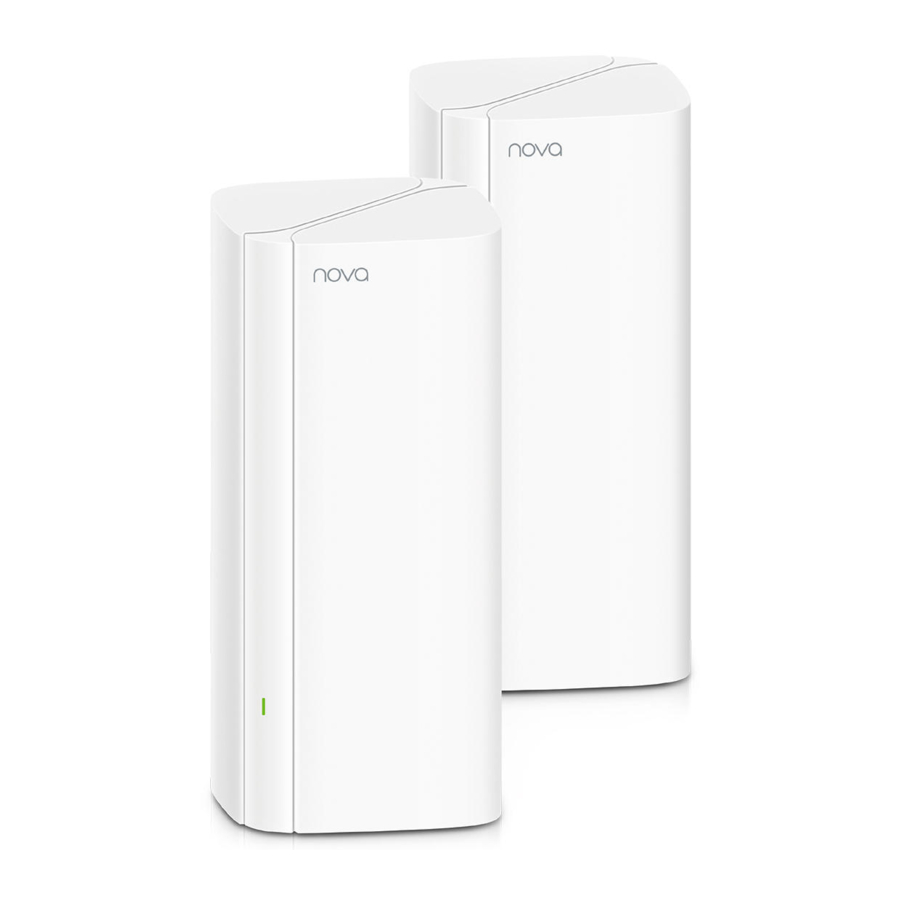
- Mesh6X x 3
- Power adapters x 3
- Ethernet cable x 1
- Quick installation guide x 1
MX6 (2-pack) & EX6 (2-pack)
- Mesh6X x 2
- Power adapters x 2
- Ethernet cable x 1
- Quick installation guide x 1
*Choose one device from the kit to connect to the internet as the primary node in the network.
 Tips
Tips
If you do not use the modem for internet access, please skip step 1 and 3.
- Power off your modem.
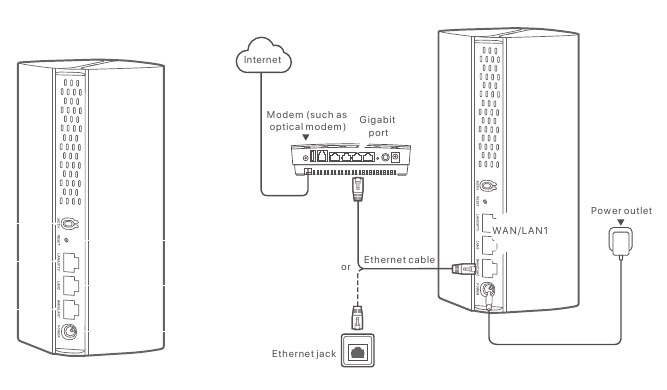
- Use the included Ethernet cable to connect the WAN/LAN1 port to your modem or the Ethernet jack.
- Power on your modem.
- Power on the primary node, and wait until the LED indicator blinks green.
Connect the primary node to the internet
Method 1: Setup through Tenda WiFi App


Or

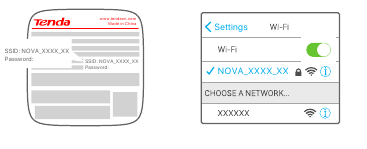
- Download the Tenda WiFi App onto your mobile device by searching for Tenda WiFi in Google Play or App Store or by scanning the QR code. Then install the Tenda WiFi App.
- Connect the mobile phone to the WiFi network of the primary node. The SSID and password can be found on the bottom label of the device.
- Run theTenda WiFi App and follow the onscreen instructions to connect the device to the internet. After the device is connected to the internet, its LED indicator lights solid green, and the device has become the primary node in the network.
Method 2: Setup through web UI
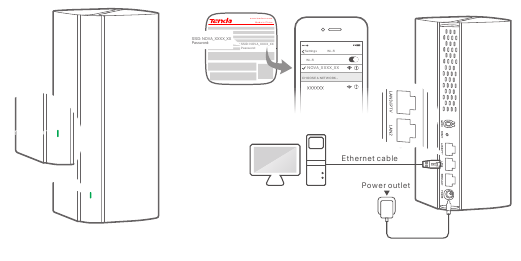
- Connect the client to the primary node.
Method 1: Connect the wireless client such as mobile phone to the WiFi network of the the primary node. The SSID and password can be found on the bottom label of the device.
Method 2: Use an Ethernet cable to connect the computer to the LAN2 or LAN3/IPTV port of the primary node. - Start a browser on the client and enter tendawifi.com in the address bar to access the web UI, and follow the onscreen instructions to connect the device to the internet.
Tips
If you cannot log in to the web UI, refer to Q3 in FAQ.
Extend network
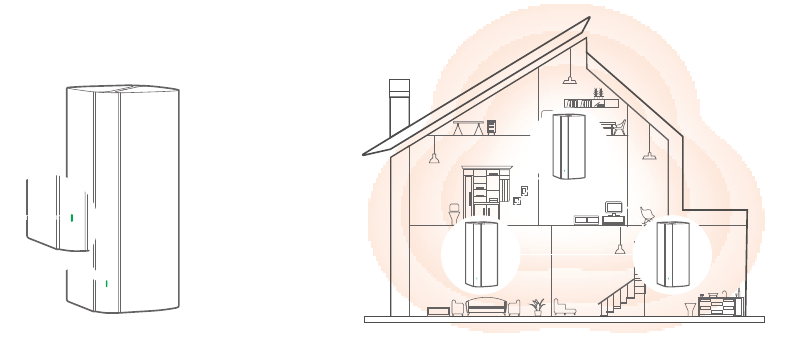
- Place the other devices in the kit within 3 meters from the primary node to power them on. Wait for about 2 minutes. When the LED indicators of these devices light solid green, the networking is successful and these devices become secondary nodes in the network.
- Please refer to the following relocation tips to locate the secondary nodes to a proper position:
- Ensure that the distance between any two nodes is less than 10 meters.
- Keep your nodes away from electronics with strong interference, such as microwave oven, induction cooker, and refrigerator.
- Place the nodes in a high position with few obstacles.
- Power on the secondary nodes again till these LED indicators blink green slowly. The MX6 (3-pack) is taken as an example here.
![information]() Tips
Tips
If the LED indicator of secondary node keeps blinking green slowly for more than 3 minutes, relocate the secondary node and move it closer to the primary node. - Observe the LED indicator of the secondary nodes until the LED indicator lights one of the following colors:
![]()
Solid green Networking succeeds. Excellent connection quality. ![]()
Solid yellow Networking succeeds. Fair connection quality. ![]()
Solid red Networking succeeds. Poor connection quality. - If the secondary node's LED indicator lights solid red, relocate it according to step 2 in III Extend network to get an optimal connection quality.


Done.
- To access the internet with:
- Wired devices: Connect to the LAN ports of your nodes.
- Wireless devices: Connect to your WiFi network using the SSID and password you set. (All nodes share the same SSID and password)
- If you configure the nodes using the Tenda WiFi App and you want to manage the network remotely, tap
![]() on the App home page and use your account to log in.
on the App home page and use your account to log in.
 on the App home page and use your account to log in.
FAQ
Can I add another new set of nodes to expand my network coverage?
Yes. Try the following solutions:
Tips
Please ensure that the new node you want to add has never been used. If not, reset it first.
Method 1: Press the MESH button for about 1 to 3 seconds. The LED indicator blinks green fast, which indicates the device is searching for another device to form a network. Within 2 minutes, press the MESH button of another device for 1 to 3 seconds to negotiate with this device.
Method 2: Run the Tenda WiFi App and manage the network, tap on  My WiFi page, and follow the on-screen instructions.
Method 3: Log in to web UI of the node, tap on Network Status page, and follow the onscreen instructions.
How to restore my device to factory settings?
When your device is working properly, hold down the RESET button of your device using a needle-like item (such as a pin) for about 8 seconds, and release it when the LED indicator blinks red fast. When the LED indicator lights solid green, your device is reset successfully.
I cannot log in to the web UI by visiting tendawifi.com, what should I do?
Try the following solutions:
- If you are using a wireless device, such as a smart phone:
- Ensure that it is connected to the WiFi network of the node.
- Ensure that the cellular network (mobile data) of the client is disabled.
- If you are using a wired device, such as a computer:
- Ensure that tendawifi.com is entered correctly in the address bar, rather than the search bar of the web browser.
- Ensure that the computer is connected to the LAN port of the node properly using an Ethernet cable.
- Ensure that the computer is set to obtain an IP address automatically and obtain DNS server address automatically.
If the problem persists, please reset the node and try again.
Reset method: When the device completes startup, hold down the RESET button using a needle-like item (such as a pin) for about 8 seconds, and then release it when the LED indicator blinks red fast. The device is reset successfully.
The device failed to be detected by the Tenda WiFi app upon my first time of using the device, what should I do?
Try the following solutions:
- Ensure that your mobile phone is connected to the default WiFi network of the device.
- Ensure that the network permissions ofTenda WiFi app is enabled, you can tap Settings > Tenda WiFi to enable it. If the problem persists, please reset the node and try again.
| Button | Description |
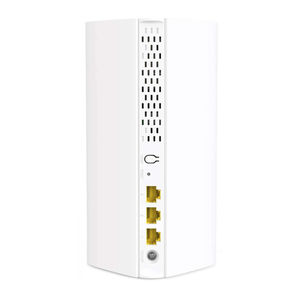
| MESH | MESH button.
|
| RESET | Reset button. When the device completes startup, hold down this button using a needle-like item (such as a pin) for about 8 seconds, and then release it when the LED indicator blinks red fast. The device is reset successfully. |
LED indicator status
After the device is powered on for about 40 seconds, the system completes startup. The status of the LED indicator is shown in the following table.
| LED indicator status | Description |
| Solid green | Connected to the internet. |
| Solid yellow | Networking succeeds. Fair connection quality. |
| Solid red | Networking succeeds. Poor connection quality. |
| Blinking green slowly | Connecting to other nodes or waiting to connect to other nodes. |
| Blinking green fast | Networking by MESH button. |
| Blinking red slowly | Failed to connect to the internet. |
References


Download manual
Here you can download full pdf version of manual, it may contain additional safety instructions, warranty information, FCC rules, etc.
Download Tenda MX6, EX6 Manual