How to Manage Call Notifications on Samsung Galaxy Fit 3
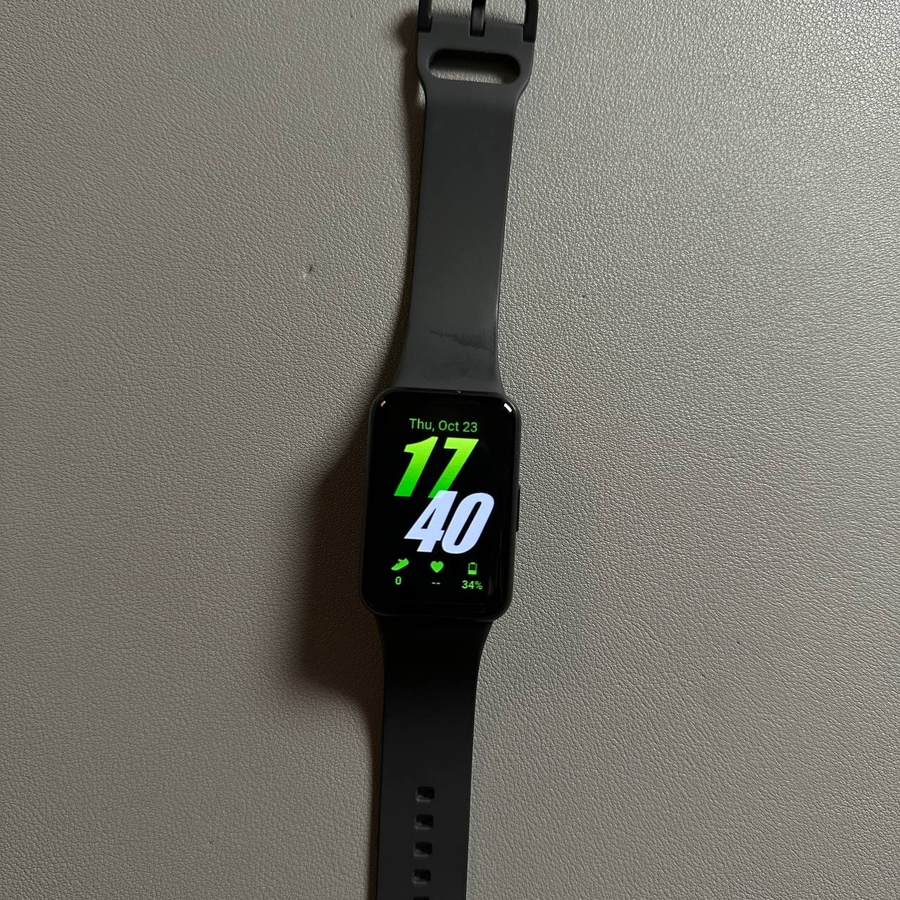
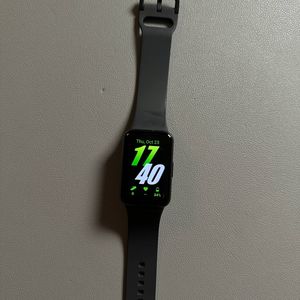
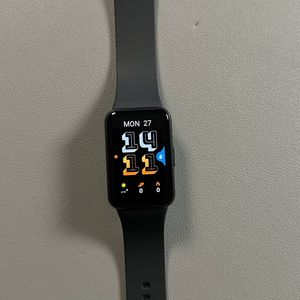
The Samsung Galaxy Fit 3 is a fantastic fitness tracker that, while not capable of handling calls directly, can effectively alert you to incoming calls on your connected smartphone. This feature allows you to stay informed about calls without needing to reach for your phone constantly. In this guide, we'll take you through the steps to ensure your Galaxy Fit 3 is set up to receive call notifications seamlessly.
Step 1: Connect Your Samsung Galaxy Fit 3 to Your Smartphone
To start receiving call notifications on your Samsung Galaxy Fit 3, you must first ensure that it is connected to your smartphone. Begin by ensuring that Bluetooth is enabled on your smartphone. Next, open the Samsung Wearable app on your device, and pair it with your Galaxy Fit 3 if you haven't already. Establishing this connection is crucial for enabling notifications on your wearable device.

Step 2: Enable Notifications for Your Samsung Galaxy Fit 3
Once your devices are connected, it's time to configure the notification settings. In the Samsung Wearable app, tap on the 'Band Settings' (band settings), and then navigate to 'Notifications' (notifications). Here, you'll see an option labelled 'App Notifications' (app notifications). Make sure this option is toggled on to allow your Galaxy Fit 3 to receive call alerts from your connected smartphone.


Step 3: Verify Call Notifications on Your Galaxy Fit 3
After enabling notifications, you can verify the setup by checking if your Samsung Galaxy Fit 3 displays alerts for incoming calls. When a call is received on your smartphone, the Galaxy Fit 3 will vibrate and show a notification on its screen. It is important to remember that, as the device lacks a microphone and speakers, it cannot answer calls directly. However, it keeps you informed and allows you to respond using the connected phone itself.