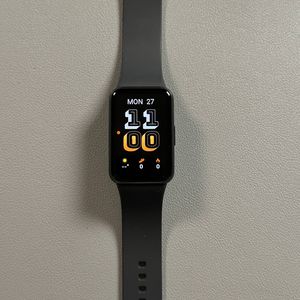
Samsung Galaxy Fit 3 - How to Download Watch Faces
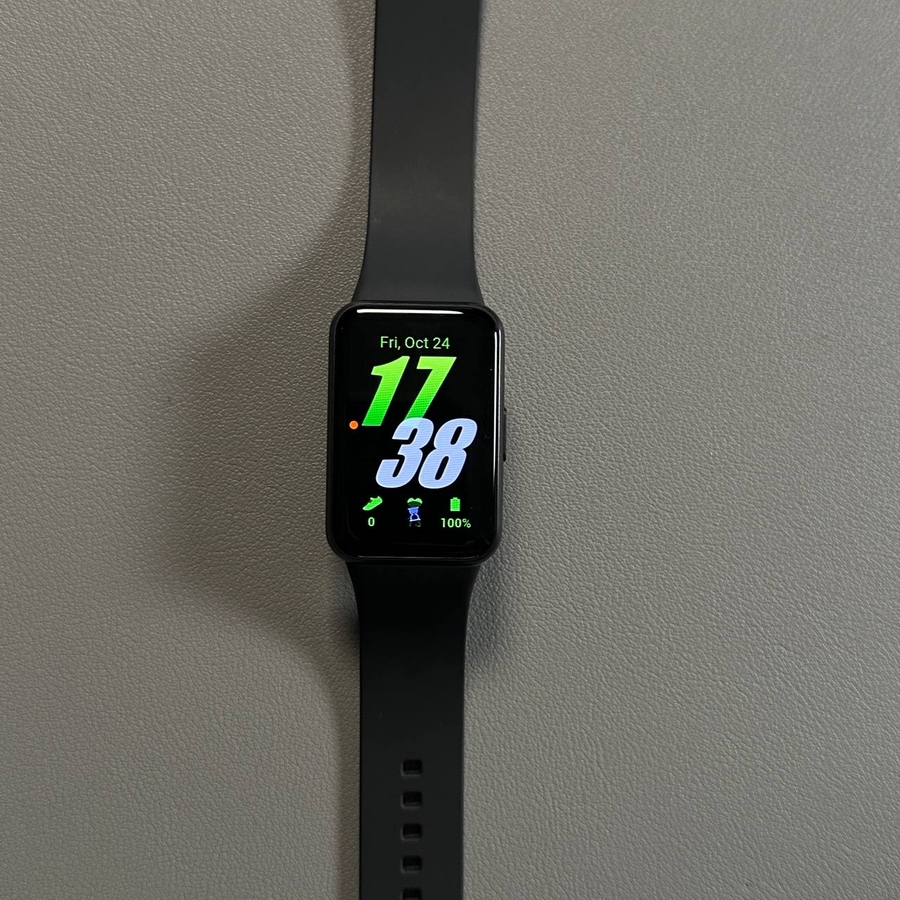
Your Samsung Galaxy Fit 3 comes with a stylish selection of watch faces that allow you to personalise your fitness tracker with ease. Whether you prefer a sleek minimal look, a classic design, or something vibrant and fun, this guide will walk you through downloading and managing watch faces step-by-step. Let's get started!
Ensure Your Device is Connected
Before downloading watch faces, it's essential to confirm that your Galaxy Fit 3 is correctly connected to the Samsung Galaxy Wearable app. Begin by launching the app on your smartphone. If your fitness band is connected successfully, it should appear on the main interface of the app.

Access the Watch Faces Section
Once you see your Galaxy Fit 3 displayed, tap on the 'Watch faces' option. This will lead you to various categories of available designs. The categories are organised for easy browsing, and you can explore them by swiping downwards, left, or right within each section. Find a watch face that appeals to your style.

Add a New Watch Face
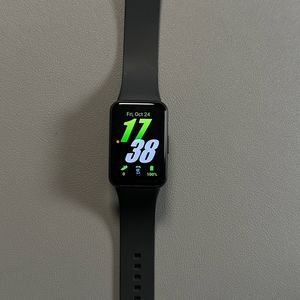
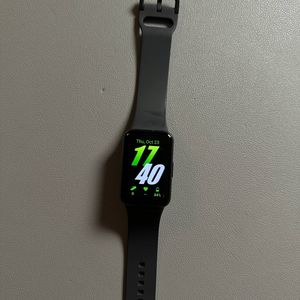
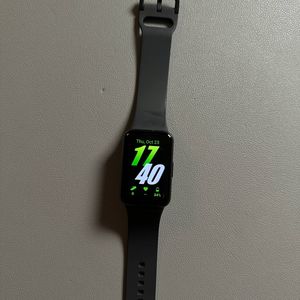
After deciding which watch face you'd like to add, simply tap on it to select it. Then, press the 'Add' (add) button, and the watch face will be applied to your Galaxy Fit 3. This process will allow for a seamless transition to the new design on your fitness tracker.

Managing Your Watch Faces
To organise your watch faces, navigate to the page's top and find the 'Favorites' (favourites) option marked by a blue button labelled 'Manage' (manage). By selecting this option, you can edit your collection of watch faces, remove any you no longer prefer, or select a different one as needed. To remove an old watch face, simply tap the small cross icon next to it.


Finalizing Your Setup
Once you've customised your watch faces to your liking, close the Galaxy Wearable app. Now, check your Galaxy Fit 3 to see the new watch face in action. This customisation allows you to keep your device fresh and aligned with your personal taste. Enjoy your newly personalised Samsung Galaxy Fit 3!