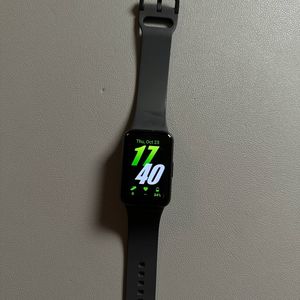
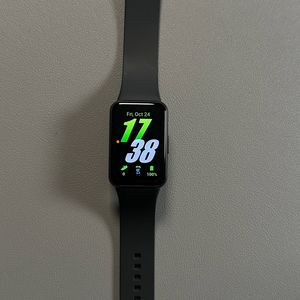
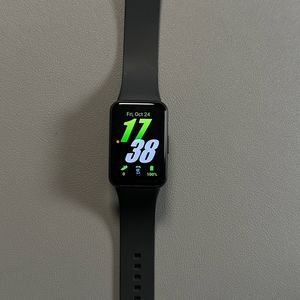
How to Factory Reset Your Samsung Galaxy Fit 3
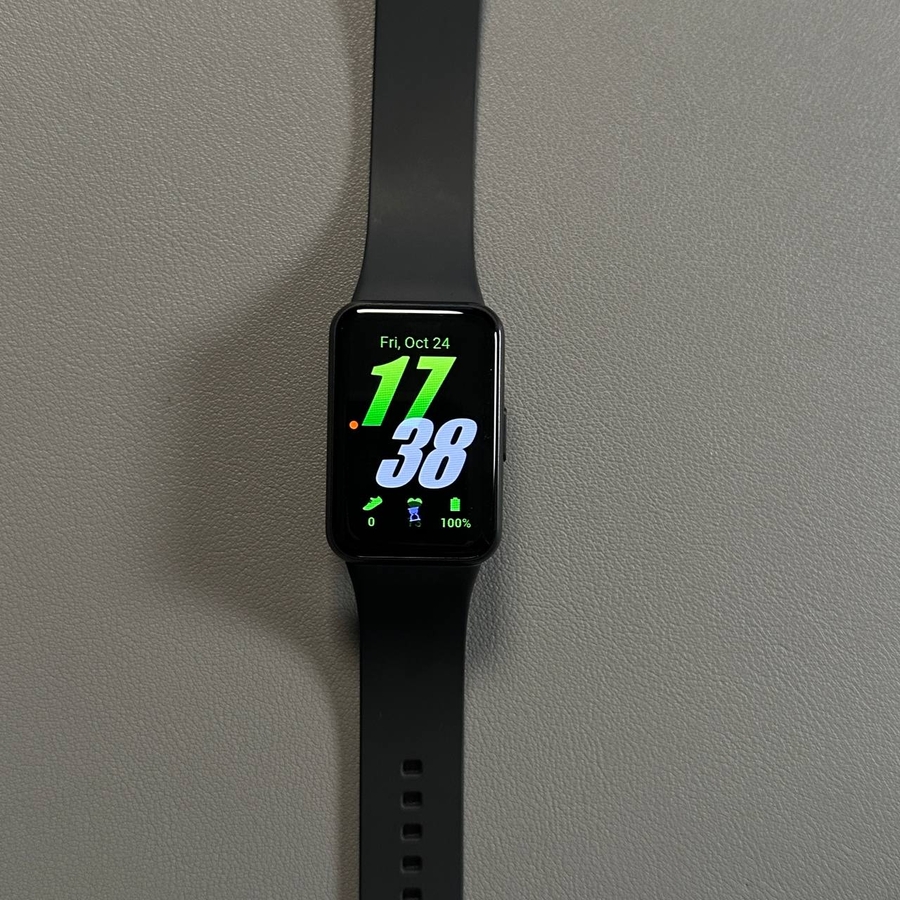
Welcome to our detailed guide on how to factory reset your Samsung Galaxy Fit 3. Whether you're handing it off to a new owner or trying to troubleshoot persistent issues, restoring your device to its original factory settings can be helpful. Follow these simple steps to ensure a complete reset of your device.
Step 1: Initiating the Reset on Your Samsung Galaxy Fit 3
To begin, you'll need to access the settings on your Galaxy Fit 3. Start by waking your device. Once it's on, swipe up from the bottom of the screen. Among the icons, look for the "General" settings section, and then tap on "Reset."


Step 2: Decide on Backing Up Your Data
Next, you'll see an option to back up your data. Consider your goals – if you are resetting because you plan to give the device to someone else, you may not need to back up your data. However, if you are resetting to troubleshoot issues and plan to continue using the device, it's wise to back up your data to avoid losing important information.
Step 3: Execute the Reset
Once you've made your decision regarding data backup, swipe up to find the "Reset" (reset) option at the bottom. Tap on "Reset" (reset) to initiate the factory reset. This process will be relatively quick, as the Galaxy Fit 3 does not hold much data. Allow the reset process to complete.
 Congratulations! Your Samsung Galaxy Fit 3 has now been reset to its factory settings and can be easily set up as a new device or passed on to someone else.