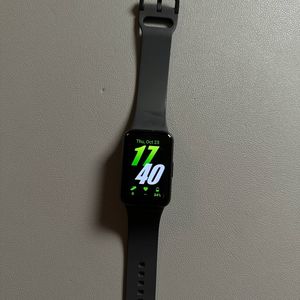
How to Update Your Samsung Galaxy Fit 3
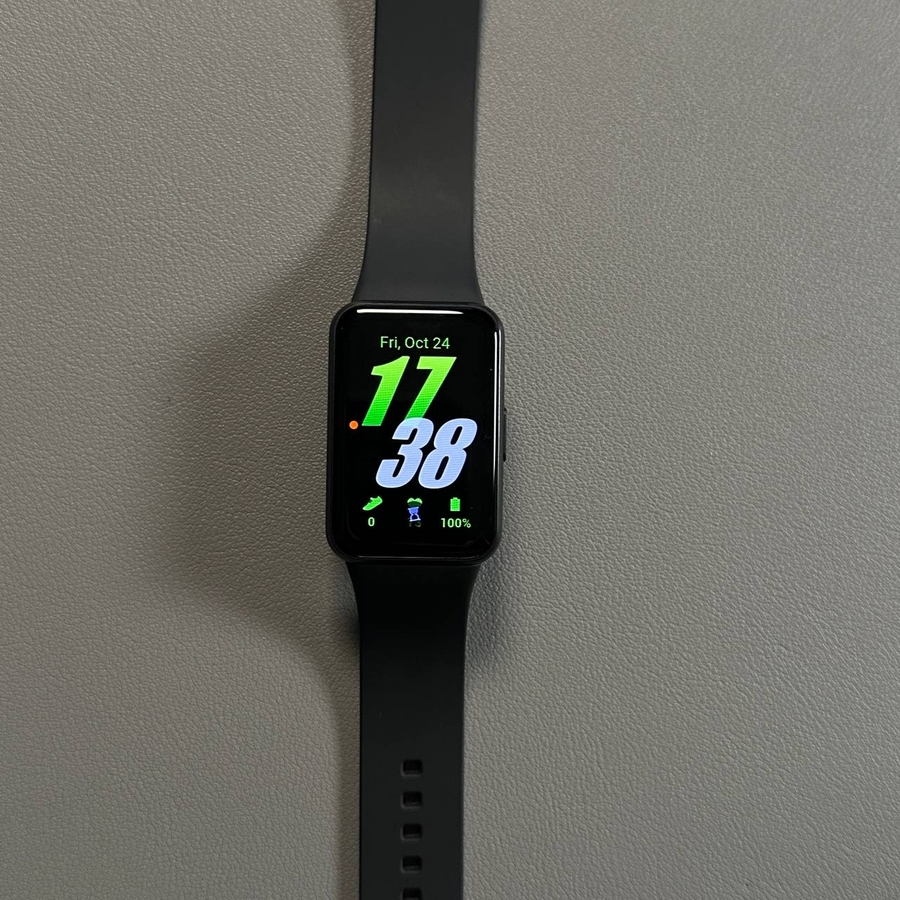
If you own a Samsung Galaxy Fit 3 and are curious about keeping it updated with the latest features and improvements, this guide is for you. We'll walk you through the process of updating your wearable device both manually and automatically. Let's make sure you enjoy the best experience with your Galaxy Fit 3 by keeping it up to date.
Launching the Galaxy Wearable App
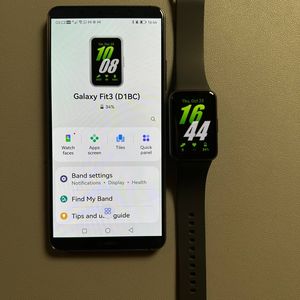
To begin, unlock your smartphone and look for the Galaxy Wearable app. This app is essential for managing and updating your Samsung wearable devices. You can find its icon on your home screen or by searching within the app drawer. Tap on the app to launch it.

Accessing Band Settings
Once the Galaxy Wearable app is open, navigate to the main menu and look for the option labelled "Band Settings". This section allows you to manage various settings specific to your Galaxy Fit 3. Tap on "Band Settings" (band settings) to proceed.

Checking for Software Updates
In the "Band Settings" (band settings) menu, find and select the option that says "Band Software Update". This will take you to the update section where you can check if there are new updates available for your device.

Downloading and Installing Updates
Once you're in the software update section, tap on "Download and Install" (download and install). If there are any updates available, your Samsung Galaxy Fit 3 will start downloading them automatically. You can choose to update via Wi-Fi only or use both Wi-Fi and mobile data. The phone will download the updates and send them to your device promptly.


Automatic Updates Installation
For an effortless experience, know that updates are usually installed automatically overnight, typically between 8 p.m. and 8 a.m. This means you can wake up to a refreshed device ready to go with the latest tweaks and enhancements. Make sure your device is connected and ready to receive these updates without interruption.

We hope this guide helps you keep your Samsung Galaxy Fit 3 updated smoothly.