Samsung Galaxy Fit 3: How to Enable or Disable Water Lock Feature
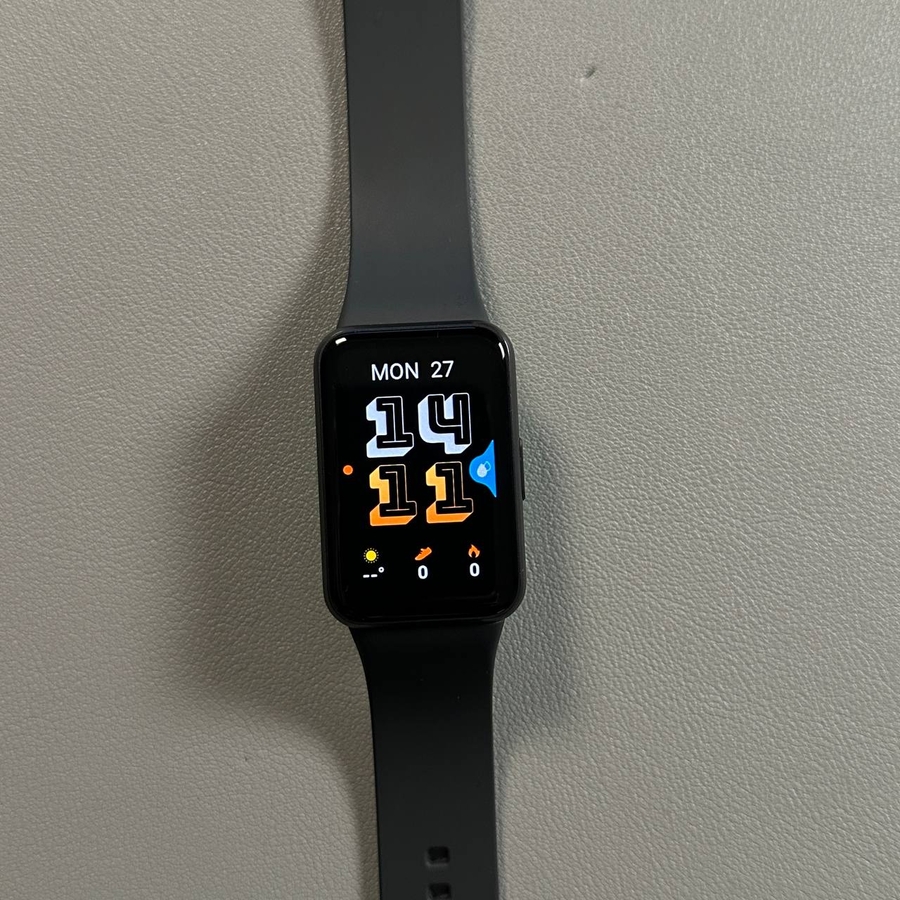
The Samsung Galaxy Fit 3's Water Lock mode is designed to prevent your device from unwanted activation when submerged in water. Follow this guide to effortlessly activate or deactivate this feature, ensuring your device functions appropriately during swimming sessions.
Step 1: Access Settings on Your Samsung Galaxy Fit 3
First, ensure your Samsung Galaxy Fit 3 is on and navigate to the main screen. To access the settings, swipe down from the top of the screen to reveal the quick settings menu. This menu provides fast access to various settings and options on your device.

Step 2: Navigate to Advanced Features
Within the quick settings menu, look for the gear icon to enter the main Settings menu. Once you're in settings, scroll down the list until you find 'Advanced Features'. This is where you'll be able to control various advanced functionalities on your device, including the Water Lock mode.

Step 3: Enable Water Lock Mode
Inside the 'Advanced Features', locate the Water Lock option. Simply tap to enable it. Once activated, your Samsung Galaxy Fit 3 will be locked against unintended touches that may occur during swimming or exposure to water.


Step 4: Disabling Water Lock Mode
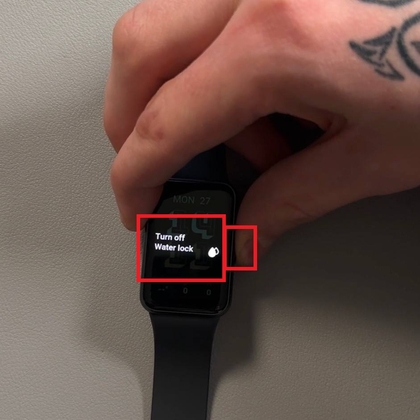
If you're ready to use your fitness band regularly again, disabling Water Lock is simple. Hold down the side button on your Galaxy Fit 3. This action will trigger the Water Lock to turn off, allowing you to interact with your device as usual.