How to Enable or Disable Always-On Display on Samsung Galaxy Fit 3
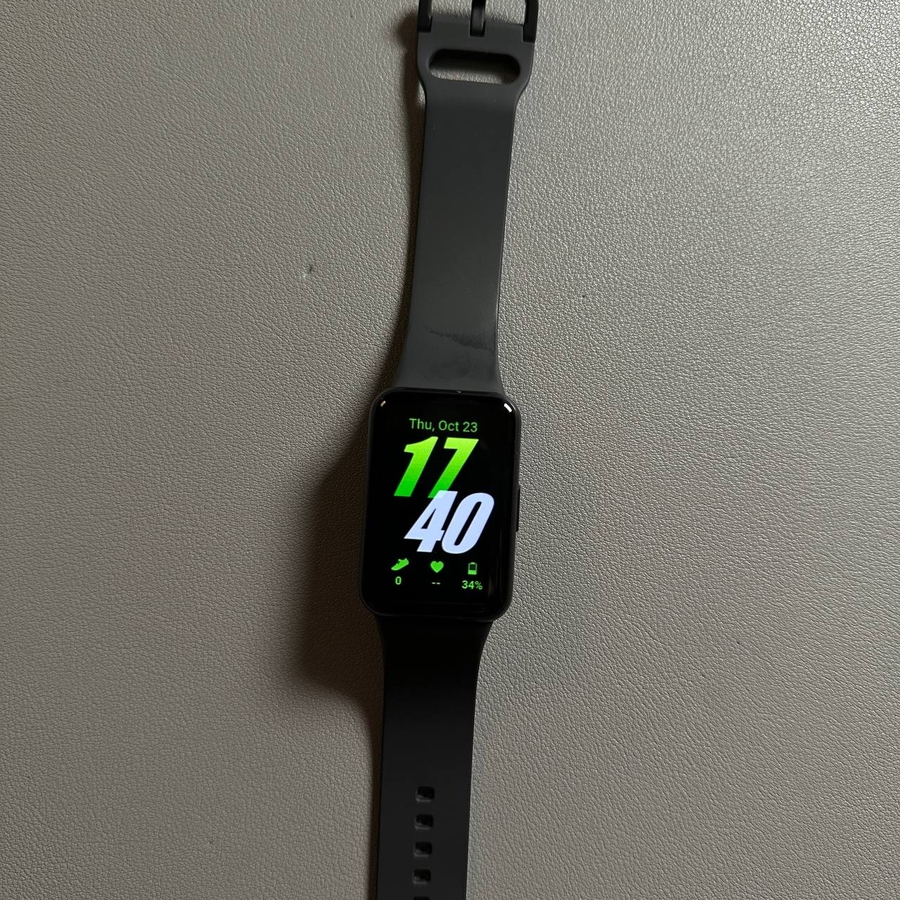
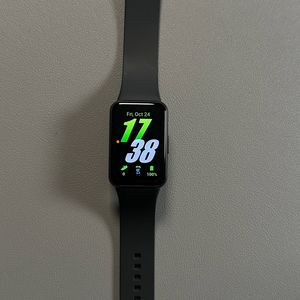
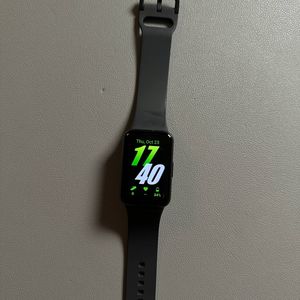
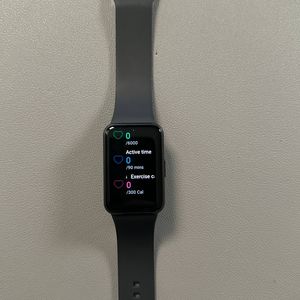
In this guide, we will explore how to enable or disable the Always-On Display feature on your Samsung Galaxy Fit 3. This feature allows your device to display information continuously on the screen without requiring you to interact with it, offering convenience in checking your device. We'll cover three distinct methods to achieve this, ensuring you can choose the most fitting approach for your needs.
Method 1: Using the Quick Access Panel
The quickest way to manage the Always-On Display feature on your Samsung Galaxy Fit 3 is through the Quick Access Panel. To start, unlock your device and swipe down from the top of the screen to reveal the Quick Access Panel. Here, you will see an array of icons. Look for the Always-On Display icon, which appears as a screen with a clock. If the icon is blue, the feature is active. Simply tap the icon to toggle it off—watch as it turns grey, indicating the feature is now disabled. To turn it back on, tap the grey icon, and it will illuminate blue once again, signifying activation.


Method 2: Through the Screen Settings
Another way to control the Always-On Display is directly through the Screen Settings. First, activate your Samsung Galaxy Fit 3 by pressing the side button. Once your device is active, swipe up to access the app screen and tap on the gear icon to open the Settings. Navigate to the 'Display' tab and select it. Within this menu, you will find the option to toggle the Always-On Display on or off. Press the switch to your preferred setting; the position of the switch will indicate whether the feature is activated or deactivated.


 Method 3: Using the Galaxy Wearable App
 The final method involves using the Galaxy Wearable app on your smartphone. Begin by locating and opening the Galaxy Wearable app on your device. Navigate to the 'Band Settings' section by tapping the corresponding tab. Within this section, find and select 'Display'. Here, you will see the option to toggle the Always-On Display feature. By clicking the toggle, you can easily enable or disable the feature as desired.