How to Change App Icon Colors on Nothing Phone (3)
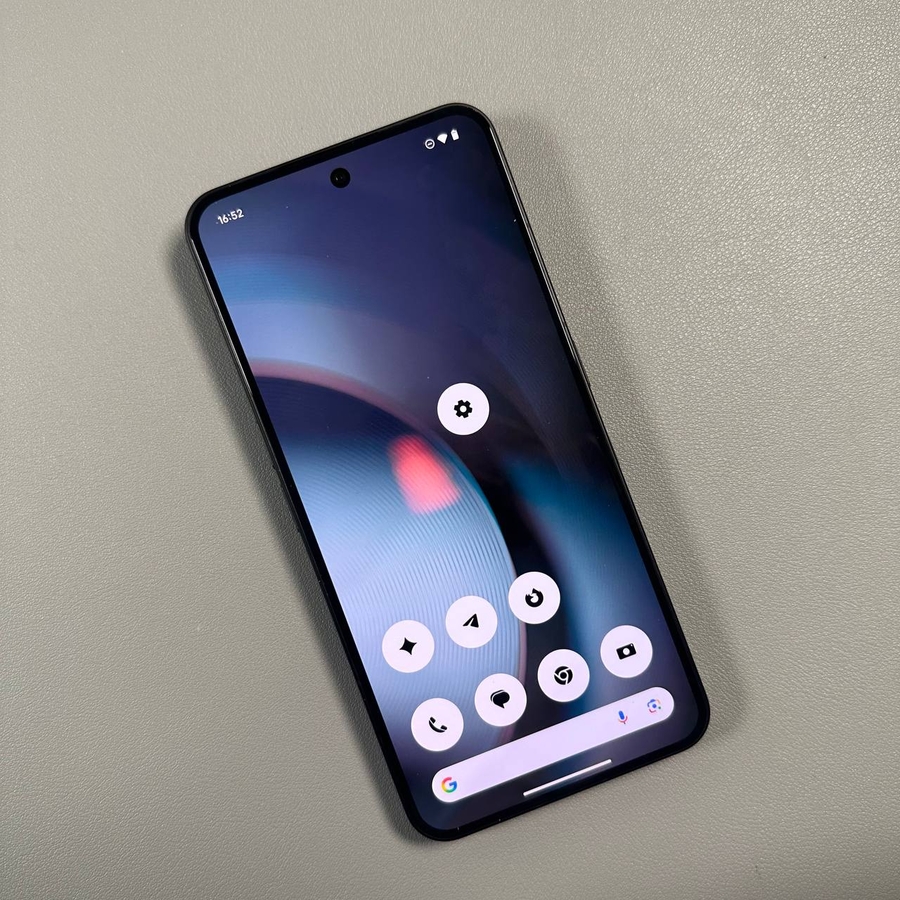
The Nothing Phone (3) offers a unique and highly customizable user experience, including the ability to change the style of your app icons. The default Nothing OS aesthetic features a striking monochrome, or black-and-white, look. However, if you prefer the standard colored icons or want to apply the Nothing style to more of your installed apps, you can easily switch the icon pack through the customization settings. Follow this quick guide to tailor your home screen's look.
Steps to Change Your Icon Pack
Changing the icon pack on your Nothing Phone (3) is straightforward and can be done right from your home screen.
1. Access Customization Settings
To begin, long-press on an empty space on your home screen. A pop-up menu will appear at the bottom of the screen.

In the pop-up window, tap on Customization.
2. Go to Icon Pack
The Customization menu will open, showing various options for your phone's appearance. Tap on Icon Pack.

3. Choose Your Desired Icon Style
Here, you'll see your available icon pack options, usually including the default Android style and Nothing's unique monochrome pack. You can choose from the following:
- Select Default to revert to the standard, colored icons for all your apps.
- Select Nothing icon pack to apply the monochrome, pixel-art style to system apps and, in many cases, force this style onto third-party app icons for a consistent look.

The icons will update instantly as you select an option.
4. Return to the Home Screen
Once you've made your selection, simply return to the home screen. You'll see the icon colors have been updated to your chosen pack.

We hope this article was helpful in customizing your Nothing Phone (3). Thank you so much for reading!