Samsung Galaxy Fit 3: How to Track Calories
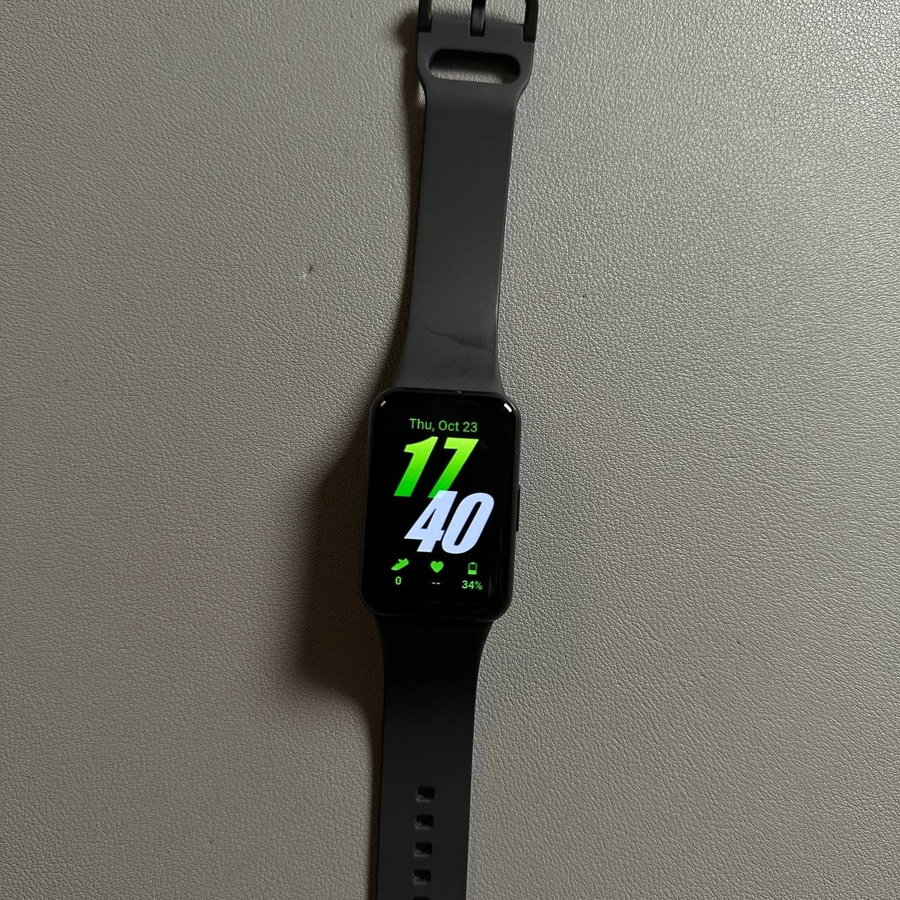
Welcome! Today, we're going to explore how you can track the number of calories burned on your Samsung Galaxy Fit 3. This feature is a fantastic way to keep an eye on your daily activity levels and ensure that you're staying healthy and active. Let's dive right in!
Step 1: Access the Main Menu
To begin, unlock your Samsung Galaxy Fit 3 by pressing the side button. This will wake up the display, allowing you to navigate through the features available on your fitness tracker.

Step 2: Find the Health Bar
After unlocking the device, gently swipe up on the screen. This action will reveal additional menu options. Keep swiping until you find the 'Health Bar' option in the list of features.

Step 3: View Your Daily Activity
Tap on the 'Health Bar' section. Here, you will see a detailed overview of your daily activity, including the number of calories burned for that day and a progress chart that displays your activity over time.

Step 4: Explore More Details
If you wish to delve deeper into your activity data, click on the calorie count. This will provide you with more information, such as the number of steps taken, your active time, and the specific number of calories burned.

Step 5: Check the Activity Widget
To return to the main screen, swipe right. Here, you will find a convenient widget that displays an activity overview alongside the number of calories burned in a chart format.

Step 6: Powering Off the Display
Once you've finished reviewing your activity data, you can turn off the display by pressing the side button again. This will help conserve battery life on your Samsung Galaxy Fit 3.
We hope this guide has helped you understand how to track your daily calorie burn efficiently using your Samsung Galaxy Fit 3. Stay active and healthy!