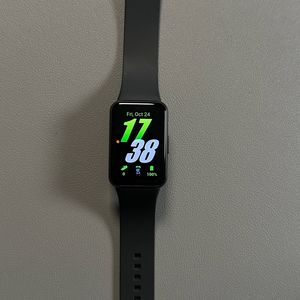
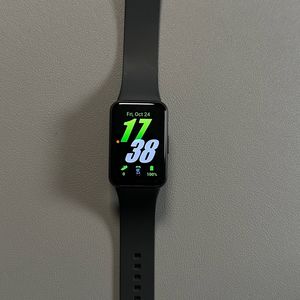
How to Enable Android Phone Notifications on Your Samsung Galaxy Fit 3
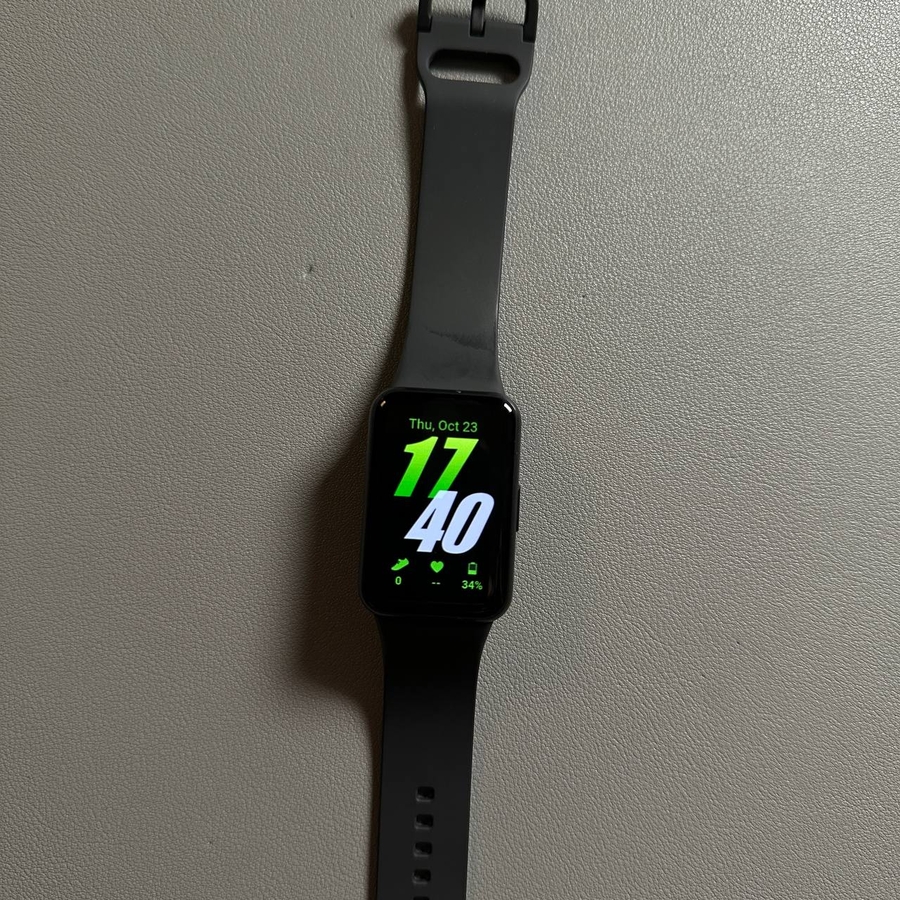
Your Samsung Galaxy Fit 3 is a powerful accessory that can help keep you informed without having to constantly check your phone. In this guide, we'll walk you through the steps to enable Android phone notifications so you can receive alerts directly on your wrist. Follow these instructions to seamlessly connect your devices and customize notifications to suit your needs.
Step 1: Ensure Your Galaxy Fit 3 is Connected
To get started, make sure that your Samsung Galaxy Fit 3 is connected to your Android smartphone via the Galaxy Wearable app. If you haven't connected them yet, please download the Galaxy Wearable app from the Google Play Store, install it, and pair your devices by following the on-screen instructions.

Step 2: Open the Galaxy Wearable App
Once your devices are connected, open the Galaxy Wearable app on your Android smartphone. You will be prompted to grant the app permission to access your notifications. Be sure to tap 'Allow' to proceed with the setup process.
Step 3: Access Notification Settings
In the Galaxy Wearable app, look for a section called 'Band Settings'. Tap on it to access notification settings. Here, find and select 'Notifications' to customize which apps can send alerts to your Galaxy Fit 3, then, select 'App notifications'.


Step 4: Choose Your Apps
Within the 'App Notifications' section, you can toggle notifications on or off for individual apps or all apps at once. For example, to receive notifications from Gmail, Google, and your messaging app, ensure those specific apps are toggled on.

Step 5: Set Alerts and Advanced Options
Next, you'll want to configure when notifications are shown on your Galaxy Fit 3. Under 'Show Phone Notifications on Band,' choose to receive alerts when your phone is not in use or even while you're actively using your phone. Additionally, explore 'Advanced Notification Settings' to adjust more detailed options such as showing notification indicators and using the screen to display notification details.


Step 6: Test Your Settings
Finally, send yourself a test notification to ensure everything is working as expected. Your Samsung Galaxy Fit 3 should now effectively notify you of important alerts, right on your wrist!