How to Connect Samsung Galaxy Fit 3 to an Android Device
- 1 Step 1: Power On Your Samsung Galaxy Fit 3
- 2 Step 2: Prepare Your Android Phone
- 3 Step 3: Install the Galaxy Wearable App
- 4 Step 4: Open the Galaxy Wearable App
- 5 Step 5: Pair Your Devices
- 6 Step 6: Install Galaxy Fit 3 Plugin
- 7 Step 7: Log in to Your Samsung Account
- 8 Step 8: Configure Settings and Permissions
- 9 Step 9: Finalize the Setup
- 10 In Other Languages
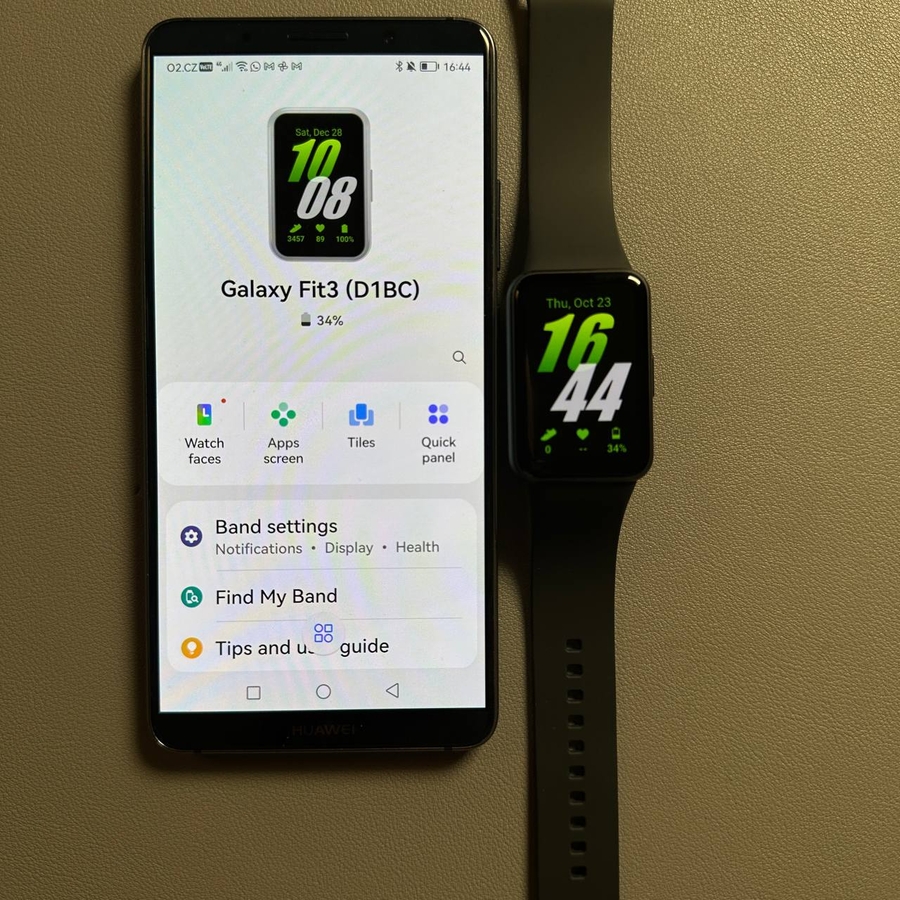
Welcome! In this guide, we'll take you through the process of pairing your Samsung Galaxy Fit 3 smart band with an Android phone. Whether you are new to smart bands or simply need a refresher, this guide will walk you through each step, ensuring a seamless setup experience.
Step 1: Power On Your Samsung Galaxy Fit 3
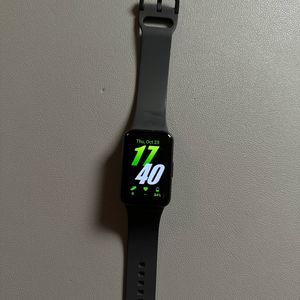
To begin, ensure your Samsung Galaxy Fit 3 is powered on. You can do this by pressing and holding the side button on the band until the Samsung logo appears on the screen. Once the device powers up, a welcome message should greet you.
Step 2: Prepare Your Android Phone
Make sure your Android phone is connected to the internet and that Bluetooth is enabled. This will ensure a smooth connection between your devices.

Step 3: Install the Galaxy Wearable App
Open the Google Play Store on your phone. Tap on the search bar and type "Galaxy Wearable". Tap on the search icon, and you'll see the app listed in the results. Select "Install" to download the application.

Step 4: Open the Galaxy Wearable App
Once the installation is complete, open the Galaxy Wearable app. Tap "Continue" and allow any required permissions such as location and notifications for optimum performance.

Step 5: Pair Your Devices
The app will start searching for nearby devices. Once it finds your Galaxy Fit 3, tap to select it. A code will appear on your watch and a notification will pop up on your phone. In case the notification doesn't appear automatically, ensure to check the notification panel on your phone.


Step 6: Install Galaxy Fit 3 Plugin
If prompted, you will need to install the Galaxy Fit 3 plugin. You will be redirected to the Play Store again. Tap "Install", and once completed, return to the Galaxy Wearable app.

Step 7: Log in to Your Samsung Account
To use all the features, log in with your Samsung account. If you don't have one, you can easily create it within the app. Follow the on-screen instructions to complete this step.

Step 8: Configure Settings and Permissions
Next, customize your preferences like preferred wrist and button position for your Galaxy Fit 3. You'll also have the chance to configure additional settings and permissions such as notification access, which allows you to receive alerts from your phone directly on your smart band.
Step 9: Finalize the Setup
Agree to the necessary terms and conditions, and complete the setup process. Your Samsung Galaxy Fit 3 should now be successfully paired with your Android device, ready to use its features. If any notification requests persist, follow on-screen prompts to allow access.

Congratulations! You have successfully paired your Samsung Galaxy Fit 3 with your Android phone.