How to Set an Alarm Clock on Samsung Galaxy Fit 3
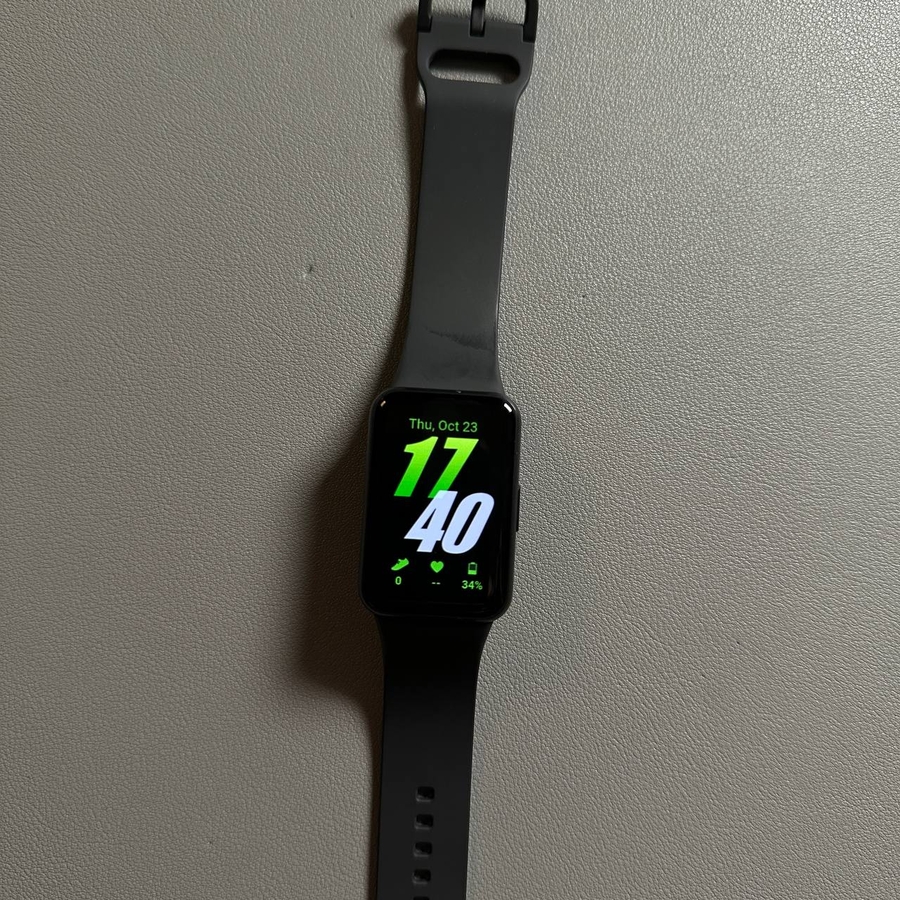
Welcome to our simple and user-friendly guide on setting up an alarm on your Samsung Galaxy Fit 3. With just a few steps, you can ensure that you never miss an important reminder or wake-up call. Follow along to set your alarm quickly and efficiently.
Step 1: Access the Alarm Feature
To begin setting an alarm on your Samsung Galaxy Fit 3, unlock your device and swipe up on the screen to bring up the menu options. Look for the 'Alarm' tab, which is typically represented by a clock icon. Tap on it to enter the alarm settings.

Step 2: Add a New Alarm
Once you are in the alarm settings, press the 'Add' button to create a new alarm. You will be guided to a screen where you can set your preferred alarm time by adjusting the hours and minutes. Make sure to select a time that suits your schedule.


Step 3: Configure Repeat and Snooze Options
After setting the time, you have the option to specify the days on which the alarm should repeat. Tap on the 'Repeat weekly' option to choose specific days such as weekdays or weekends. Additionally, you may enable or disable the 'Snooze' feature and adjust its interval to suit your preference.

Step 4: Save Your Alarm
After reviewing your settings, press the 'Save' button to confirm and activate your alarm. Your Samsung Galaxy Fit 3 will now alert you at the specified time.

Step 5: Deleting an Alarm
If you ever need to remove an alarm, simply press and hold the desired alarm from the list, then tap 'Delete'. This will remove the alarm from your device. Once you're done, you can press the side button to return to the home screen.

We hope this guide has been helpful in getting your Samsung Galaxy Fit 3 ready with a functional alarm.